cmotion cGate
Overview
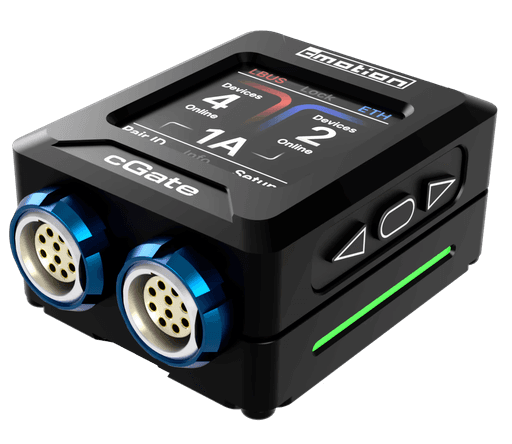
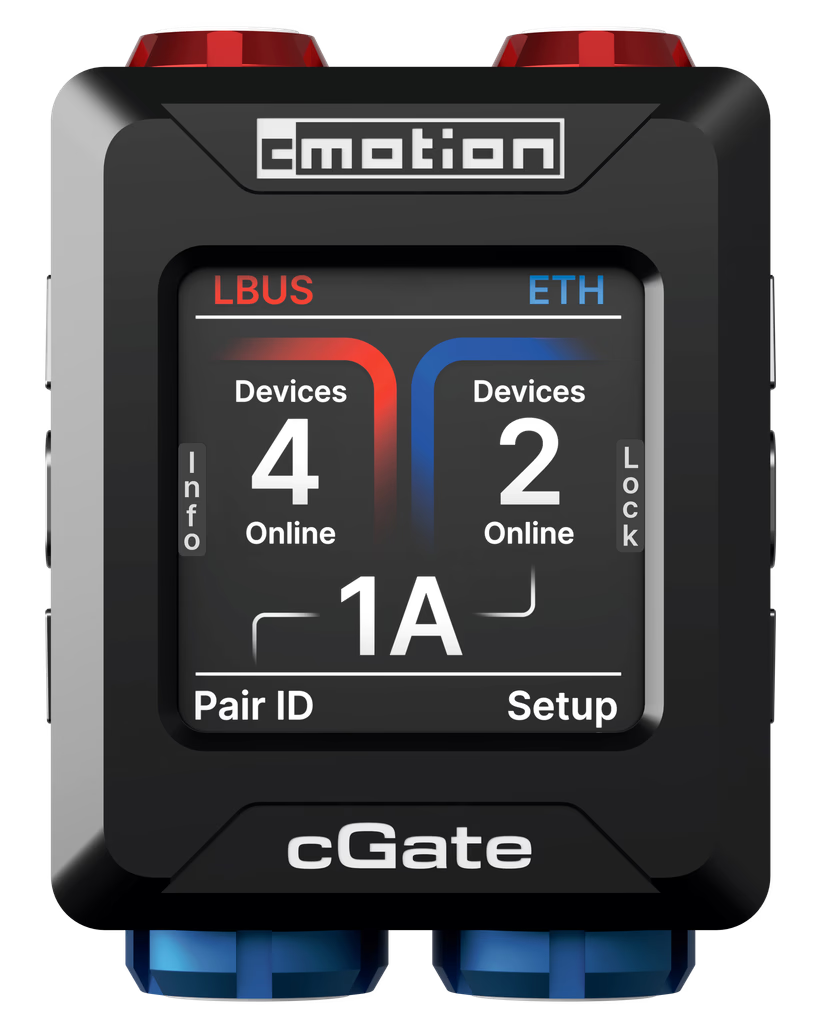
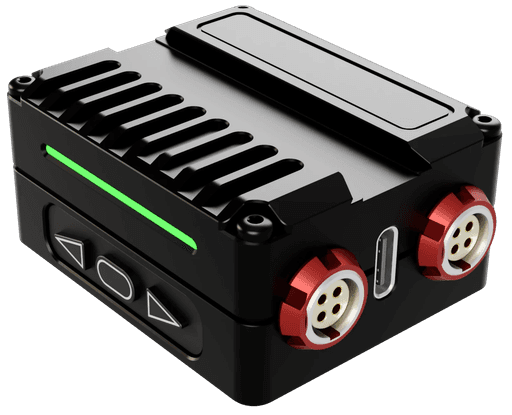
The cgate needs to have a Cyanview compatible firmware (v2.0.0 or above)
Wiring
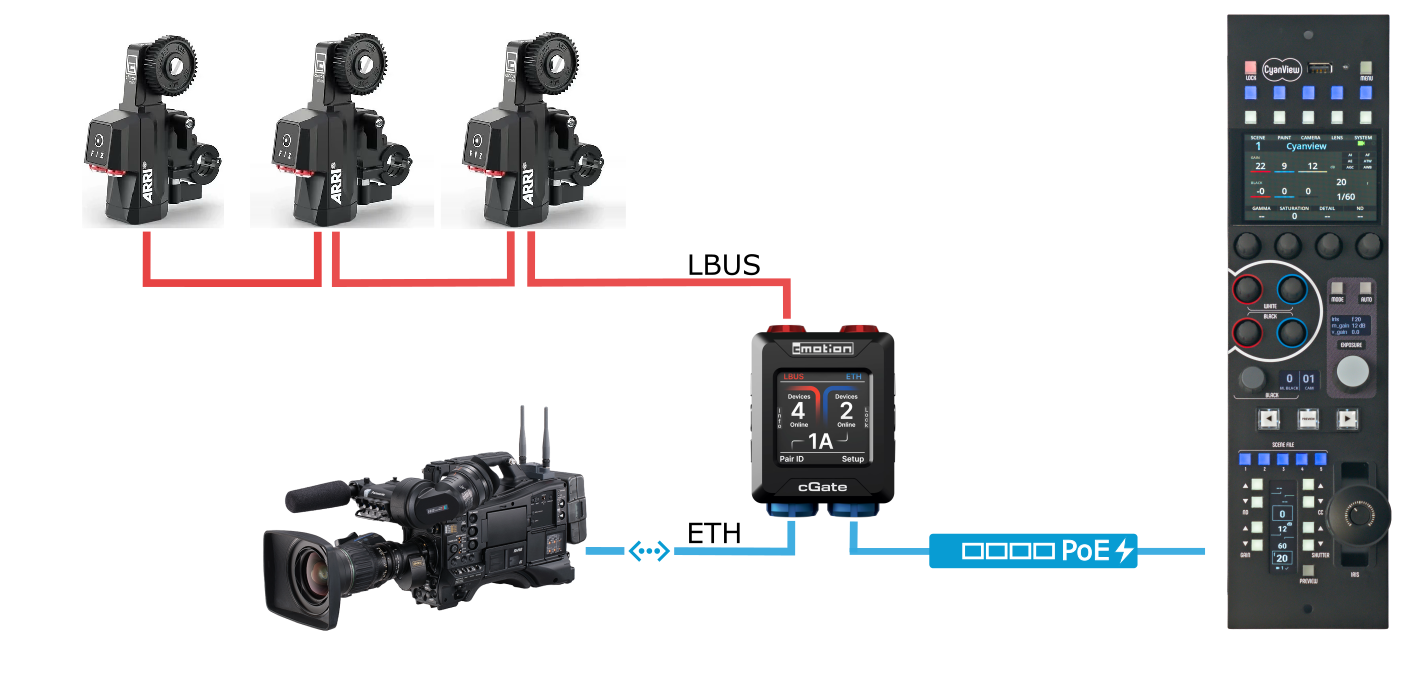
- Connect the cgate ethernet to the same network as the RCP/RIO.
- The wiring of the motor(s) on the LBUS side of cgate is as in the cForce.
- Up to 3 motors connected to the cGate
- Provide power through for the cGate and motors the LBUS
optional:
- add blackmagic handles (so iris is done on RCP and zoom/focus with the blackmagic handles)
Setup
On an existing camera, scroll to Lens - External control override section:
Model: selectcmotion - cGate- Toggle Advanced Mode
Advanced: put the ip address of the cgate. When done, theInterfaceshould update to the ip address. Make sure that the ip address of the cgate is reachable by the RCP, see this page for more information about ip configuration.
If everything is properly configured, the lens block should turn green:
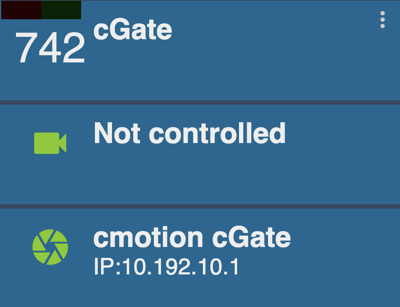
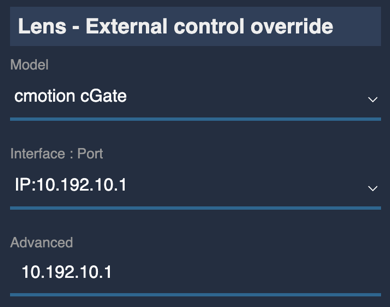
Here the camera head is "Not controlled", so I just have read/write of iris/zoom/focus. But I could combine it with any camera control.
The default setup provides iris control with the following parameters :
- iris values from
1.6to32 - Torque setting
2 - Motor direction
left
All motors are automatically discovered.
Follow the Advanced setup section to add other axis or change parameters.
Advanced setup
By default:
- iris + zoom + focus are controlled
- iris 1.6 to 32 with torque 2, direction left
- zoom torque 2, direction left
- focus torque 2, direction left
You can alter the configuration, especially to adapt the iris range:
- come back to your lens setup, in the
Advancedfield zoom|iris|focusconfig separated by,(each block should be fully configured: range if applicable, function, torque and direction). If you just configure iris, default focus and default zoom are still applied. To leave a setting unchange you can use "_".- formats:
- iris :
IRIS_MIN:IRIS_MAX:iris:IRIS_TORQUE:IRIS_DIRECTIONIRIS_MINis the minimum iris valueIRIS_MAXis the maximum iris valueIRIS_TORQUEis the torque of the iris motor (1, 2, 3 or 4)IRIS_DIRECTIONis the direction of the iris motor (left or right)
- zoom:
zoom:ZOOM_TORQUE:ZOOM_DIRECTIONZOOM_TORQUEis the torque of the zoom motor (1, 2, 3 or 4)ZOOM_DIRECTIONis the direction of the zoom motor
- focus:
focus:FOCUS_TORQUE:ZOOM_DIRECTIONFOCUS_TORQUEis the torque of the focus motor (1, 2, 3 or 4)FOCUS_DIRECTIONis the direction of the focus motor (left or right)
- examples:
2:8:iris:2:left: iris from 2 to 8, torque is 2, direction is left2:32:iris:2:right: iris from 2 to 32, torque is 2, direction is right1.6:32:iris:_:left,zoom:4:_: iris from 1.6 to 32, direction is left and torque is unchanged. Zoom with torque 4 and direction is unchanged. No focus.1.6:32:iris:2:left,zoom:4:right,focus:2:left: iris and focus with torque 2 and direction left. Zoom with torque 4 and direction right.
- iris :
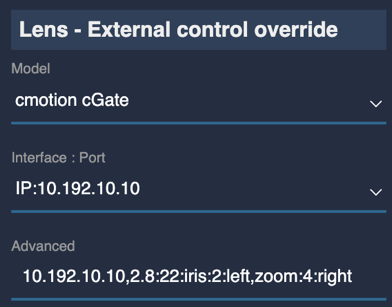
If everything is properly configured and wired, the lens block should appear green.
If you only need to set the iris direction, you still have to set the torque. The only exception is the iris min and max that can be set without torque and direction.
The motor direction is internal the RCP. It will not change the direction setting of the motor itself. That way, you can invert the direction even if you are using the motor on a 3D setup with motors on each side. It is the controller direction and not the motor direction.
Calibration
You can run the motor calibration from the RCP:
This menu is available in MENU > LENS > LENS > ACTION, click on Calibrate
Make sure to have a powerful enough power supply as calibration all the motors at the same time requires a lot of current.
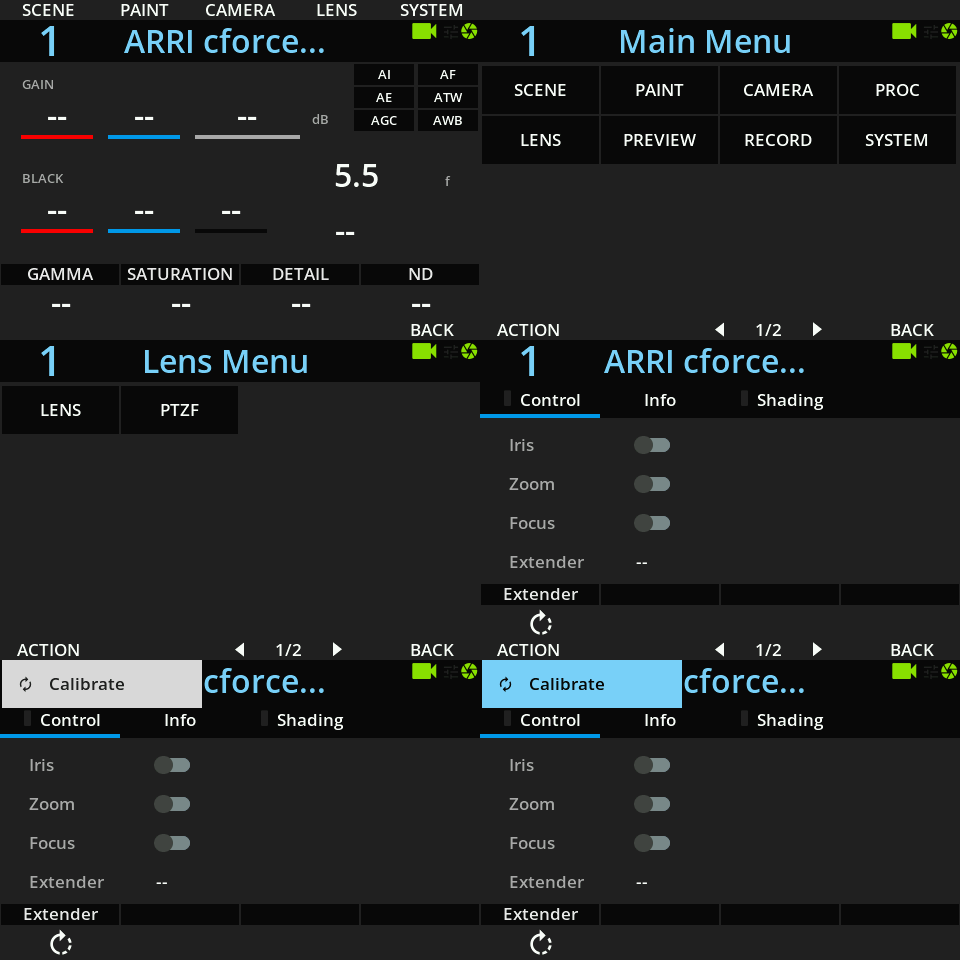
cGate with RCP and HandUnit
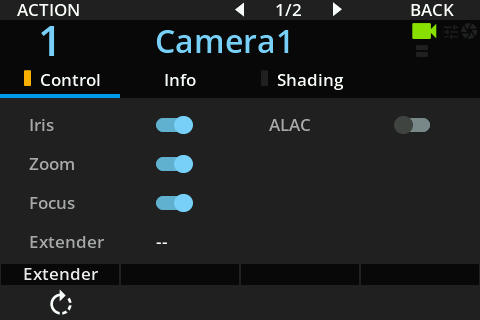
If the RCP and a cmotion Hand Unit both try to control the cgate, the RCP will win by default. In order to give control to the Hand Unit, you can release the cgate from the RCP for specific axis from the menu 'Lens>Lens>Control' and toggle the switches.
Troubleshooting
Lens is green, but nothing happens
There can be several causes :
- Motor not calibrated : inspected the motor led button, it should be green. If it's not the case, perform a calibration either by long pressing the motor button or though the RCP Lens action.
- Wrong advanced setup : if there is a syntax error in the parameters of the motor it can cause an issue. Make sure to follow the exact syntax described in the Advanced setup.
The iris value on the RCP does not match the lens on the camera
The RCP does not know the iris range of the lens. To match the iris value to the lens on the camera follow the Advanced setup