ARRI CAP and Multicam
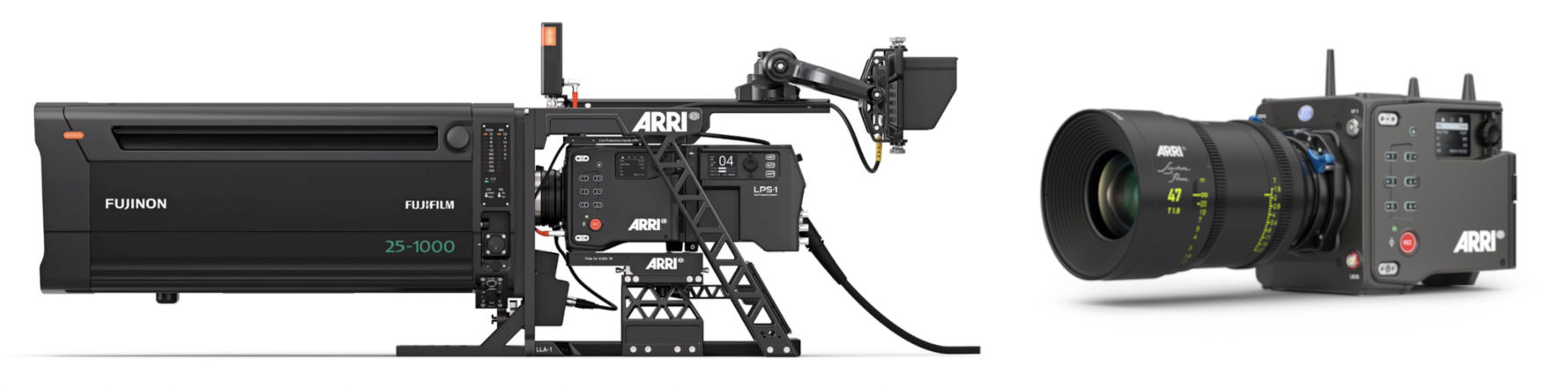
Supported models
- ARRI Alexa 35 Live
- ARRI Alexa 35
- ARRI Alexa Mini
- ARRI Alexa Mini LF
- ARRI Amira (additional controls are available with SSCP)
Alexa 35 Live software is still evolving. Keep camera software and RCP/RIO versions up to date.
Supported controls
The Alexa 35 Live can be used in Multicam mode (requires the Live option, hardware or software).
When Multicam is active, all controls listed below are available.
| Control | Notes | CAP | Multicam |
|---|---|---|---|
| Iris | Iris (T-stop) | ✔ | ✔ |
| ND | ND filter | ✔ | ✔ |
| Shutter | Shutter time/angle | ✔ | ✔ |
| Gain / EI | EI ISO list from camera | ✔ | ✔ |
| Gain Mode | Normal / Enhanced sensitivity | ✔ | ✔ |
| White Balance | Color temperature and tint | ✔ | ✔ |
| White Gain | White M+RGB | ✔ | |
| Auto White | One-shot AWB | ✔ | ✔ |
| Black Level | Pedestal M+RGB | ✔ | |
| Black Gamma | M+RGB | ✔ | |
| Knee | Knee point and slope | ✔ | |
| Cinema Knee* | ✔ | ||
| Saturation | Part of CDL | ✔ | ✔ |
| Color Correction (Multimatrix) | 6 segments of HSL correction | ✔ | |
| Lift + CDL* | Lift, power, slope, offset - M+RGB | ✔ | |
| Audio Gain | 4 channels | ✔ | ✔ |
| Bars / Pattern | Bars, black, RP198 | ✔ | ✔ |
| Tally | Red only | ✔ | ✔ |
| Timecode | Display recording or playback timecode | ✔ | ✔ |
| Record | ✔ | ✔ | |
| Playback Control | Play, pause, speed, clip skip | ✔ | ✔ |
| Playback Status | Current clip, total clips | ✔ | ✔ |
| Look Files* | List/add/install/delete/rename/load/save | ✔ | ✔ |
| Textures* | List/load/delete/upload | ✔ | ✔ |
| Lens Tables* | List/upload/install/delete/load/unload | ✔ | ✔ |
* Available in the dashboard only.
Workflow
1. Alexa 35 Live (Multicam)

When using the Live Production System LPS-1, the RCP communicates with the CCU over IP.
Use the CCU IP address in Cyanview configuration (not the camera head IP), and select model Multicam.
When Alexa 35 is used with the Live software option only (without the hardware package), the RCP connects directly to the camera head over IP.
In this case as well, use Multicam.
2. Standard CAP workflow
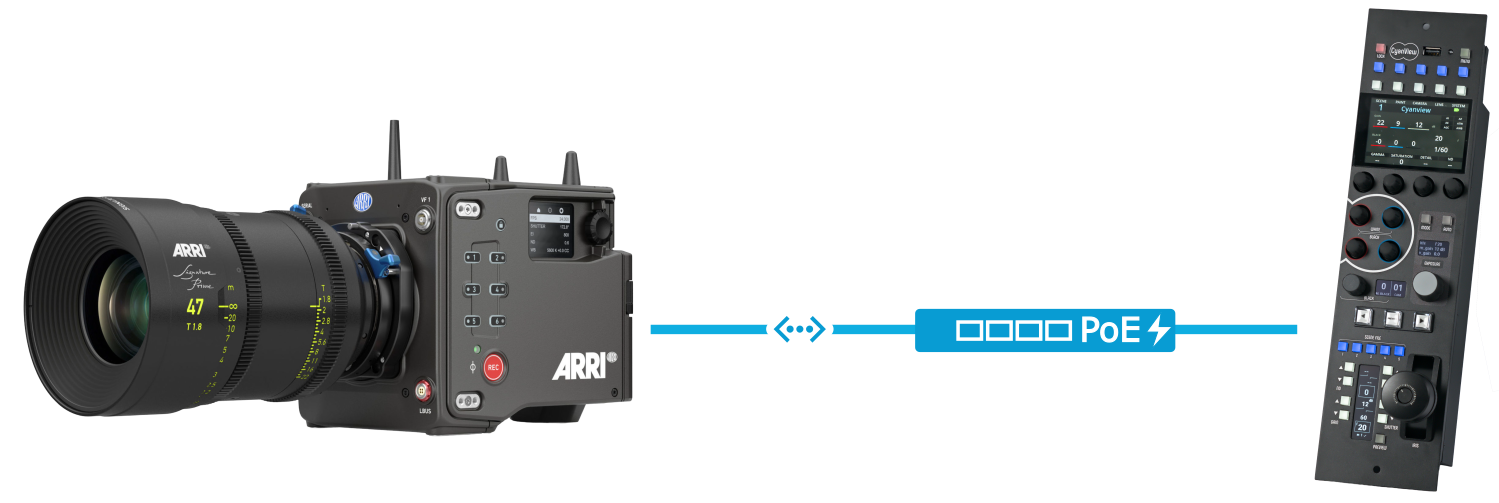
Without the Live system, compatible cameras are controlled through standard CAP commands.
Use model CAP and connect the RCP directly to the camera over IP.
Configuration
On camera
Beyond standard networking, complete these steps:
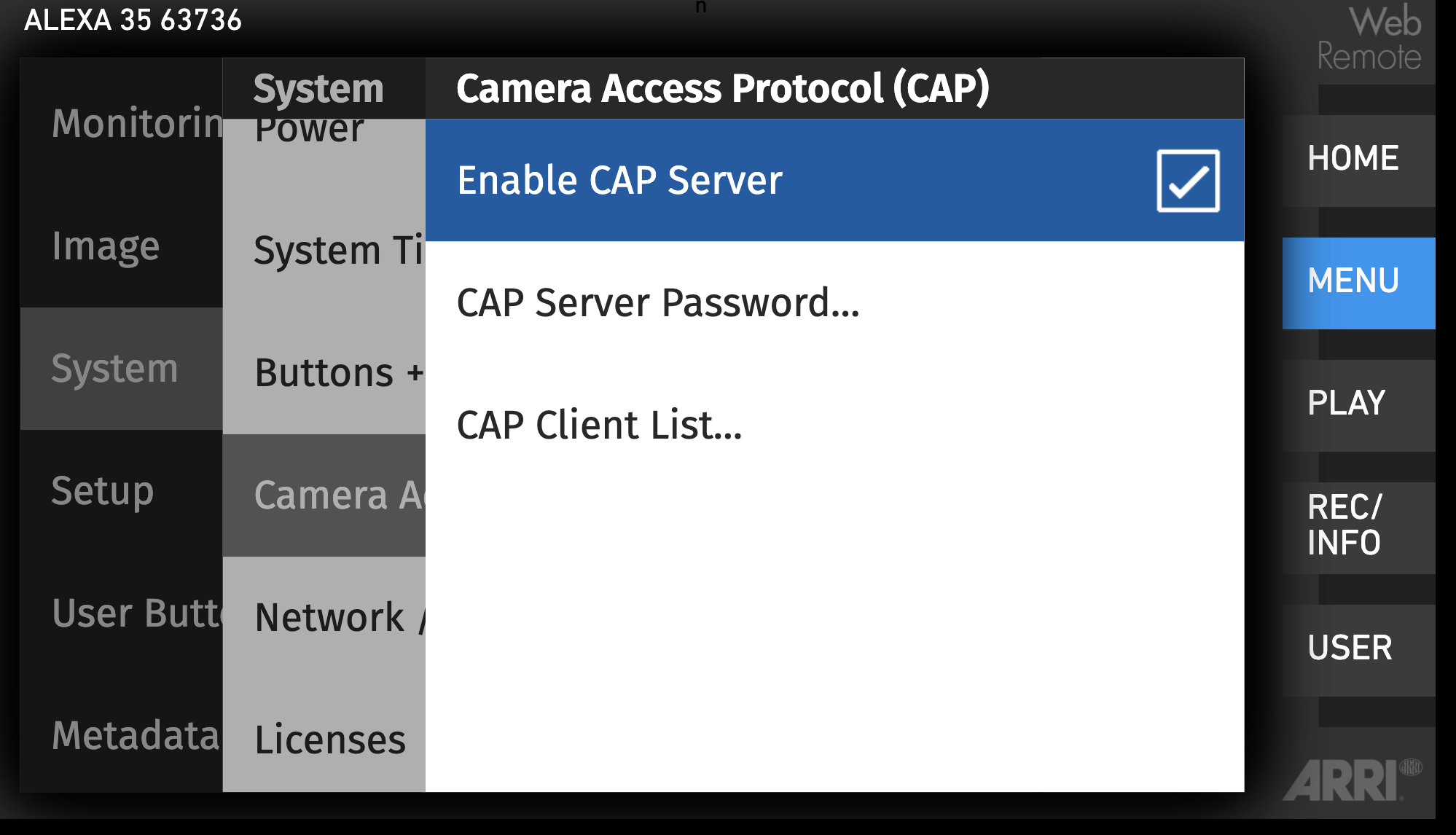
- Enable CAP control in
System > Camera Access Protocol (CAP) - Keep
CAP Server Passwordset toarri(default used by RCP) - If using Live/Multicam, enable the related Multicam menus/options
- For paint controls in Multicam, ensure a compatible look is loaded
On RCP
Use standard IP camera setup:
- Add a camera with
+ - Set name and camera number
- Select brand
ARRI - Select model according to workflow:
Multicamfor Alexa 35 Live workflowsCAPfor standard CAP workflows
- Enter target IP:
- CCU IP for LPS-1 workflows
- camera IP for standard CAP workflows
If cforce motors or a servo lens are connected directly to the camera, do not enable external lens control on the RCP, otherwise camera-driven iris control is replaced.
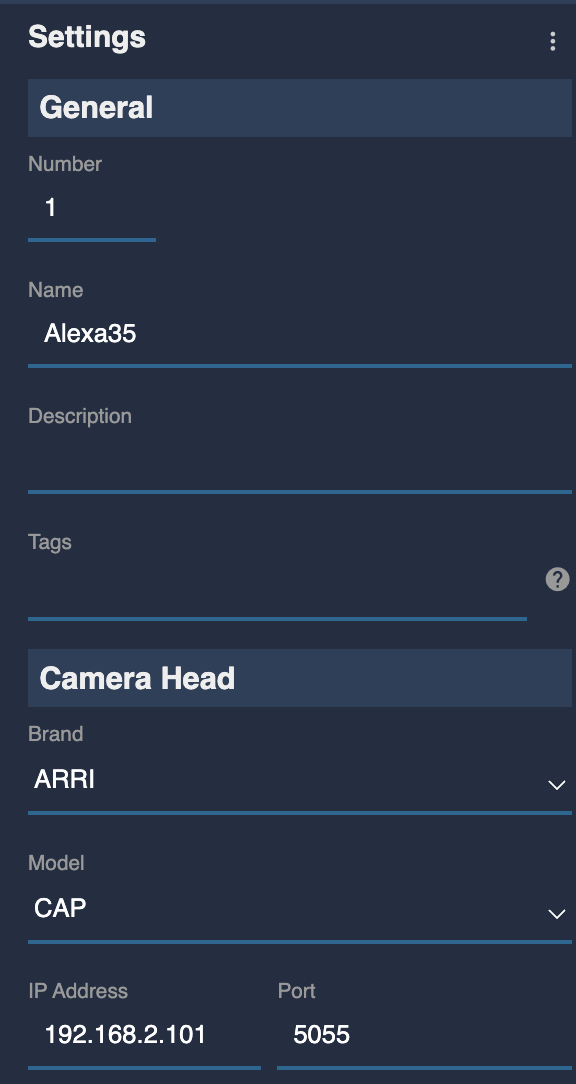
If configuration is correct, the camera block turns green.

Dashboard controls
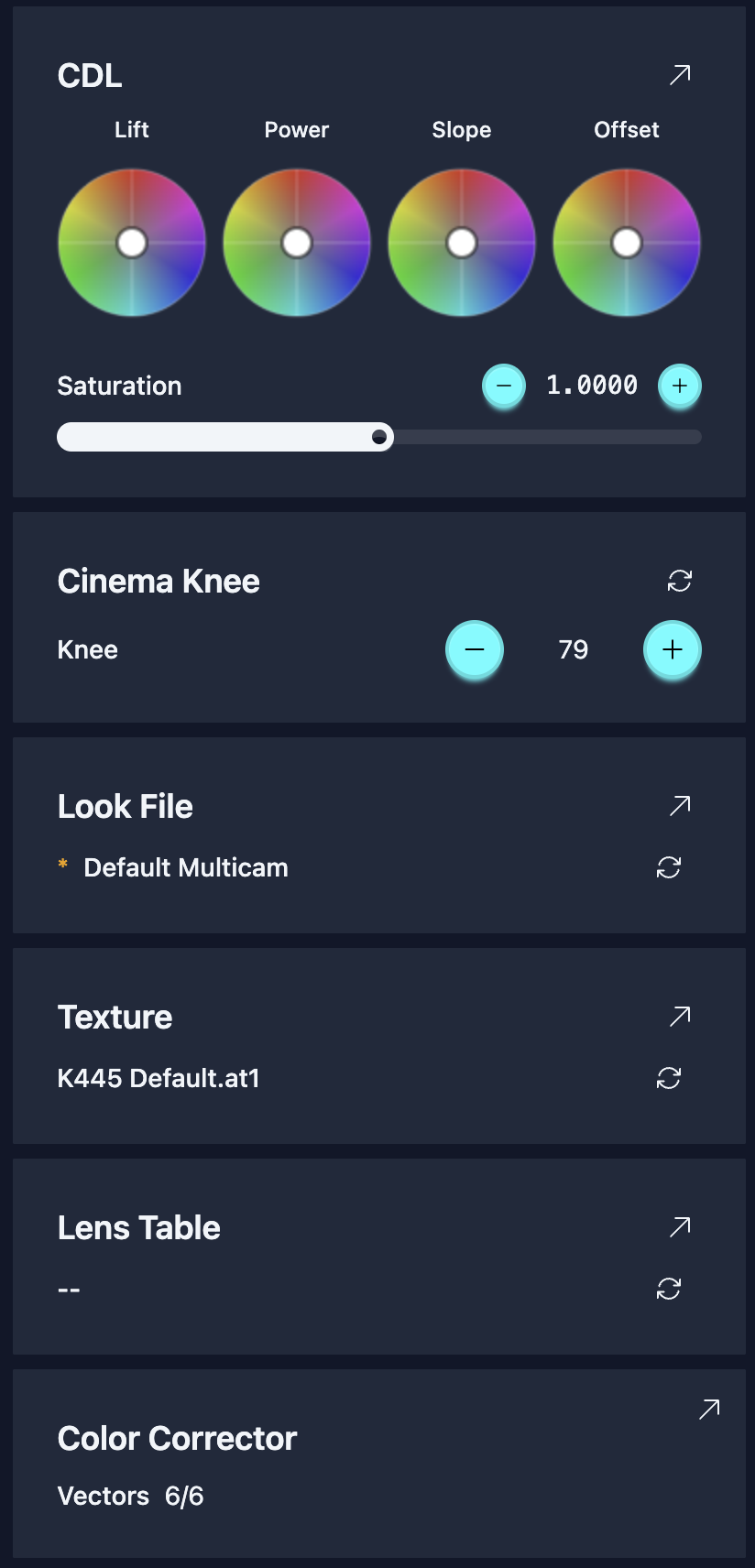
As shown in the supported controls table, some functions are marked as dashboard-only. These controls are not available from the RCP UI at this point and must be operated from the dashboard on a second screen.
For details, see the Multi-Cam Dashboard guide.
ARRI Dashboard setup:
Troubleshooting
- Keep camera and RCP/RIO software up to date.
Iris not controllable or value mismatch (LBUS)
- If a WCU is present, ensure it is not taking iris priority.
- Load the lens table (via WCU or camera SD card)
- Calibrate the motors
- Connect the RCP once these steps are complete
At this stage the motor may blink red/green (not yet controlled).
Move iris from the RCP once so the camera takes control.
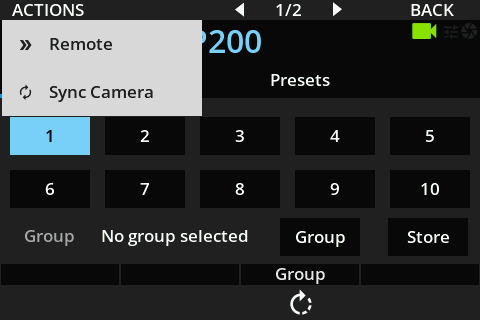
It is possible that another remote or the camera takes over iris control. To request it back, it is necessary to resend the iris control request command which is part of the initialisation. This can be done by the following menu on the RCP: SCENES > S.FILES > ACTIONS > Sync Camera