Multi‑Cam Dashboard
Overview
The Multi‑Cam Dashboard is a companion app for monitoring and controlling all your cameras. The dashboard has two main views:
- Monitoring view: Shows a grid of all cameras with the most important parameters. You can customize which parameters are displayed.
- Control panel view: Opens a detailed control panel for a single camera, with access to all available parameters. This view can also be customized.
First Time Setup
Starting with release 26.2.1rc1, the Multi‑Cam Dashboard is disabled by default.
To enable it, open the configuration GUI at http://[device-ip], go to Admin, and click Enable.

The status will change to Running.

The Multi‑Cam Dashboard will then be accessible from the navigation bar.

Embedded Web App (RCP)
To access the web version, open http://[device-ip]:4000 in your browser, or click the Multi‑Cam Dashboard link in the navigation bar.
http://cy-rcp-40-249.local:4000http://10.192.40.249:4000
Desktop App (Coming Later)
- Open Settings (gear icon)
- Go to MQTT Connection
- Enter your broker address and CY HUID
- Click Save
Adding Cameras
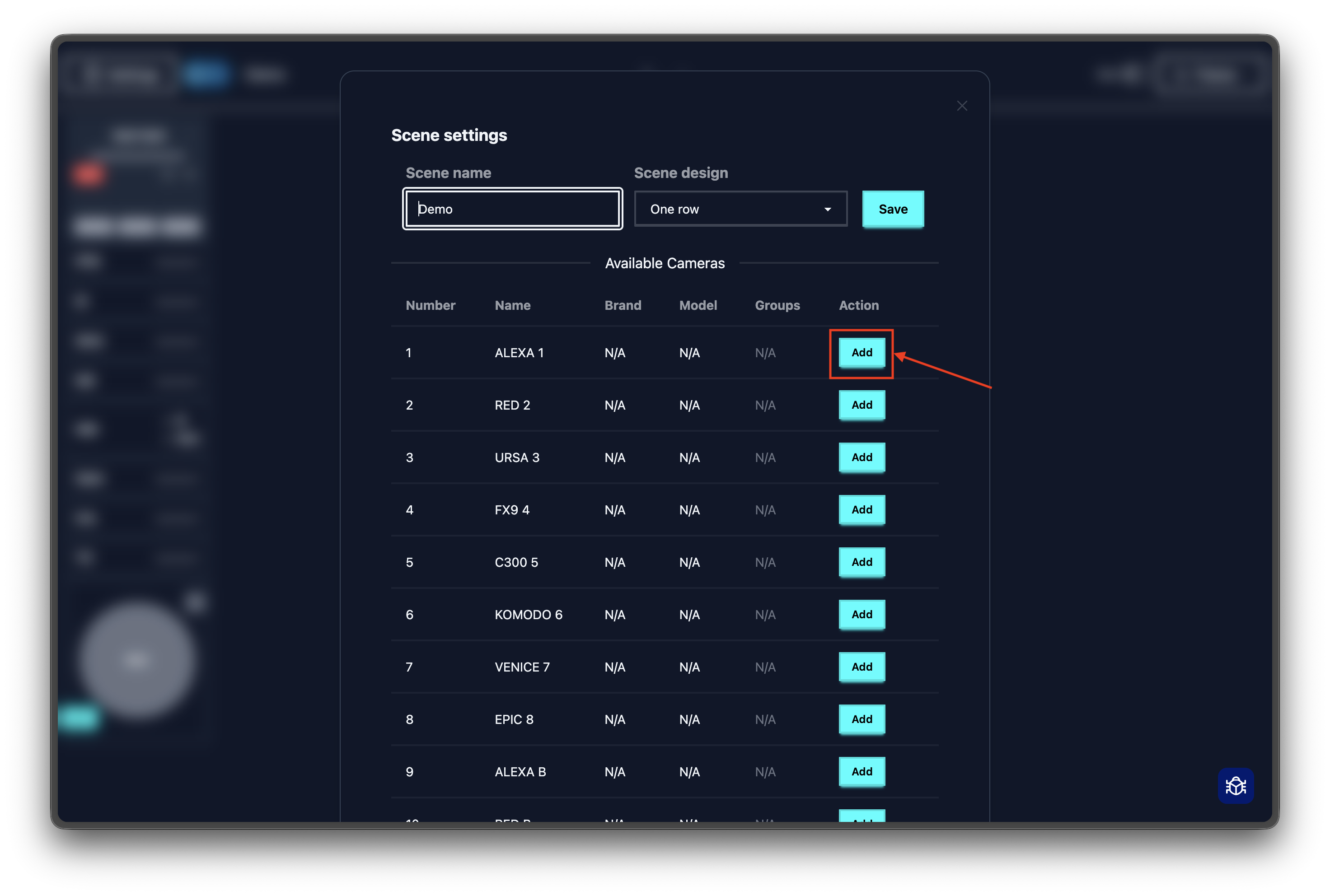
- Open Settings → Scene Settings
- Find your camera in "Discovered Cameras"
- Click the
+button - The camera appears on your dashboard
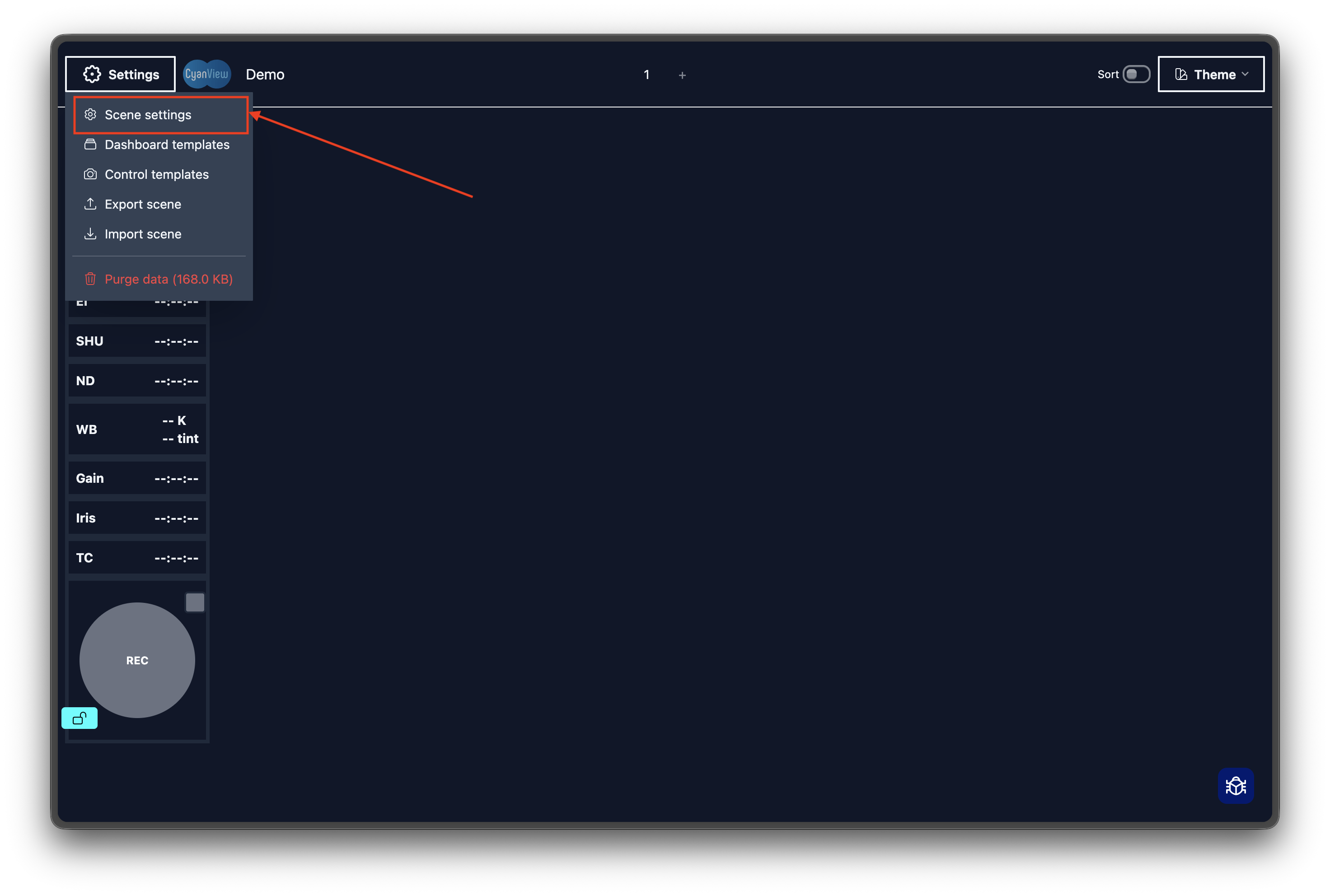
Organizing Cameras
Reorder cameras to match your physical setup:
- Click "Enable Sorting" on the dashboard
- Drag cameras to new positions
Working with Scenes
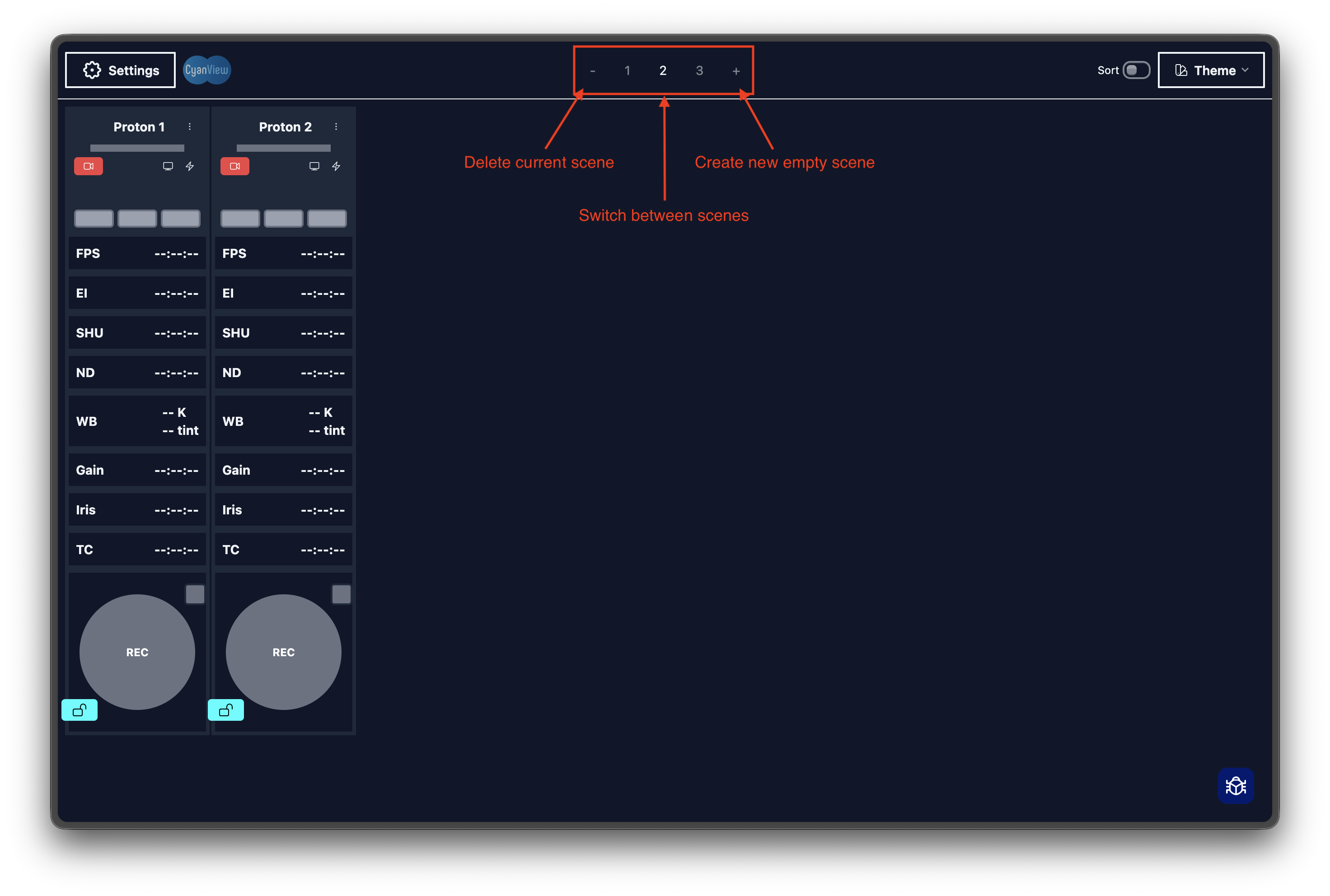
Scenes organize your cameras into groups (e.g., "Studio A", "Field Shoot").
- Switch scenes using tabs at the top
- Create a new scene with the
+tab - Delete a scene with
-on the tab - Change layout in Settings → Scene Settings → Scene Design
Quick Controls
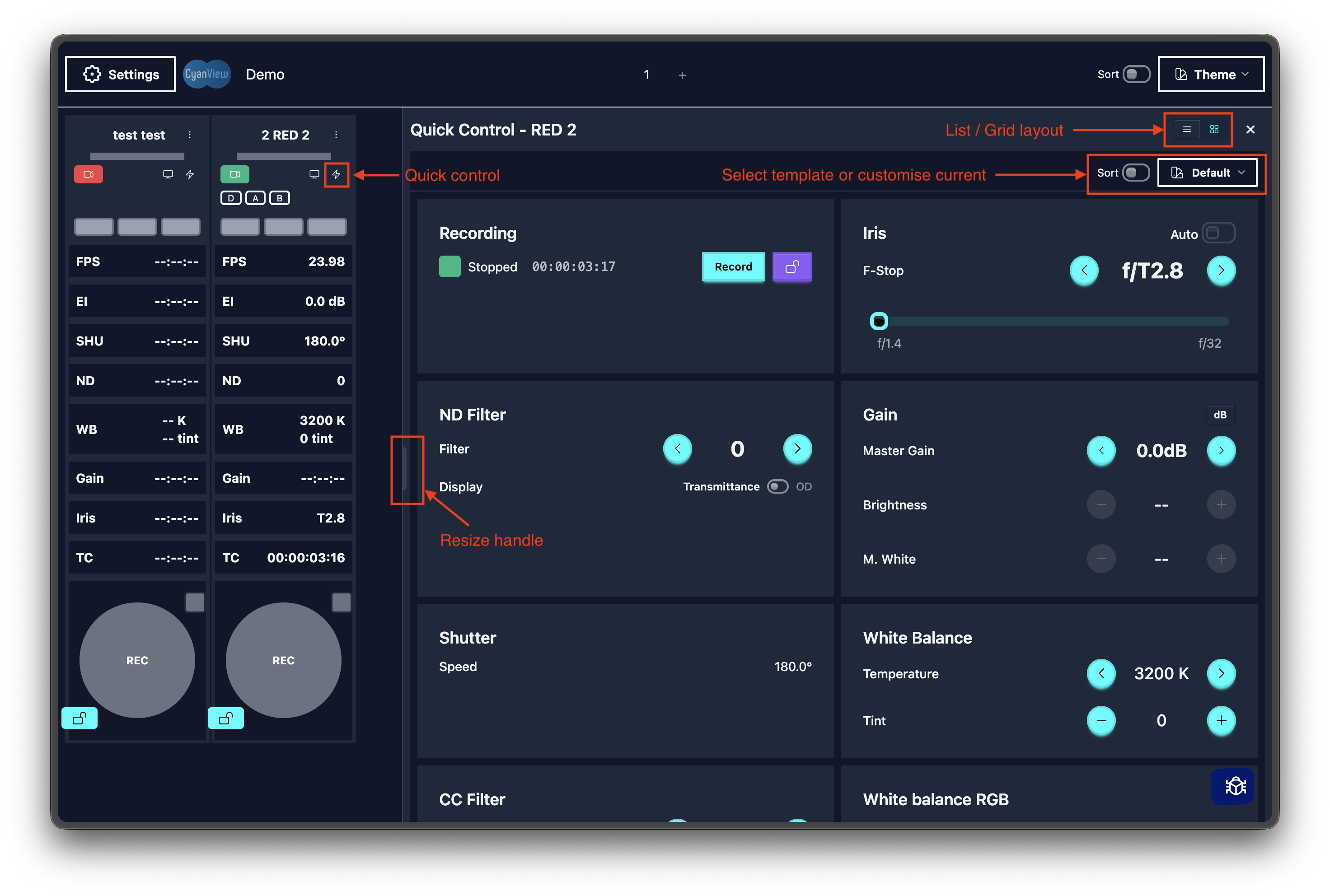
Click any camera card to open the quick control panel for fast adjustments.
- Switch between list/grid view
- Resize by dragging the left edge
- Close by clicking outside or pressing
X
Full Camera Control
Click a camera name to access all controls:
- Recording - Start/stop recording
- Lens - Iris, ND filter, focus, zoom
- Exposure - Gain, shutter, auto exposure
- Color - White balance, RGB, saturation, hue, LUTs
- Output - SDI settings, test patterns
- Format - Resolution, frame rate, codec

Camera Groups
- Click the edit toggle on the dashboard
- Select cameras
- Enter a group name (alphanumeric)
- Click Submit
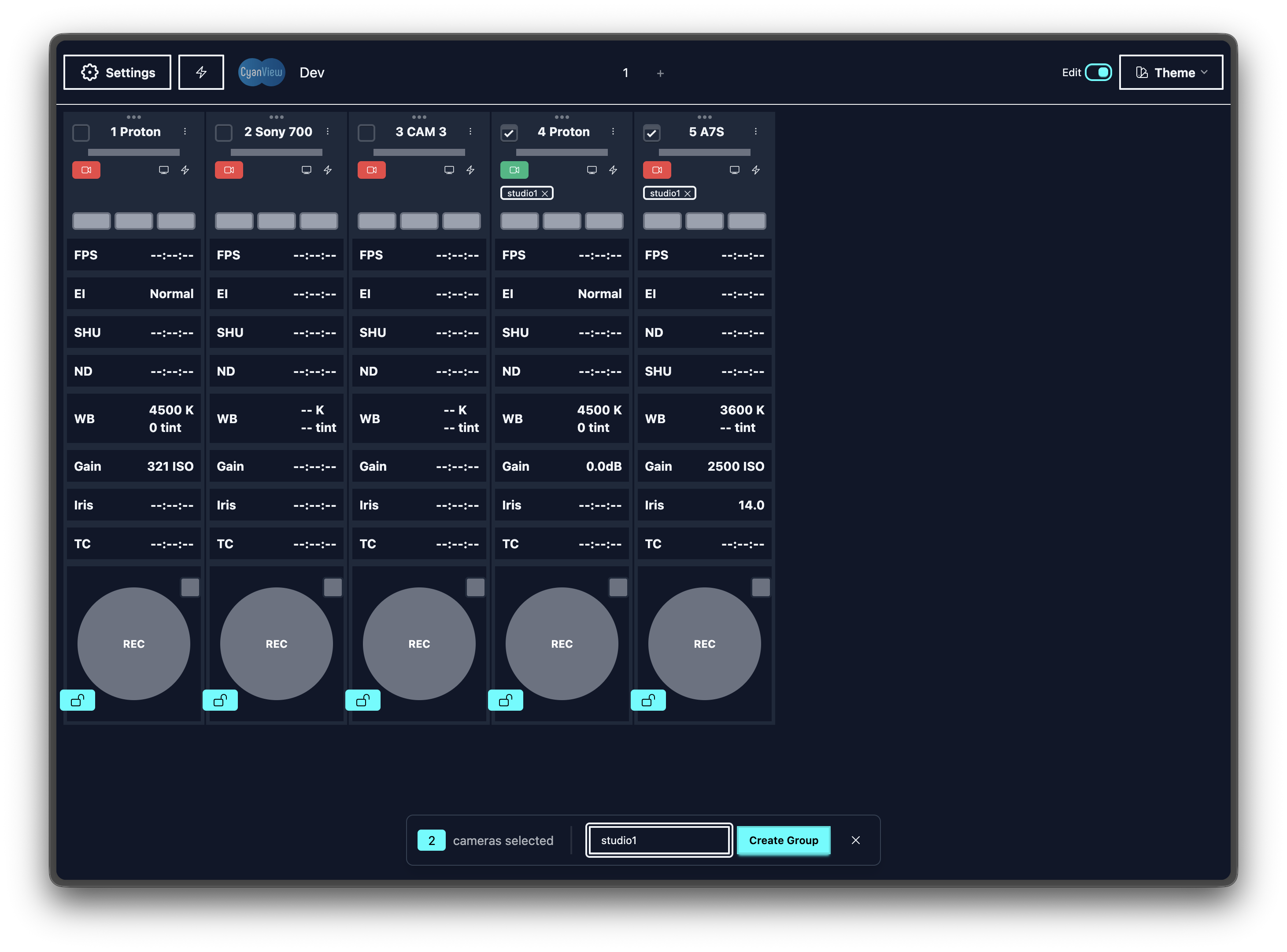
Delete group
- Click the edit toggle on the dashboard
- The Delete button is visible on group tags
Custom Templates
Create your own dashboard and control layouts for different workflows.
- Go to Settings → Dashboard templates
- Click "Create New Template"
- Drag controls to reorder
- Remove controls you don't need
- Apply template to cameras
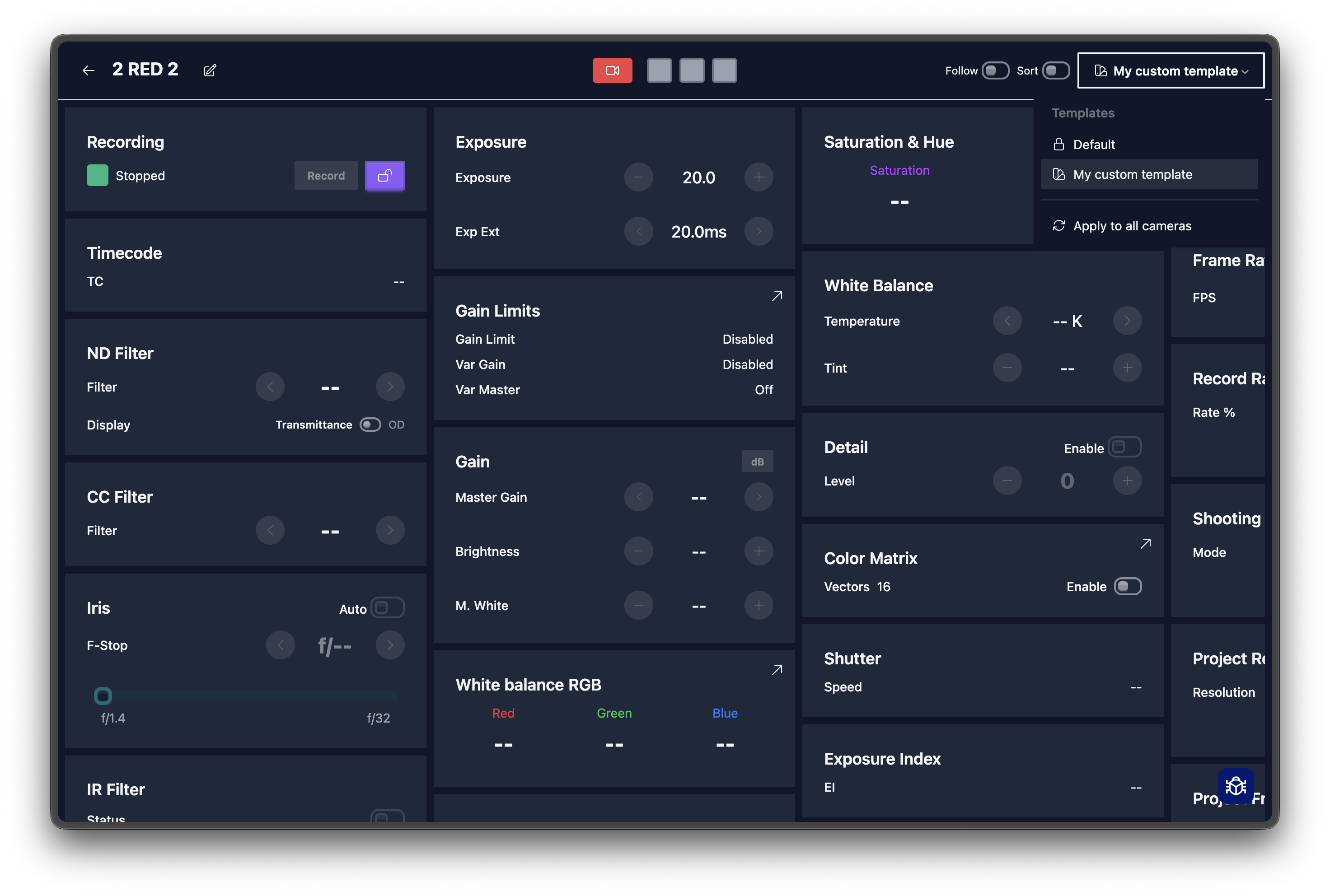
Control templates have two versions: quick and full.
Quick Apply:
- Single camera: Open camera → Apply template
- All cameras: Dashboard templates → Apply to all
Share Templates:
- Export: Settings → Dashboard templates → Export
- Import: Settings → Dashboard templates → Import (drag & drop)
Dashboard template
| Create | Apply |
|---|---|
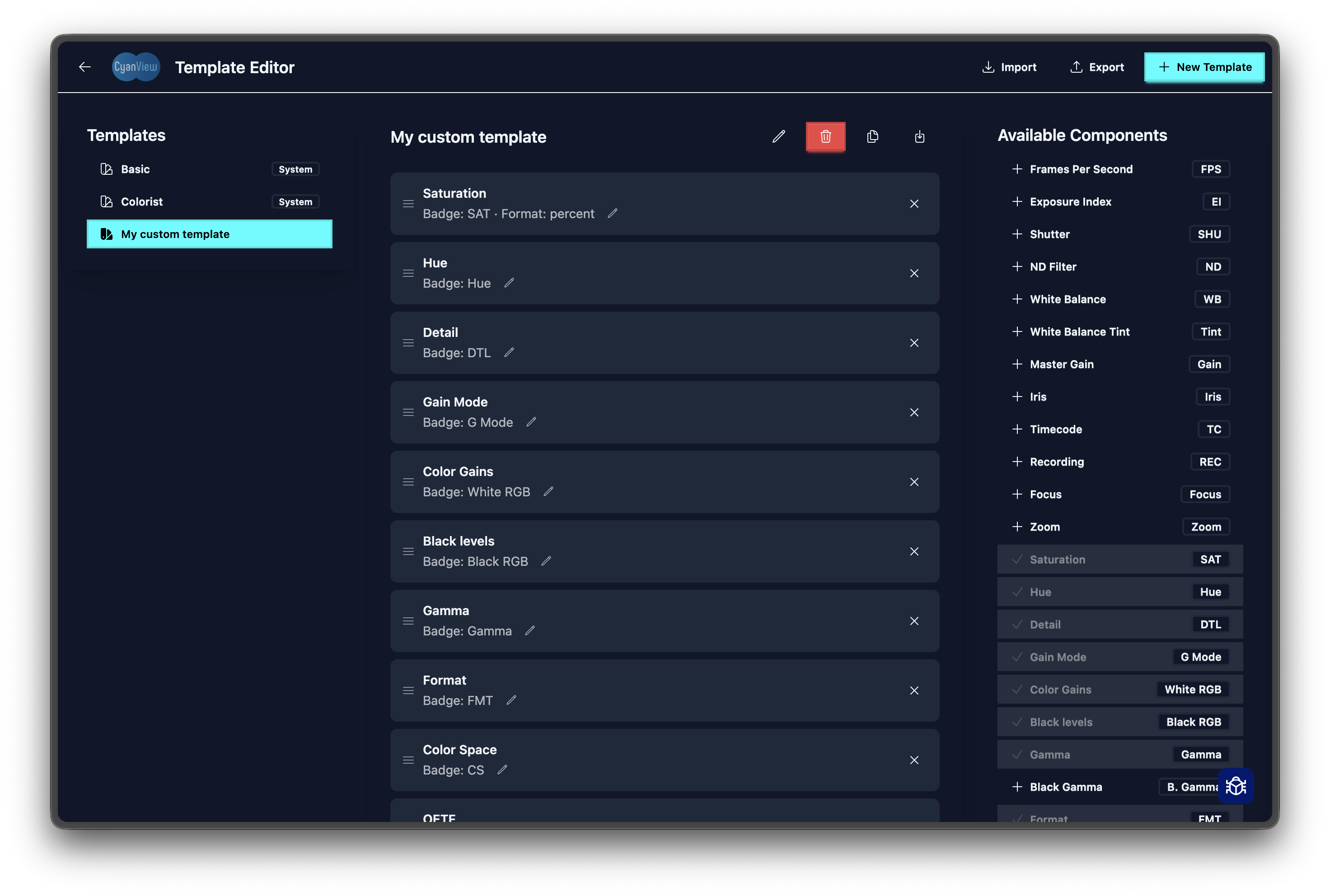 | 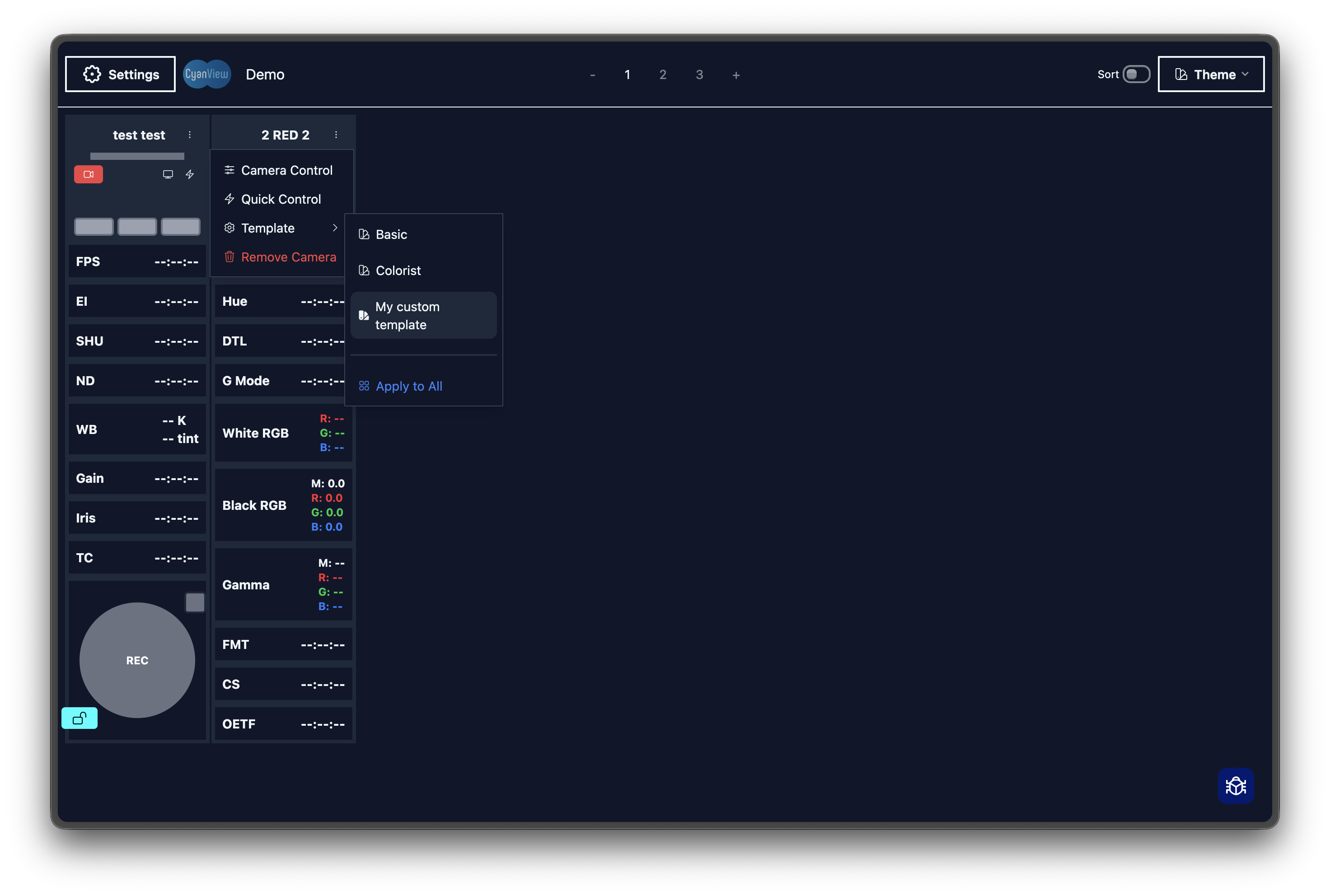 |
Control template
| Create | Apply |
|---|---|
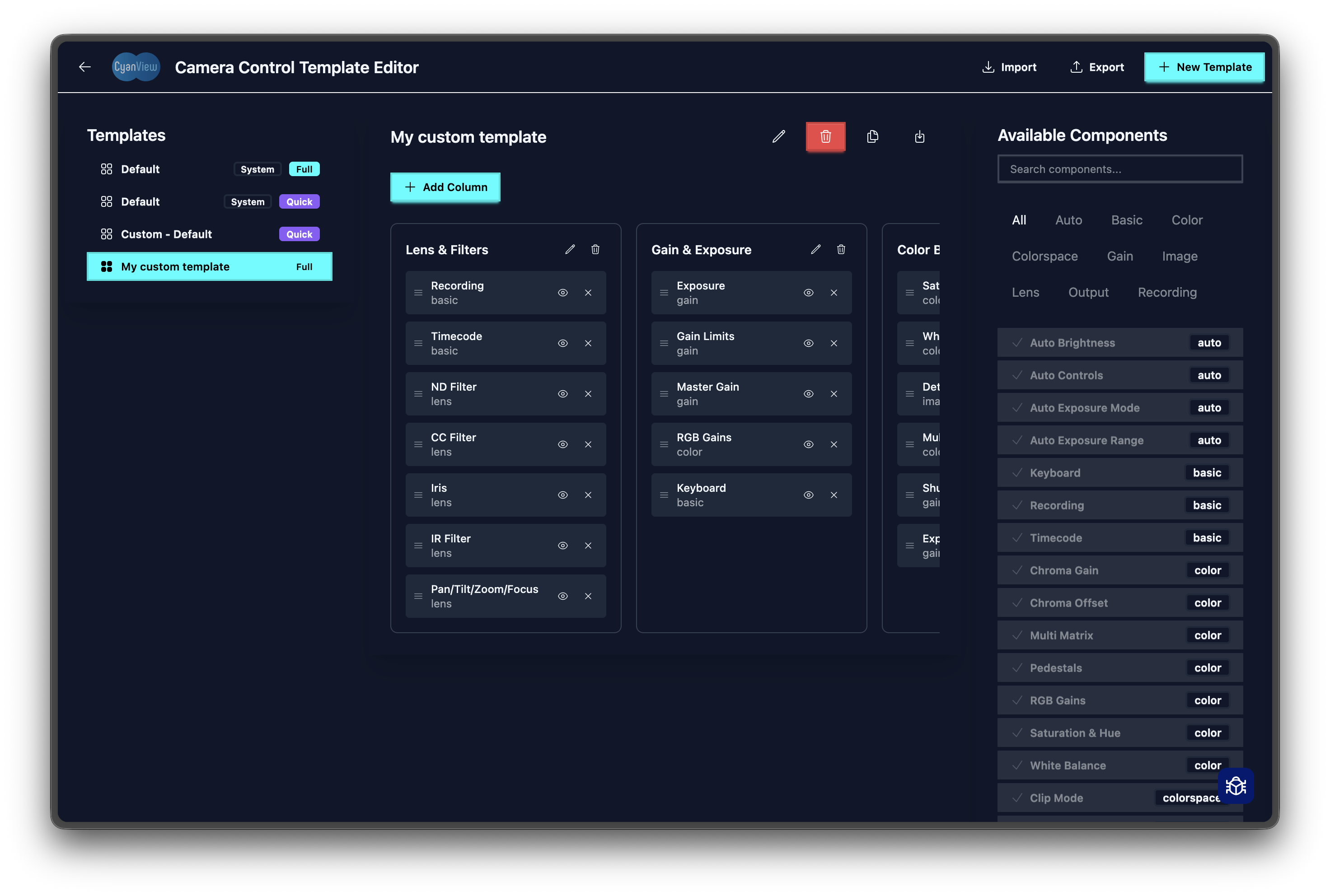 |  |
Save & Restore
Export Scene: Settings → Export Scene (saves cameras, templates, settings)
Import Scene: Settings → Import Scene → drag & drop JSON file