CyanView Studio
What is CyanView Studio
CyanView Studio is a desktop app for macOS and Windows. It connects to your RCP or RIO. It has two workspaces that share the same cameras.
- Dashboard shows and controls all cameras. See the Dashboard manual.
- LiveLab builds looks and sends them to LUT boxes. See the LiveLab manual.
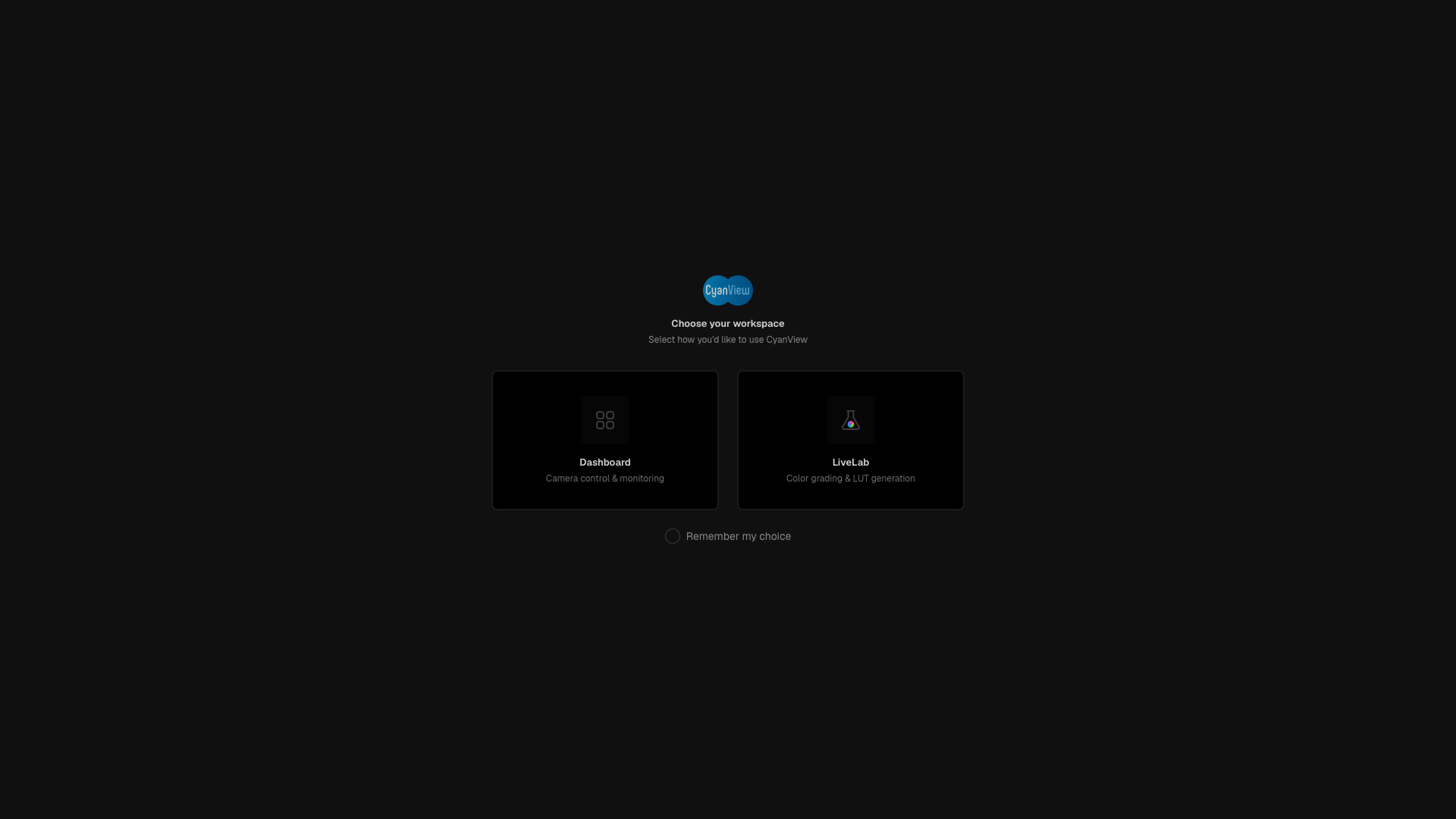
- Dashboard - camera control and monitoring.
- LiveLab - color grading and LUT generation.
- Remember my choice - do not show this screen again.
Dashboard
Cameras. Connect one or more RCP or RIO units by address, or select them from the discovery page. Each camera is a tile with name, number, tally, record state and live values. A table view shows one row per camera.
Control. A quick panel gives the daily controls: record, iris, ND, gain, shutter, white balance. The full page gives all controls of the camera: filters, lens, exposure, gain, color, matrix, gamma, knee, detail, outputs, format, audio, stream, menu and more. The page can follow the active camera of the RCP.
Templates. Dashboard templates set the values on a tile. Control templates set the cards on the quick panel and the full page. Make your own, apply them to one camera or to all, and share them as files.
Groups. Select cameras and give them a name. The group page sends each change to all members.
Tally. The tally from the switcher lights the tile: red for program, green for preview, amber for both, yellow for call. Test buttons force each color.
Snapshots. Save the settings of a camera and restore them later.
Macros. One click runs a list of actions on cameras or groups: iris, gain, exposure, white balance, ND, LUT, record or any raw command. Macros are buttons in a drawer and on a macro pad.
Scenes. A scene is a set of cameras with a layout. Export and import a scene as a file.
More. Four themes, a command palette (Cmd+K), an HTTP API for macros and active camera, proxy and REMI for remote networks.
LiveLab
Nodes. A grade is a chain of nodes. IDT converts the camera log (ARRI, Sony, RED, Canon, Panasonic, Fujifilm, DJI, Blackmagic, Nikon, Apple, Leica, HLG, PQ, ACES and more) to a working space. Then add Primaries, Grading (wheels, multimatrix, color correctors, curves), DCTL, 3D LUT, LUT Gallery and Receiver. ODT converts to the output space. Save nodes to a library. Undo per grade.
RCP link. Link a feed to a camera. The Primaries node then follows the RCP paint controls live. Follow cam moves LiveLab to the active camera of the RCP.
LUT boxes. VP4, AJA ColorBox, AJA FS-HDR, BoxIO, CyanCamera and FXVP. Each change is baked to a 17, 33 or 65 point LUT and sent at once. Extra boxes get the same LUT. A scene switch re-sends all feeds.
Fade. A LUT change can crossfade on the box, in steps over a set time. Each node type can be set to straight for an instant change.
Receive and push. A LUT Receiver with eight channels takes a LUT from DaVinci Resolve or other software into a Receiver node, live. Snapshots keep a received look. Studio can also push its chain LUT into Resolve (WsLut plugin) and stream the preview as NDI.
Preview and scopes. Grade on built in references, your own stills, or live video from DeckLink, SRT or RTP. Grab frames to stills. SDI out carries the graded picture. Waveform, histogram, parade, vectorscope and false color. Preview and scopes open in a second window. A timeline holds clips. An OpenFX chain runs on the local GPU or on FXVP servers.
Scenes and presets. One grade per feed and per scene. Scenes in folders, duplicate with or without grades. Power Grades keep all values, Node Templates keep the chain. Compare grades.
Export and control. Export the LUT of one node or the full chain as .cube with a file name pattern. OSC and an HTTP API select feeds, grades, LUT Gallery entries and receiver snapshots.
Requirements
- A Mac (Apple silicon or Intel) or a Windows PC.
- The computer is on the same network as the RCP or RIO. Studio talks MQTT on port 1883 and finds devices with UDP discovery on port 3838.
- A Studio license for LiveLab. The Dashboard works without a license.
Install and launch
- Download the installer for your platform from CyanView (
.dmgfor macOS,.exefor Windows). - macOS: open the disk image and drag CyanView Studio to Applications. Windows: run the installer.
- Launch the app. A splash window shows while the backend starts, then the main window opens.
- The app keeps a tray icon with Show Window, Check for Updates and License. Updates download from CyanView and install on the next launch.
Activate LiveLab
The first time you open LiveLab the app shows the Activate CyanView Studio page.
- Enter the Email of your CyanView account.
- Enter the License Key from the CyanView account portal.
- Click Activate.
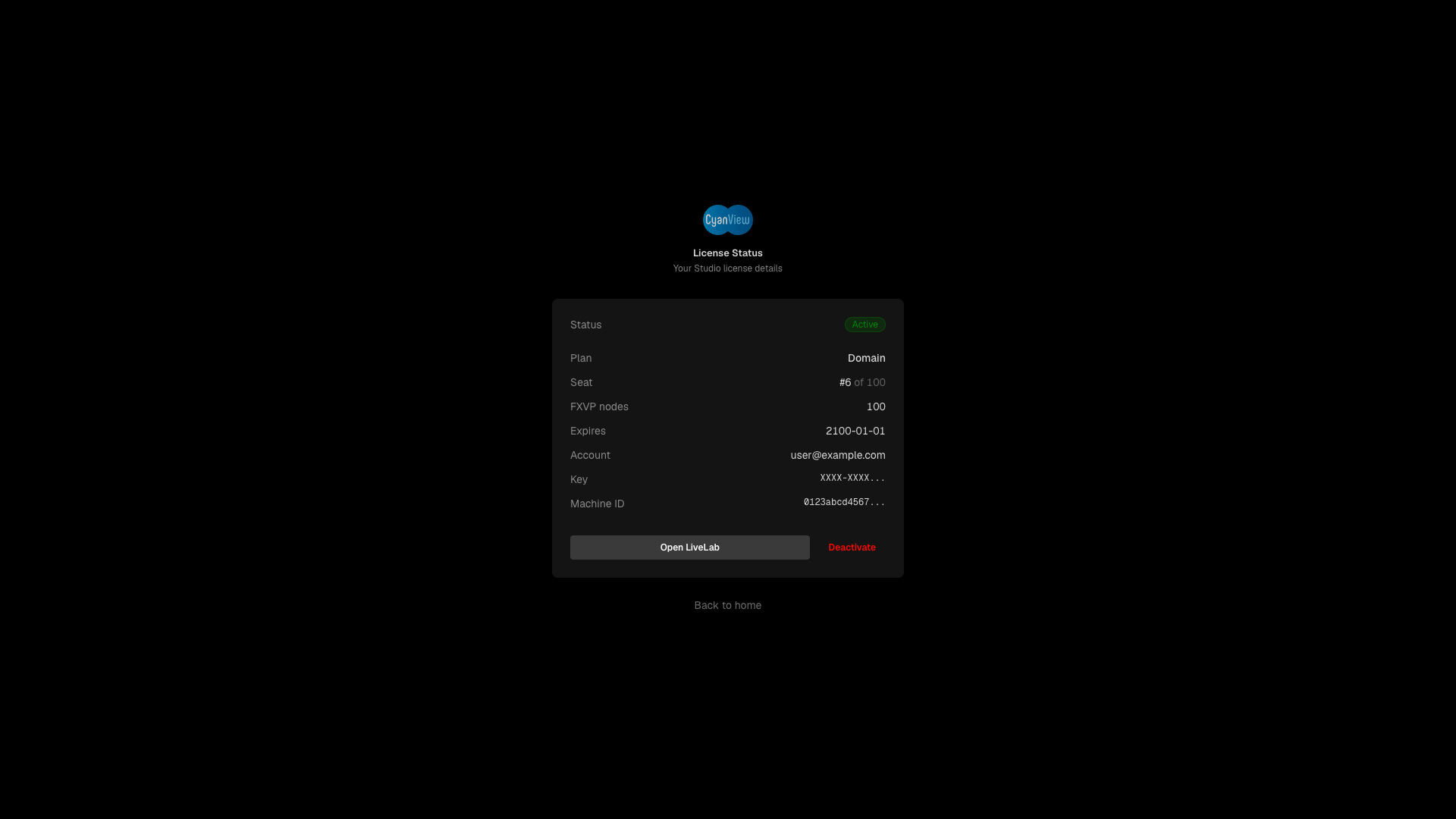
Once active, the same page shows the license status: plan, seat number, expiry and the machine ID the seat is tied to. You reach it later from the Domain pill in the LiveLab header or from the tray menu. Deactivate frees the seat so you can use the key on another computer.
Choose a workspace
After launch the app asks Choose your workspace. Pick Dashboard or LiveLab. Tick Remember my choice to go straight to that workspace next time.
To ask again on launch:
- Dashboard: Menu > Dashboard settings > Startup workspace > Reset.
- LiveLab: Settings > GENERAL > APP > Reset.
Where to go next
- Connect the RCP and add cameras in the Dashboard. LiveLab reuses these cameras to link metadata to a feed.
- Add a LUT box and build your first look in LiveLab.
Data and support
- Settings, scenes, grades and stills are stored in the Studio data folder. LiveLab Settings > STORAGE shows the folder and lets you move it, for example to an external drive.
- Dashboard settings > Diagnostics > Export saves the crash log as JSON. Send it to CyanView support with your question.