REMI
Introduction
Most users would recognise REMI as a Remote Production workflow terminology. With Cyanview it brings other features as well. This guide details how to use the REMI Tag when in a Local network. The guide's steps are:
- Explaining how REMI works with Cyanview
- How to navigate to the REMI Menu
- How to Add a Tag
- How to use the REMI Tag to import a RIO
- How to use manual IP Mode
What products is REMI related to?
- RCP
- RCP-J
- RIO
- NIO
Workflows
LAN workflow
The LAN workflow is the simpliest workflow when using the REMI tag. This is simply how to connect a RIO or RCP to a RCP
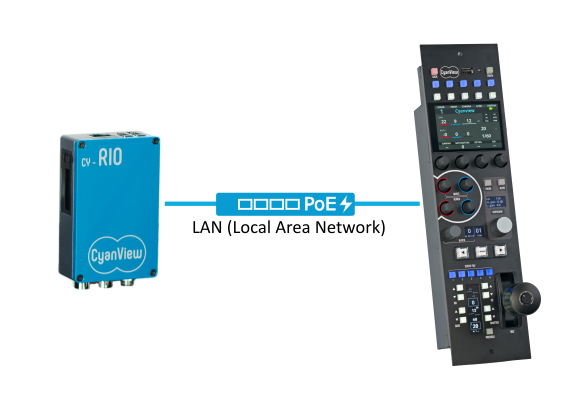
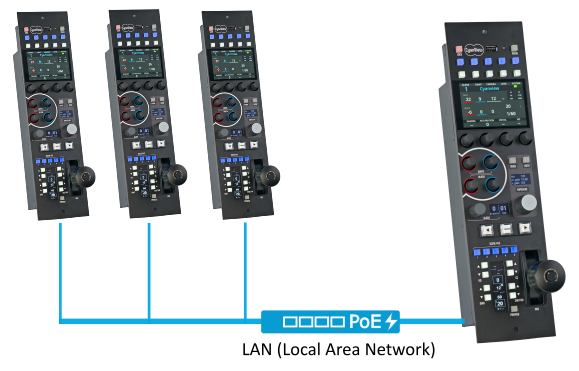
Linking a RIO to a RCP
- On the RIO UI, go to the
REMImenu

- On the right hand side add a
Tag

This is case sensitive. Treat the REMI tag like a password: anyone who knows the tag can access and control the configuration. Avoid simple or common tags.
-
Go to the RCP UI - Repeat the REMI tag steps
-
Once added, you will see the RIO in the menu
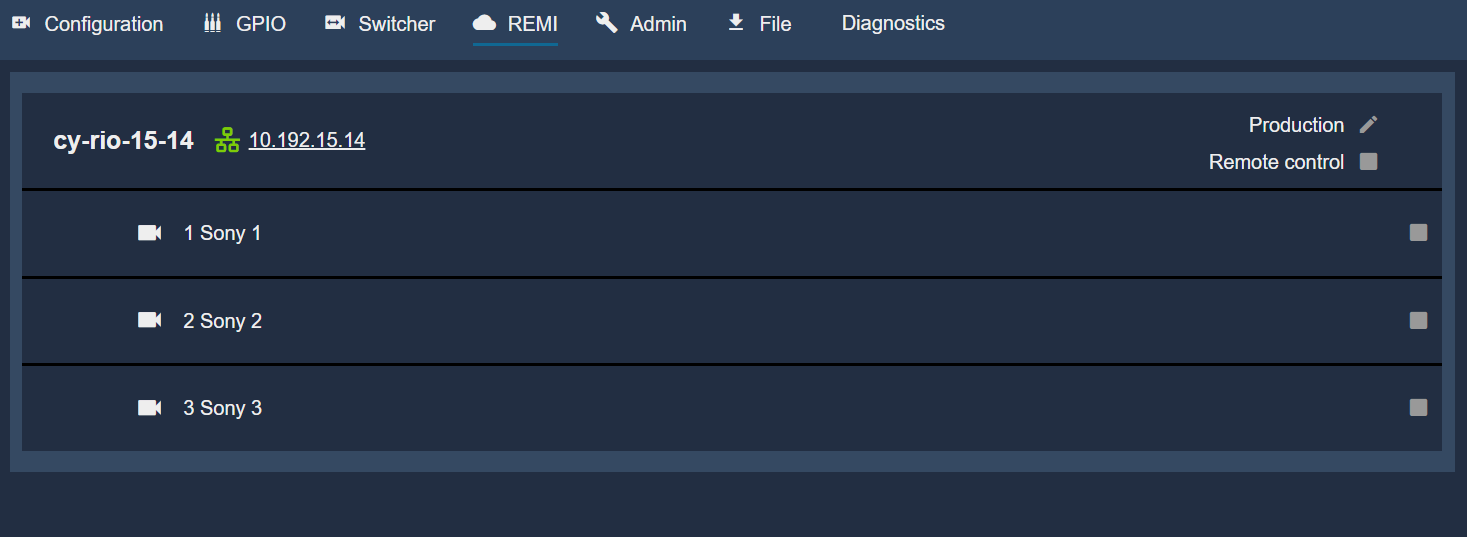
Import the cameras
- To import the camera which is connected to the RIO, click the 'Remote Control' tickbox. Either select each camera or select 'Remote Control' for all cameras

- Go to the configuration menu on the RCP and the camera should be there as 'Imported'
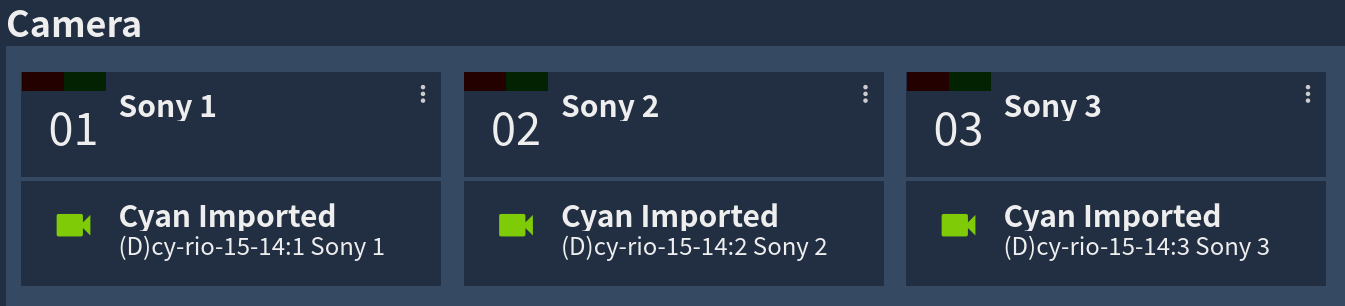
Manual IP workflow
The REMI Tag is a broadcast packet, some networks will block broadcast packets so the REMI tag may not be seen the devices. In this instance, you will need to manually add the IP address of the RIO
An example of this is in a wireless solution, like some IP Mesh, where the radios will block the broadcast packets.
- Click the 3 dots on the REMI Settings.

-
Click 'Advanced Mode'
-
This will add the 'Manual IP' section on the UI

- Add the RIO's IP Address and click the
+

Once the RIO's IP Address is in the REMI, you will be able to complete the same import process which is detailed here
What's next?
This guide will help you understand how to use the REMI tag in a local network.
The next stage is if you need to do a full remote production or what to control the RIOs over public internet like 4G dongles. Follow this guide to connect over a WAN
Alternativley use this guide to understand how to use the REMI tag to create a Cyanview RCP MSU