REMI
Introduction
Most users would recognise REMI as a Remote Production workflow terminology. With Cyanview it brings other features as well. This guide details how to use the REMI Tag when in a Wide Area network. The guide's steps are:
- Confirming setup of REMI Tag on the LAN Setup guide
- Didn't workflows for WAN, including remote production and wireless
- Check cloud connectivity
- Confirm REMI connection
What products is REMI related to?
- RCP
- RCP-J
- RIO
- NIO
Workflows
LAN Workflow
Before continuing, make sure you have setup the REMI tag in a Local network so you know the setup, ie the RCP can control the camera via a RIO/RCP/NIO before adding in the public internet.
You can find this setup guide here
WAN/Remote production workflow
Recommend you follow the 'Connecting a RIO to a RCP' section first. Make sure it works locally then start to add your WAN
You can find this setup guide here
Within the WAN Workflows, there are a few different styles customers use
RIO WAN
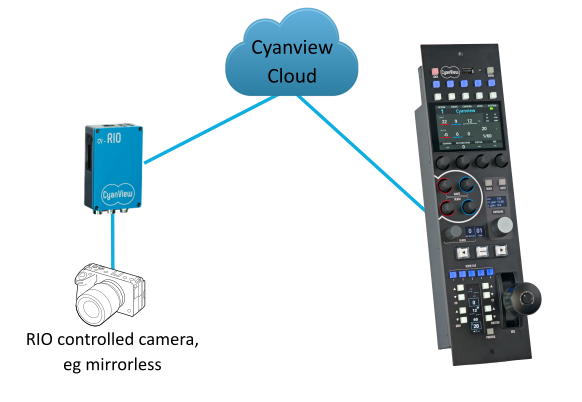
In this workflow, you can connect a RIO to the public internet or 4G/5G and control directly a camera in a different location to the RCP
For example, connect a FX3 Mirrorless camera to the RIO via USB and then a 4G Dongle on the RIO. It can then connect to the RCP over the 4G connection and the FX3 is shaded wirelessly
RCP WAN
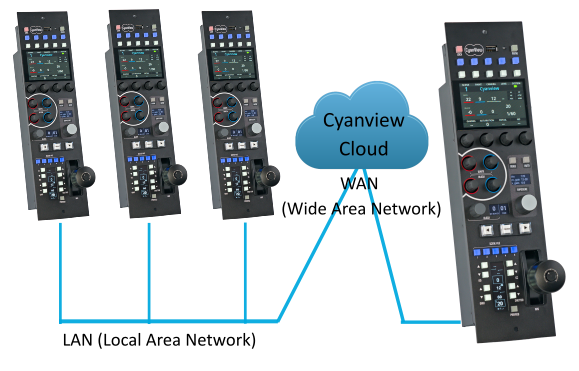
For a remote production workflow, you might have several RCPs at a local MCR but want to control cameras or other RCPs are remote sites. You can use the REMI Tag to connected over a WAN to then connect to the RCPs in different locations
RIO WAN
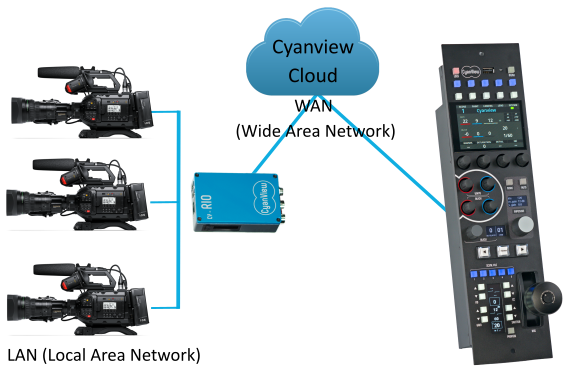
Equally another method for remote production is to use a RIO to then connect to multiple IP Cameras. In this workflow, you can have several IP cameras at a remote location and a RCP or RCPs at a local MCR. The RCPs connect to the RIO over the WAN, then the RIO talks to the cameras.
This ensures the IP Cameras are not affected by the latency of the WAN network as the communication is handled between the RCP and RIO
Cloud
The cloud only applies for WAN. So only with compatible devices: RCP and RIO. If you have a RIO with LAN Licence (Previously RIO Live) and want to have WAN control of your camera, you can purchase a license to upgrade to WAN.
If you have an RCP the cloud control is included, unlimited and free of charge.
It provides : remote camera control over internet and allows you to remote access web UI from any location
The goal of the cloud is to avoid any firewall setup as all units will open OUTGOING connections. It will act as a rendezvous server.
If you still need to open ports:
- DNS (dynamic) : remi.cyanview.com
- DNS (Europe) : 1-eu-west-3.remi.cyanview.com
- DNS (US) : 1-us-west-2.remi.cyanview.com
- port : 7887
Configuration
Make sure you have setup the REMI tag. If you haven't look at the LAN workflow here
Check the connection
Now you have the REMI Tag all setup. Make sure the devices are connected to the internet.
The quickest way to tell is by going to the REMI Menu and looking at the cloud. If it is RED, no connection. If it is Green, connection is good.
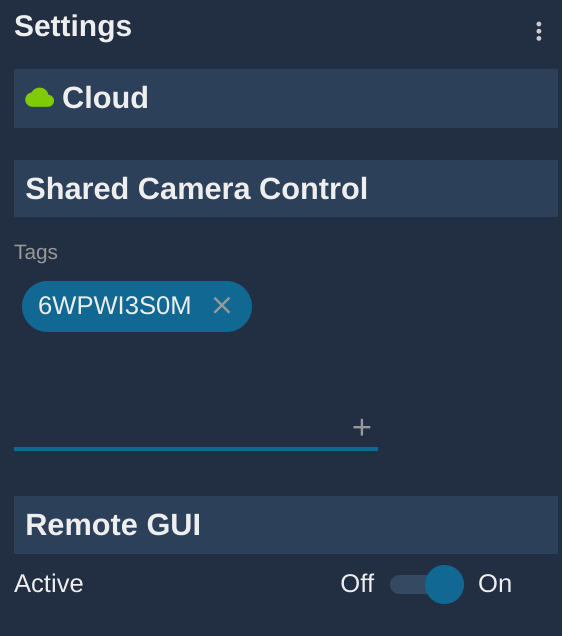
One device can be associated to multiple groups.
Once setup on all devices, you can now see status of all the devices in your "groups":
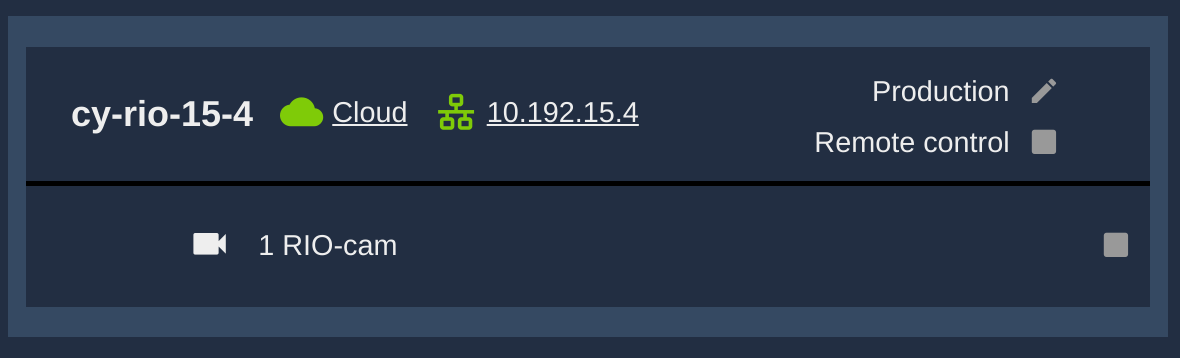
On this menu, there are 2 icons
- Cloud : means this device can be reached by the cloud
- Ethernet : means this device can be reached using a local link
And a list of camera exported by this device
Pay attention that group names could be guessable and act as a password. So try to make them as secure as possible and not share with anybody that shouldn't access your cameras
Navigate to the remote GUI
Once RIO's and RCP's are in the same group, you can access the webpage from anywhere
If you click on the cloud or 10.192.15.4 link next to cy-rio-15-4, it will open a new page with your RIO configuration
No Connection to cloud?
Double check your internet connection
Go to the Admin page and scroll down to connectivity check:
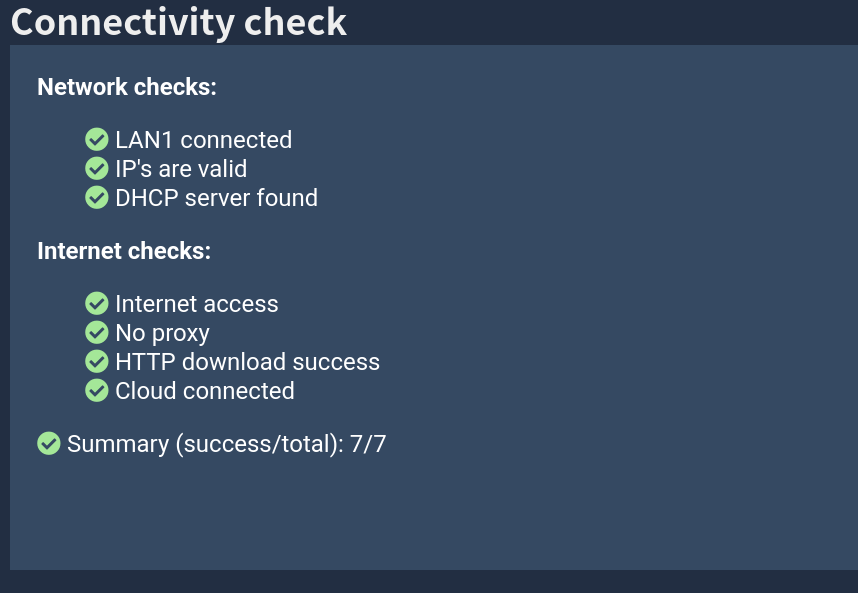
All these checks must be green to continue
Connection to internet but no REMI?
Double check which server your are running on, if you are in the US, you will need to change
Go to REMI menu and activate the advance menu (3 Dots on the top right)
