Studio Dashboard
Overview
The Dashboard is the camera control and monitoring workspace of CyanView Studio. It shows every camera of a scene as a tile with its most important parameters, tally and recording state. From a tile you can open quick controls, the full camera control page, templates, groups and macros.
The Dashboard talks to your RCP or RIO over MQTT (port 1883). It works without a license.
1. Connect an RCP / RIO
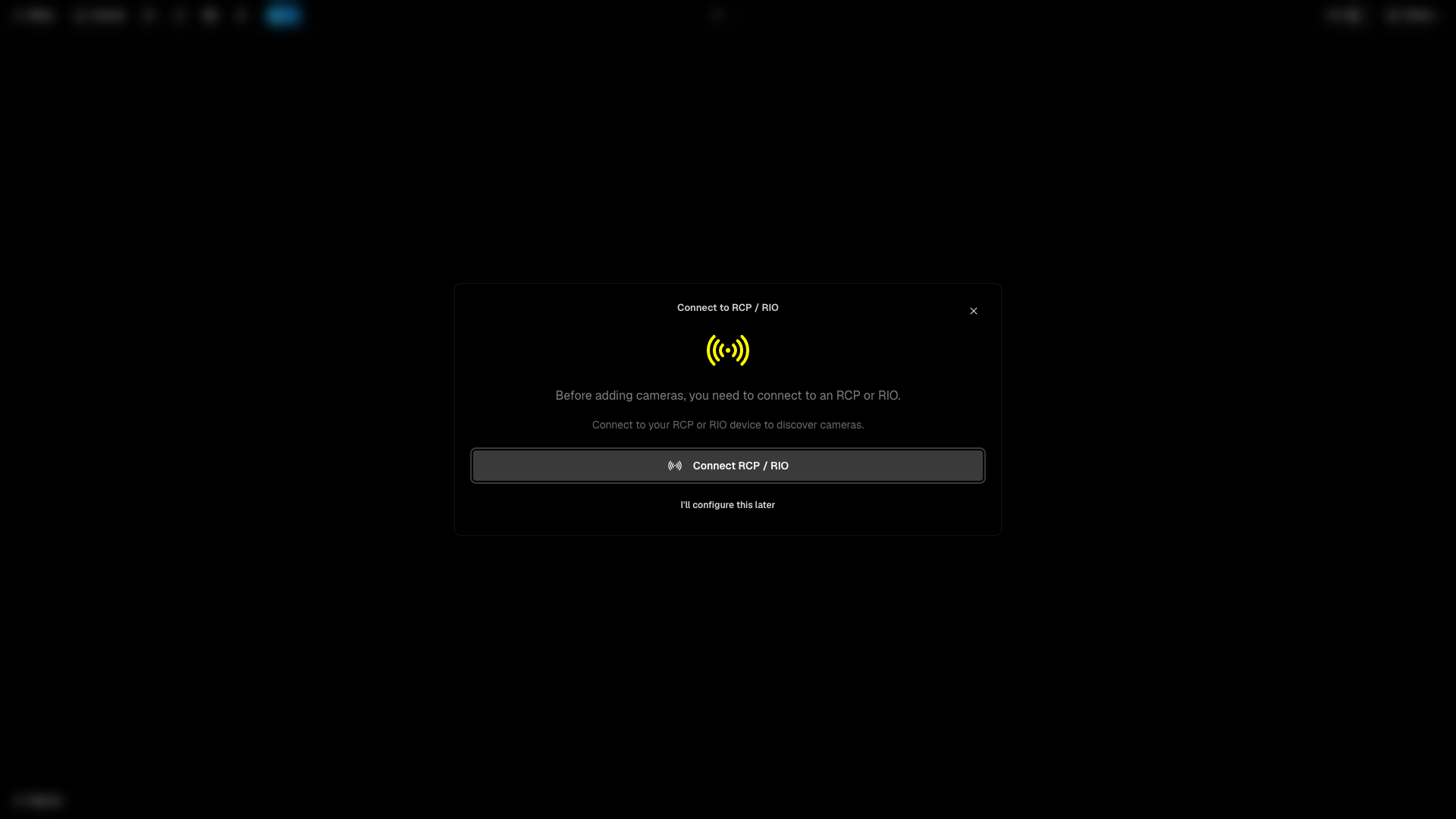
The first time you open the Dashboard, it asks you to connect to an RCP or RIO.
-
Click Connect RCP / RIO. Click I'll configure this later to skip this step.
-
In RCP / RIO Connections, fill in the Add New Device form.
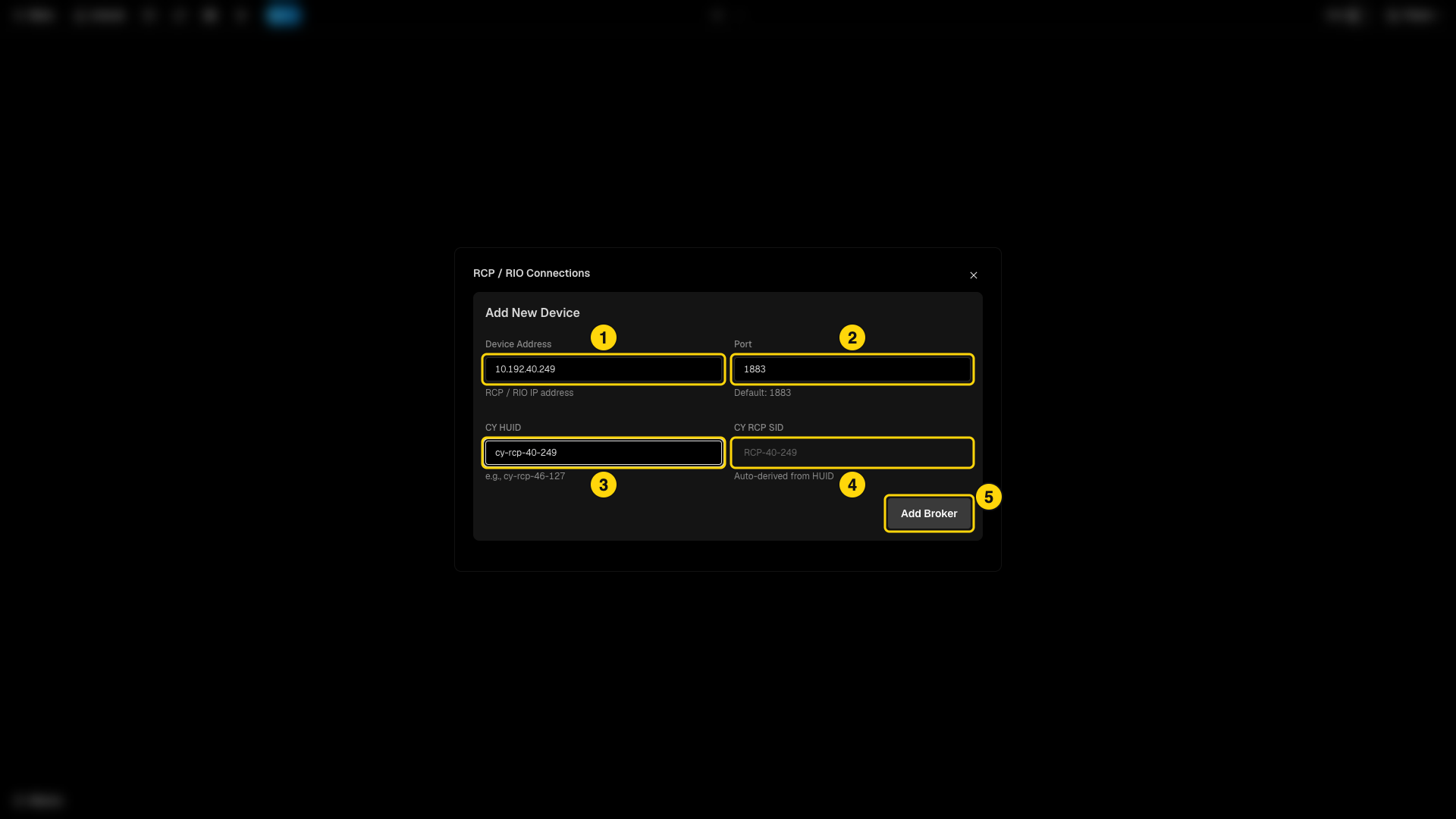
- Device Address - the IP address of the RCP or RIO.
- Port - leave it at 1883.
- CY HUID - the HUID of the device, for example
cy-rcp-46-127. It is printed on the RCP and shown in its web interface. - CY RCP SID - filled in for you from the HUID.
- Add Broker - connects to the device.
-
The device appears under Configured Devices with the status connected.
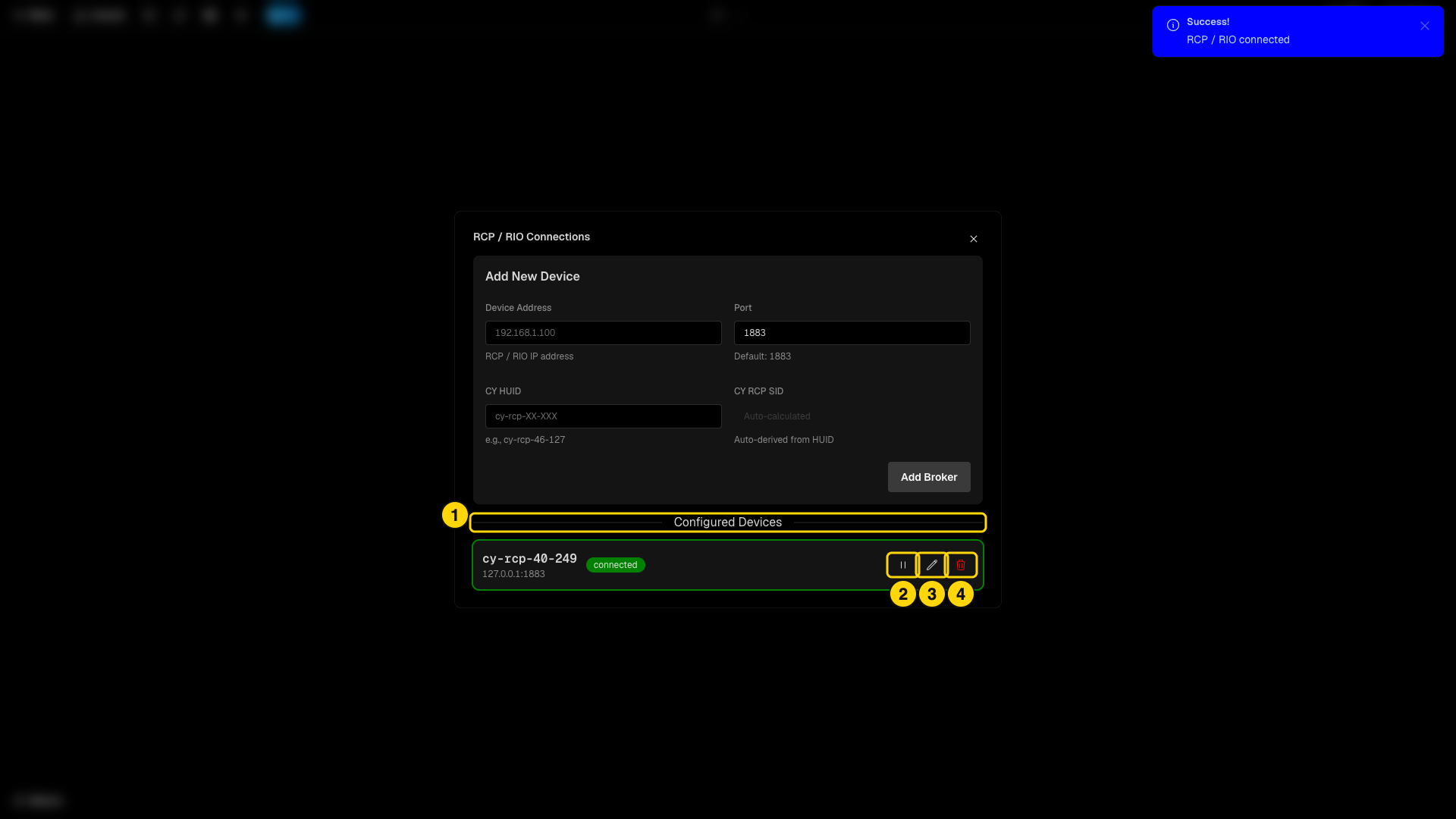
- The device row with its status.
- Disconnect.
- Edit.
- Delete.
You can open this window again at any time from Menu > RCP / RIO Connection.
Alternative: Cyan Discovery. Open Menu > Connections > Cyan Discovery. The RCP Discovery page lists the RCP, RIO and gateway devices found on your network (UDP port 3838) with their role, status, IP address, association, priority and last seen time. Click Connect on a device to create the connection for you.
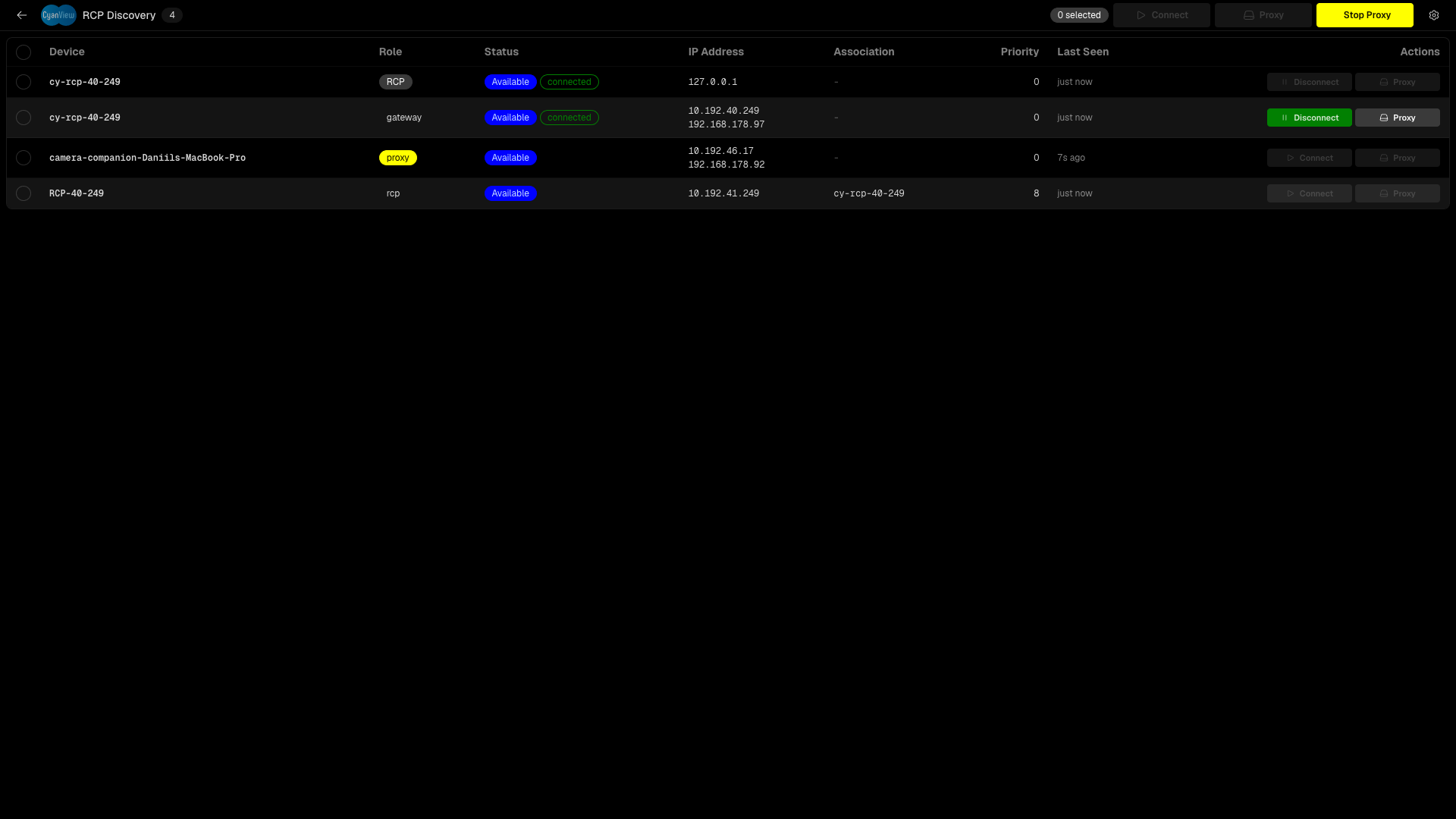
Use Reconnect all RCPs / RIOs in the header (the circular arrows icon) to restart every connection.
2. Add cameras
A new scene is empty and shows Welcome to your new scene!
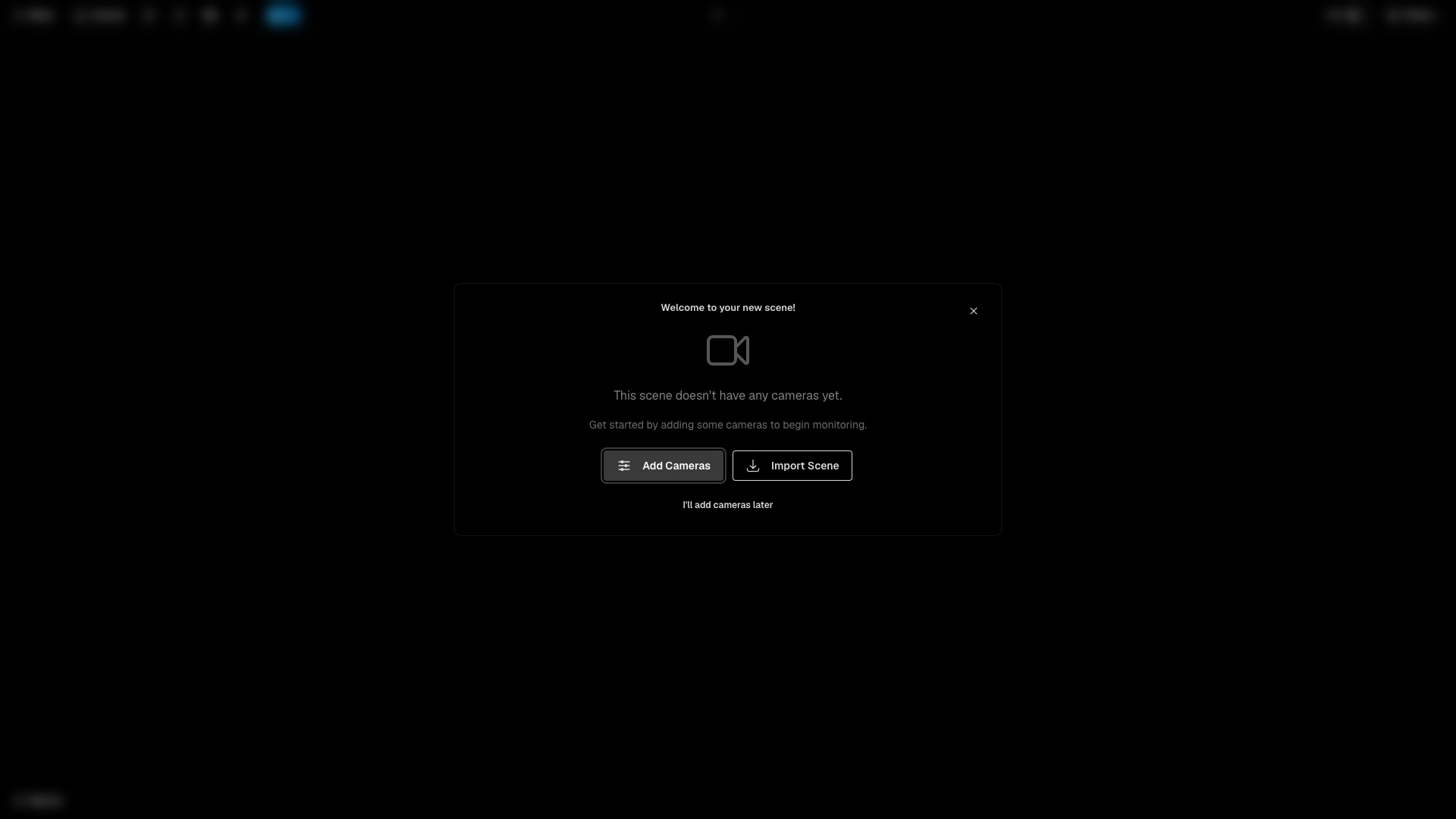
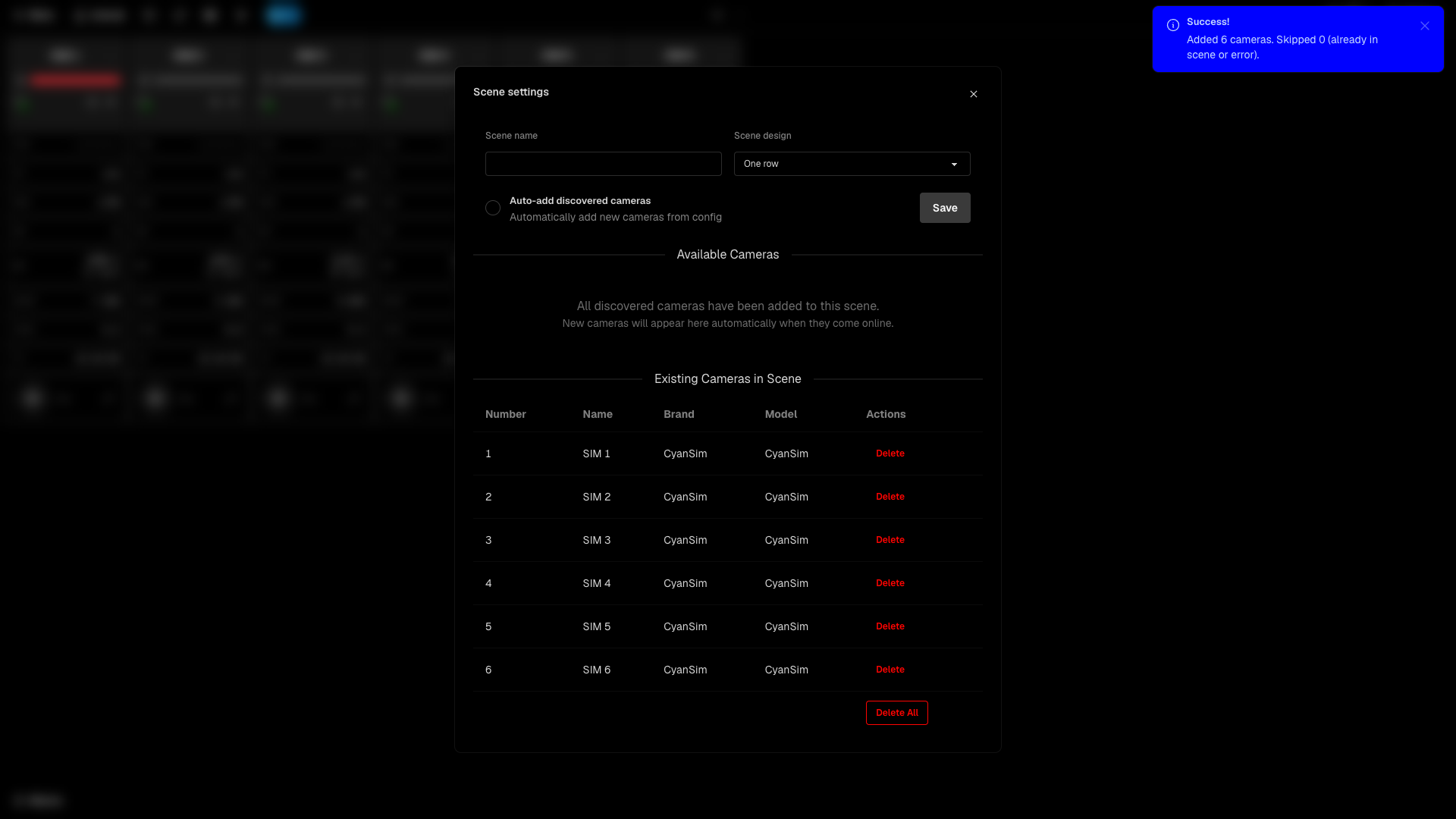
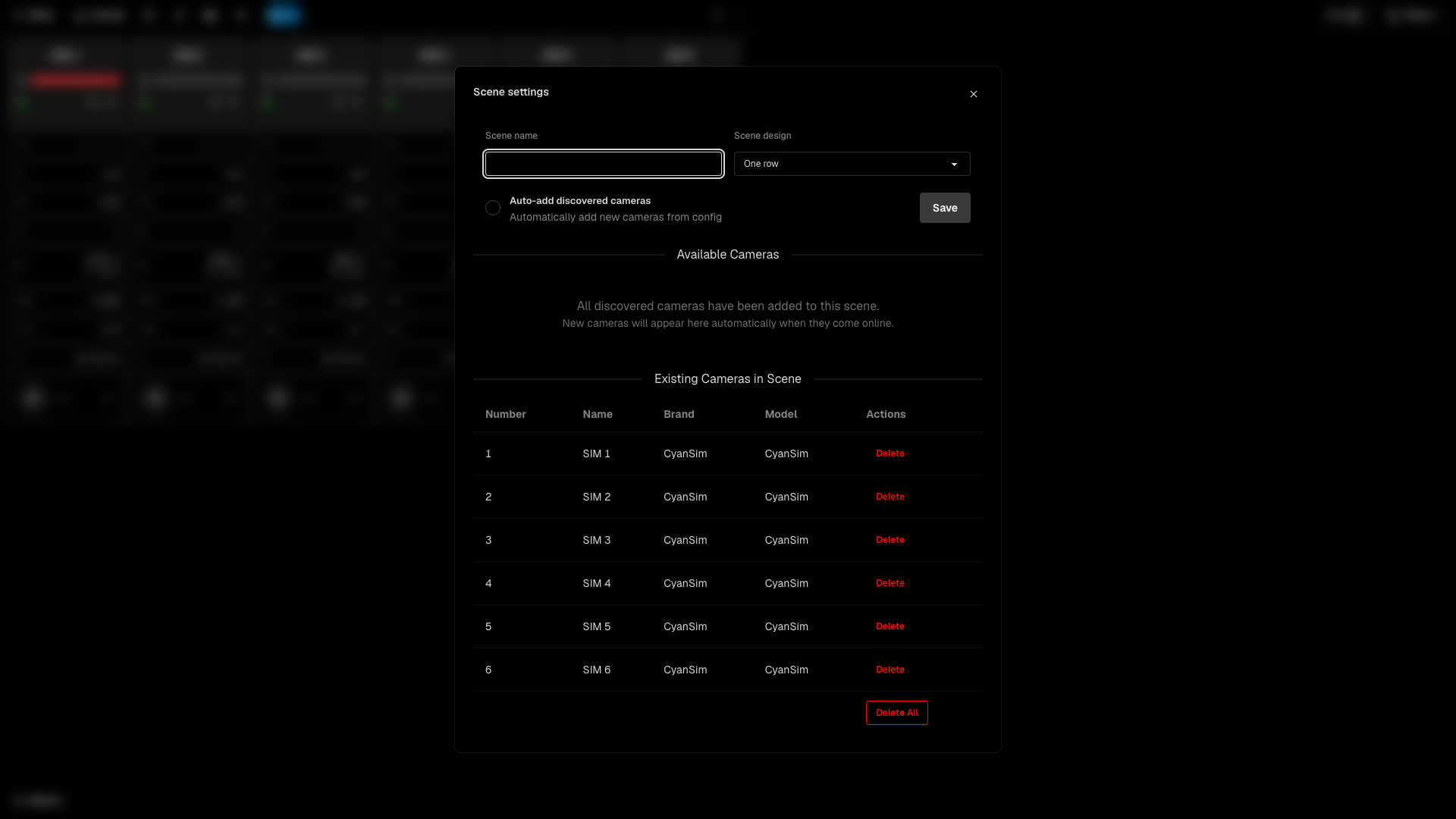
- Click Add Cameras. This opens Scene settings. You can also reach it from Menu > Scene settings.
- Under Available Cameras, find the cameras the RCP knows about. The table shows the number, name, brand, model and groups of each camera.
- Click Add on a row to add one camera, or Add (N) to add all of them.
- Click Save.
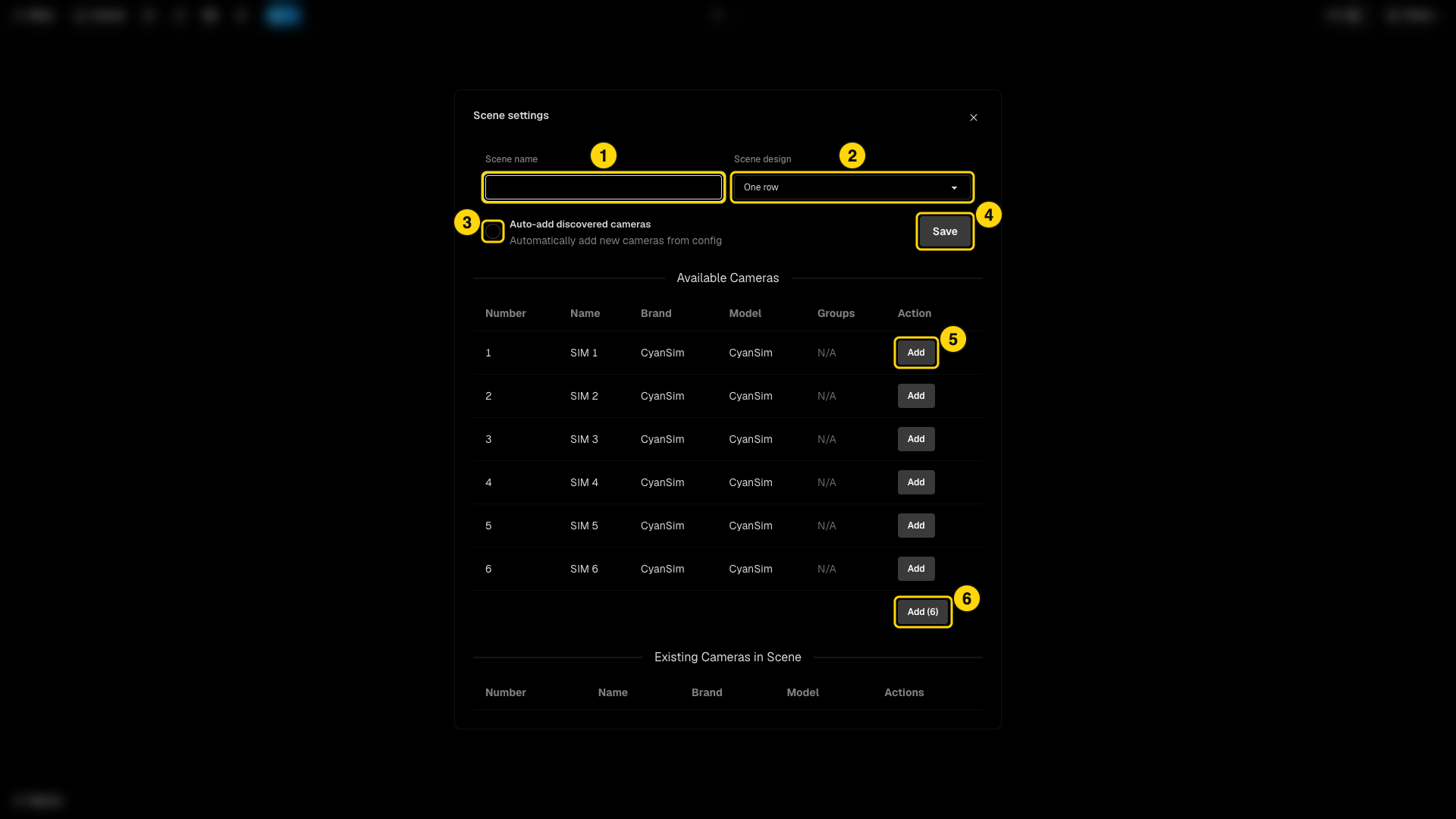
- Scene name - the name of the scene.
- Scene design - how the tiles are laid out (see section 4).
- Auto-add discovered cameras - when on, new cameras that come online are added to the scene automatically.
- Save - stores the name, design and auto-add choice.
- Add - adds this camera to the scene.
- Add (N) - adds every available camera.
Added cameras move to Existing Cameras in Scene. Use Delete to remove one camera or Delete All to empty the scene.
3. Dashboard tour
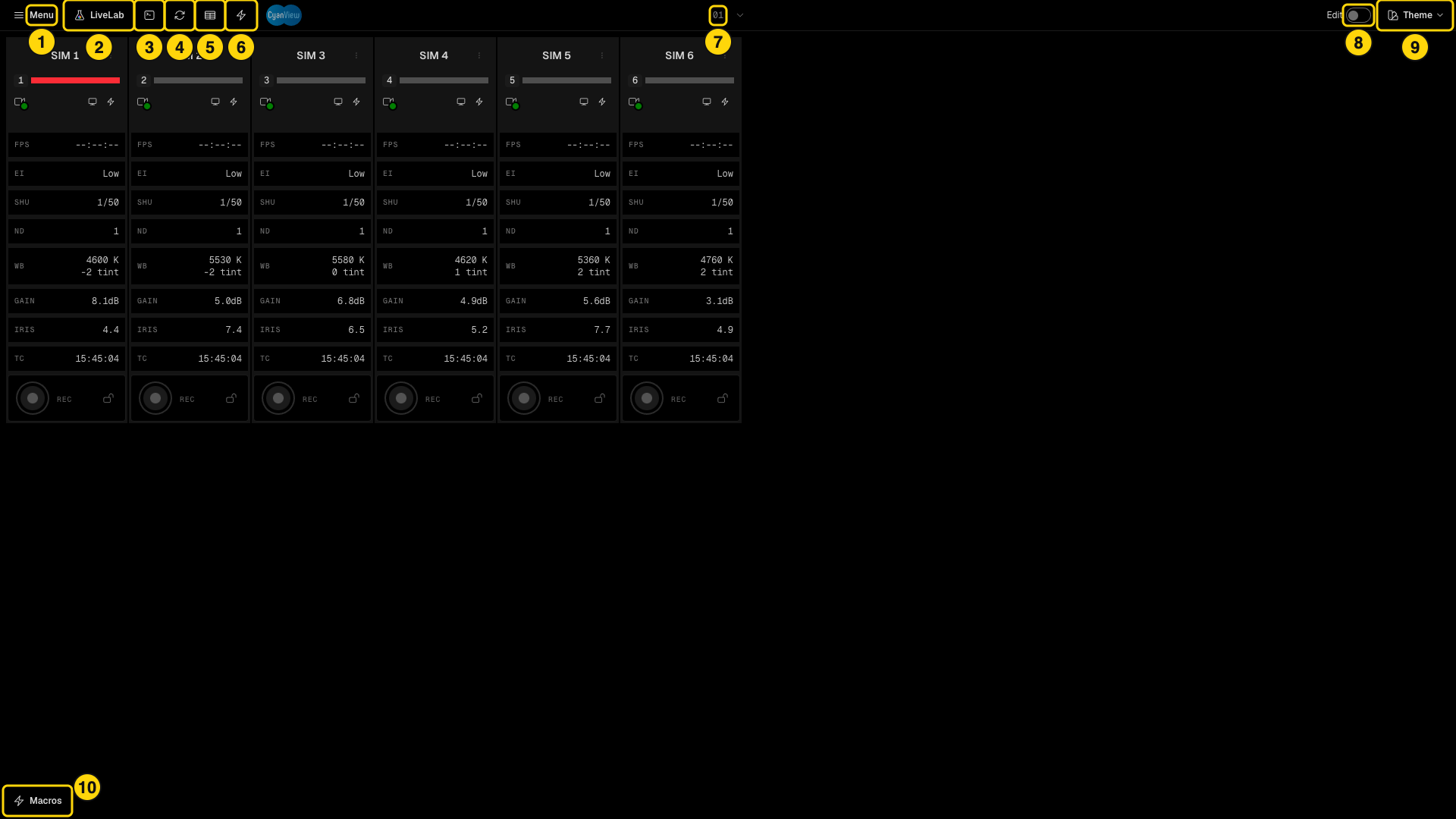
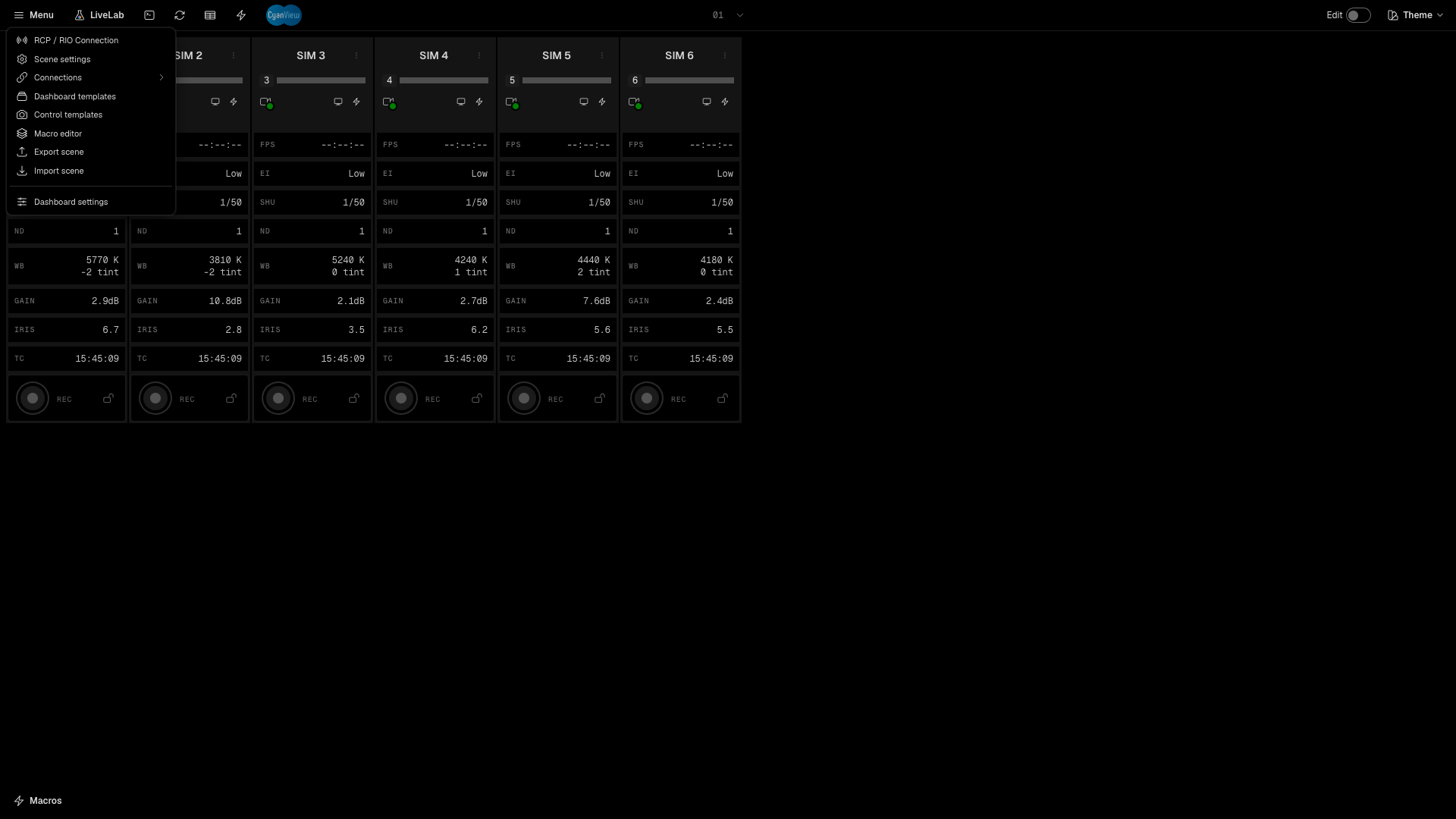
Each camera of the scene is a tile. The header holds the tools that work on the whole Dashboard.
- Menu - connections, scene settings, templates, macro editor, export and import, settings.
- LiveLab - switches to the LiveLab workspace.
- Command palette - search and run any command (Cmd+K, or Ctrl+K on Windows).
- Reconnect all RCPs / RIOs - restarts every RCP and RIO connection.
- Table view - switches between tiles and a table.
- Macros page - opens the Macro Pad.
- Scene switcher - changes the scene or creates a new one.
- Edit - turns on sorting and selection mode.
- Theme - changes the colour theme.
- Macros - opens the macro drawer at the bottom.
The Menu also holds Connections, Dashboard templates, Control templates, Macro editor, Export scene, Import scene and Dashboard settings.
Now look at one camera tile, enlarged.
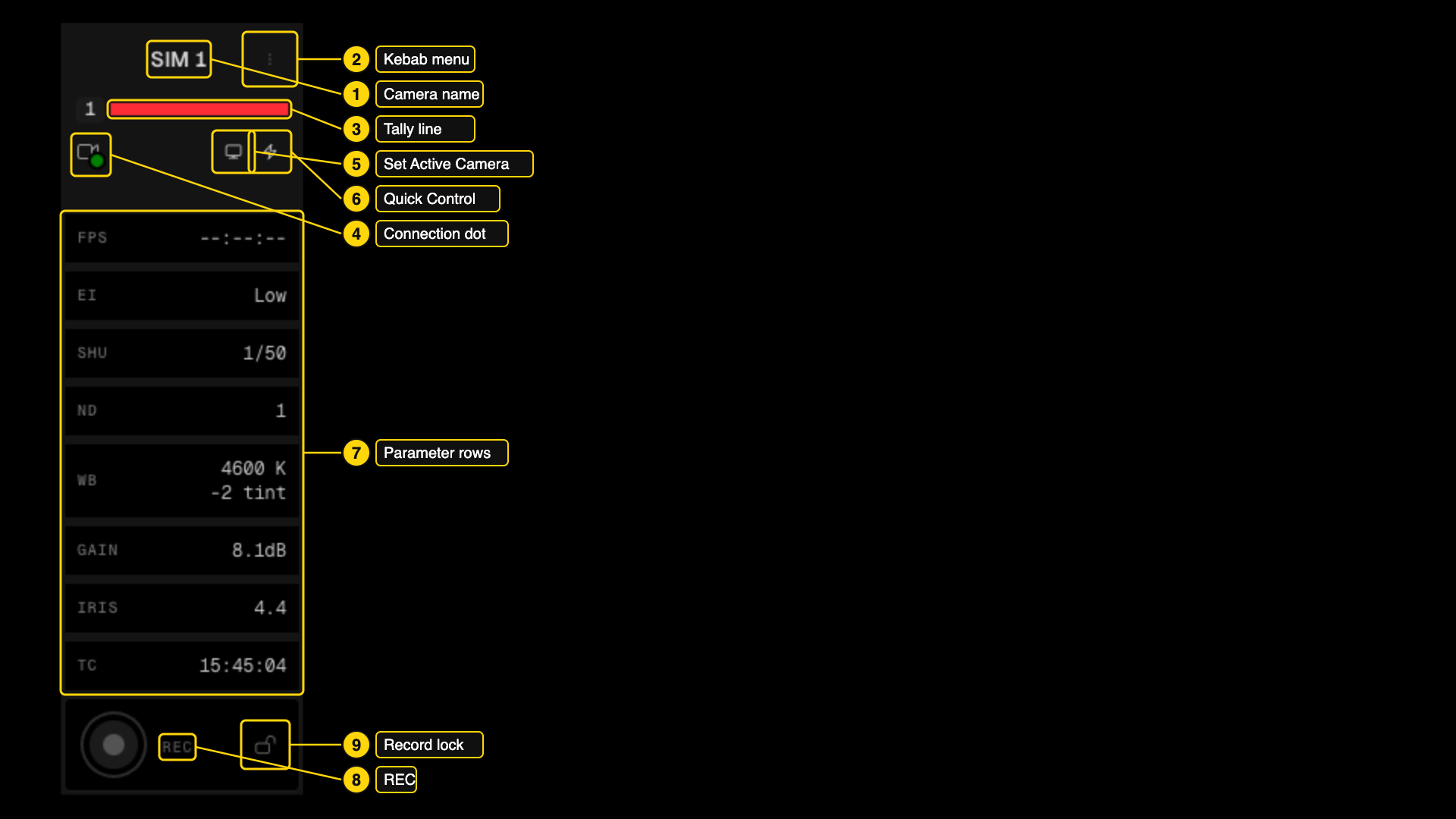
- Camera name - click it to open the full camera control page.
- Kebab menu - Camera Control, Quick Control, Template, Snapshot and Remove Camera.
- Tally line - next to the camera number. It lights up when the camera is on program or preview (see section 9).
- Connection dot - green when the camera is connected.
- Set Active Camera - makes this camera the active camera of the RCP.
- Quick Control - opens the quick control panel (see section 5).
- Parameter rows - FPS, EI, SHU, ND, WB, GAIN, IRIS and TC. This is the Basic template.
- REC - starts and stops recording.
- Record lock - protects the camera from an accidental record command.
When a camera belongs to a group, a group chip shows under the icons.
4. Scenes
A scene is a set of cameras with its own layout. Use scenes for different shows or studios.
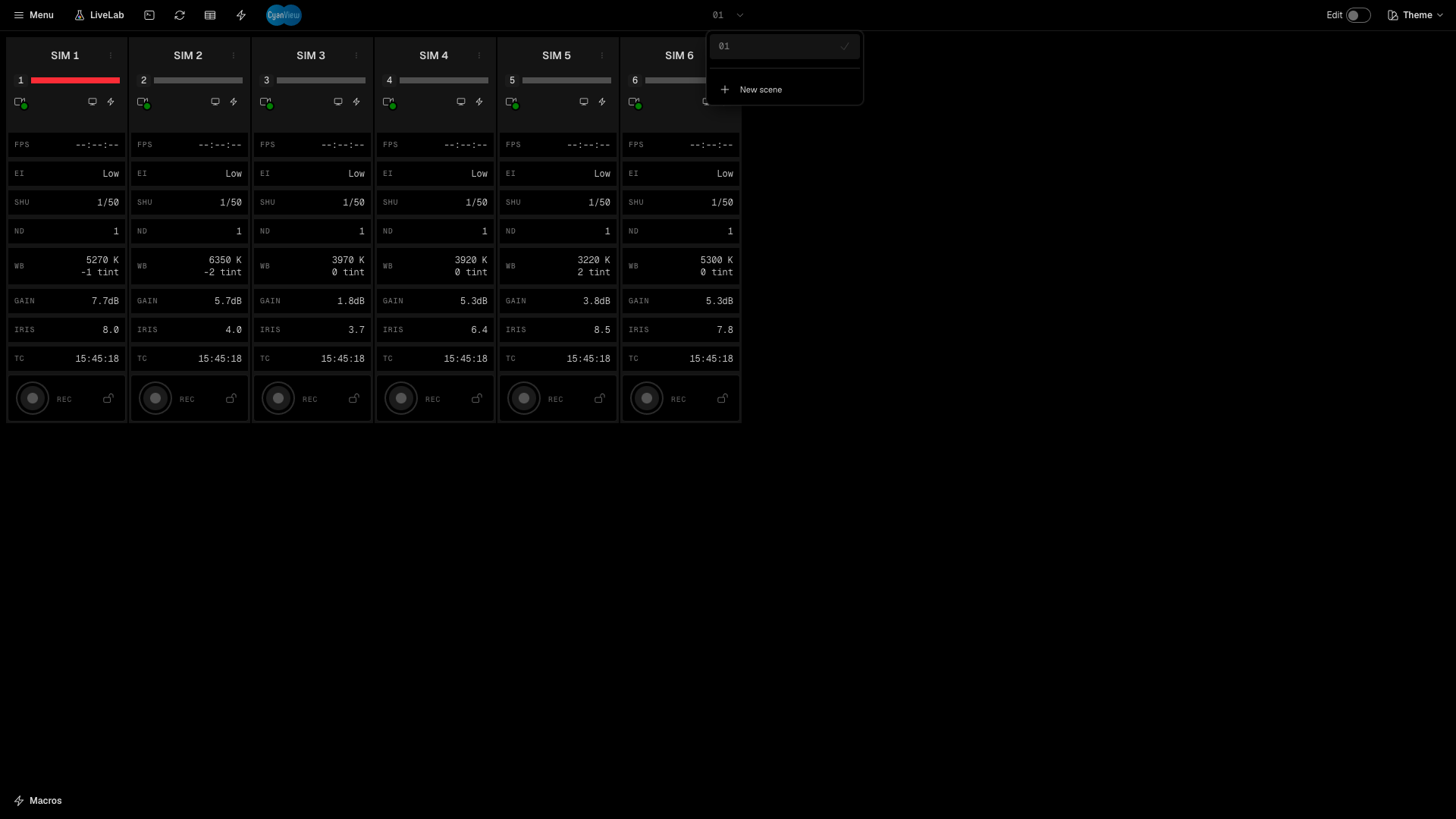
- Click the scene number in the header to open the switcher. Click a scene to open it.
- Click New scene to create a new scene. Then add cameras as in section 2.
- Open Menu > Scene settings to rename the scene or change Scene design.
Scene design has three choices: One row, Grid and Highlight first 4.
Use Menu > Export scene to save the scene as a JSON file with its cameras, templates and settings. Use Menu > Import scene (or Import Scene on an empty scene) to load it again.
To change the order of the tiles, turn on Edit and drag the tiles.
5. Quick controls
Quick Control is a panel on the right side of the Dashboard. You can change the camera without leaving the tiles.
- Click the bolt icon on a tile, or choose Quick Control in the kebab menu.
- The panel Quick Control - SIM 1 opens with the control cards of the camera: Recording, Iris, ND Filter, Gain, Shutter, White Balance, CC Filter and more.
- Use the list and grid buttons at the top to change the layout, Sort to reorder the cards, and the template menu (Default) to pick another control template.
- Drag the left edge of the panel to resize it. Click the X to close it.
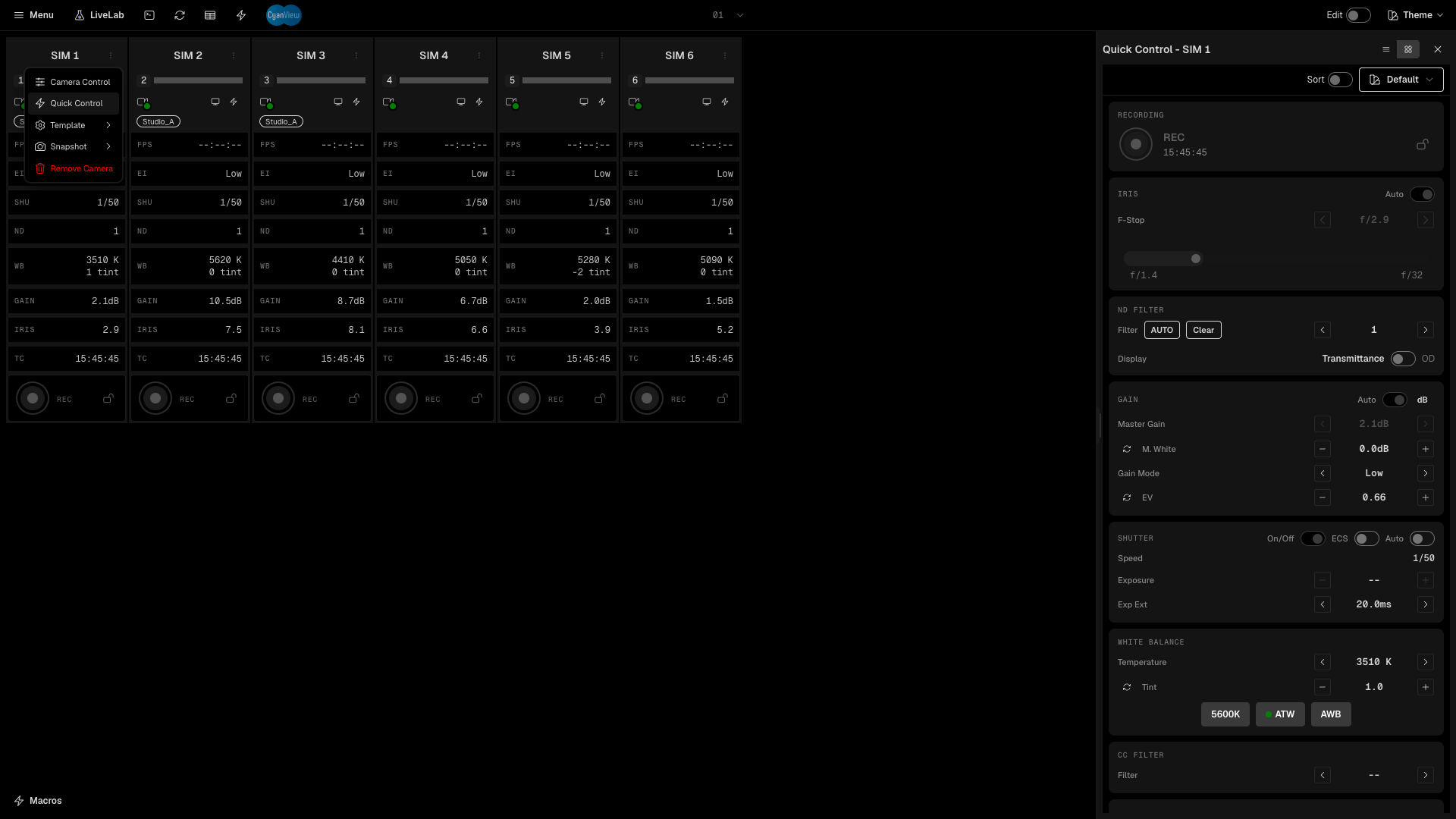
The panel stays open when you reload the page, until you close it.
6. Full camera control
The full control page shows every control of one camera.
- Click the camera name on a tile, or choose Camera Control in the kebab menu.
- Use the controls in the cards. They are in columns: Camera Status, Recording, Timecode, ND Filter, Iris, Shutter, Gain, White Balance and many more, depending on the camera.
- Click the back arrow to return to the Dashboard.
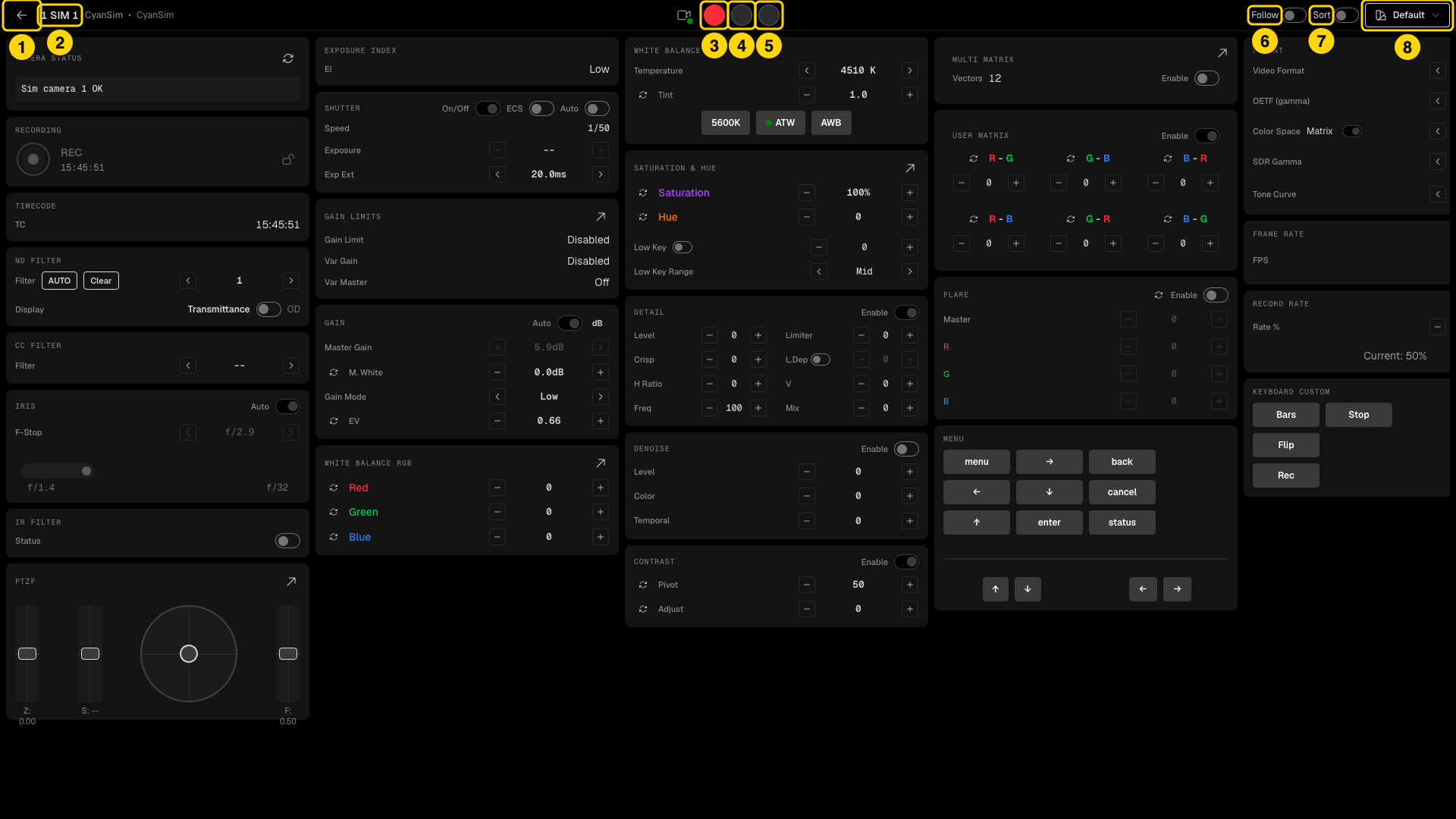
- Back - returns to the Dashboard.
- Camera - the number, name, brand and model.
- Red tally - forces the red tally.
- Green tally - forces the green tally.
- Call tally - forces the call tally.
- Follow - when on, the page switches to the camera that is active on the RCP.
- Sort - lets you reorder the cards.
- Template menu - picks a control template.
7. Templates
There are two kinds of templates.
Dashboard templates choose the parameters shown on a tile. The built-in templates are Basic, Colorist and CyanCamera.
- Open Menu > Dashboard templates to open the Template Editor.
- Select a template on the left. Its parameters show on the right.
- Drag the parameters to reorder them and remove the ones you do not need.
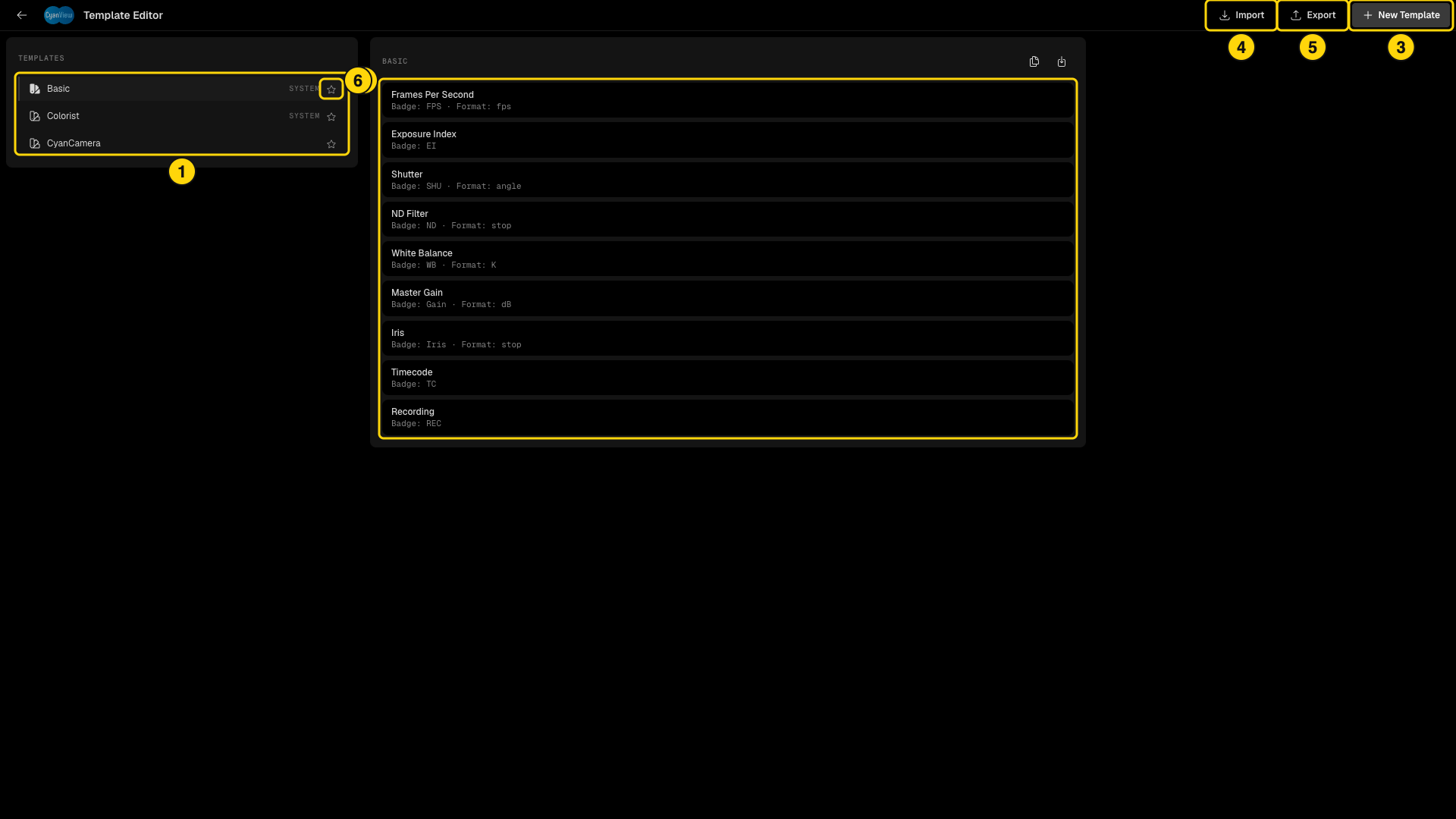
- The template list. SYSTEM templates are built in.
- The parameters of the selected template. Each one shows its badge and format.
- New Template - creates a template.
- Import - loads templates from a file.
- Export - saves templates to a file.
- The star - marks the template for new cameras.
The icons above the parameter list duplicate the template or export only this one.
To apply a template to a camera:
- Open the kebab menu of the tile and choose Template.
- Click a template name.
- Click Apply to All to use the template on every camera.
- Click the star to use the template for new cameras.
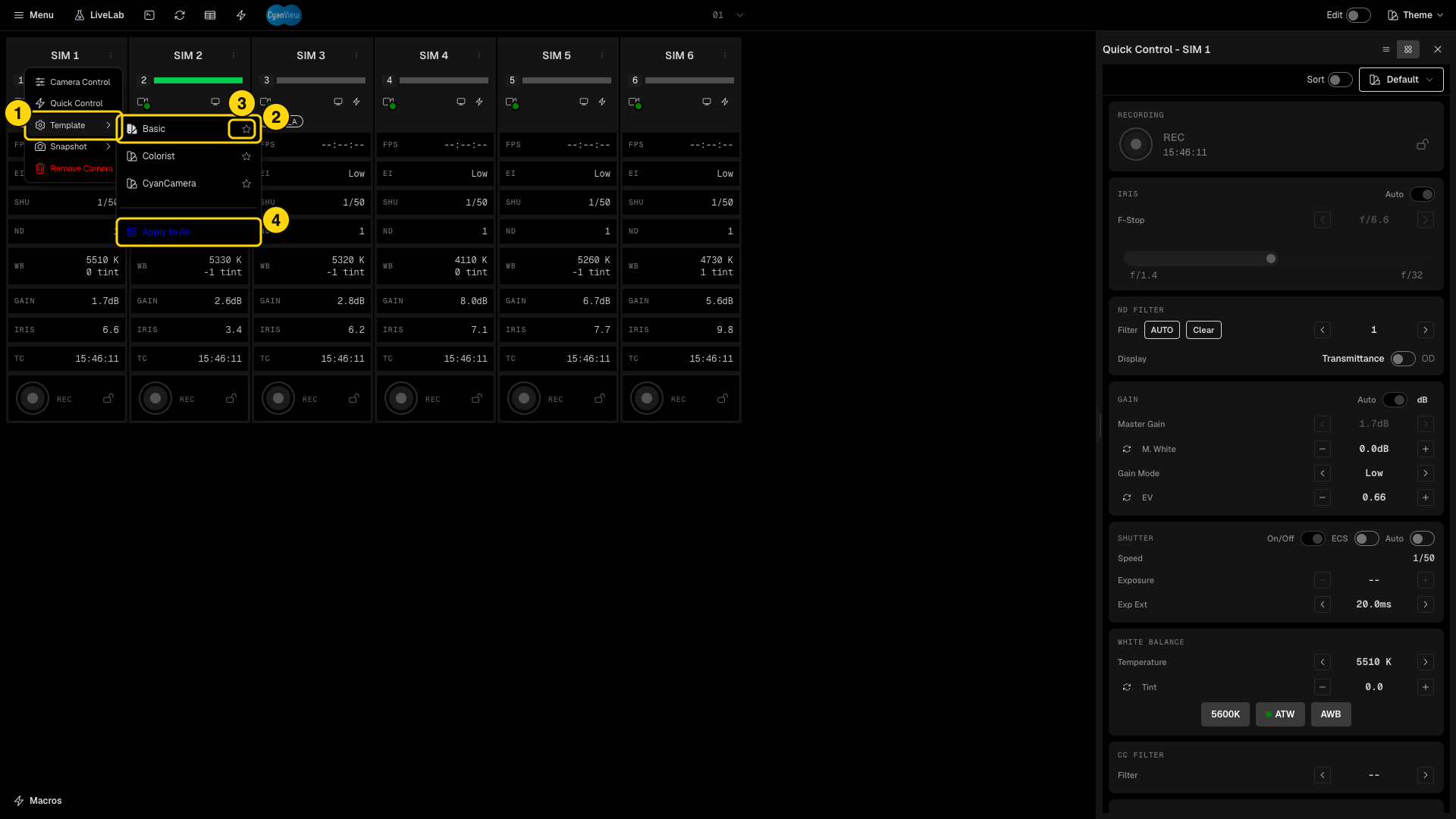
- Template - opens the list of templates.
- A template name - applies it to this camera.
- The star - Template for new cameras.
- Apply to All - applies the template to every camera.
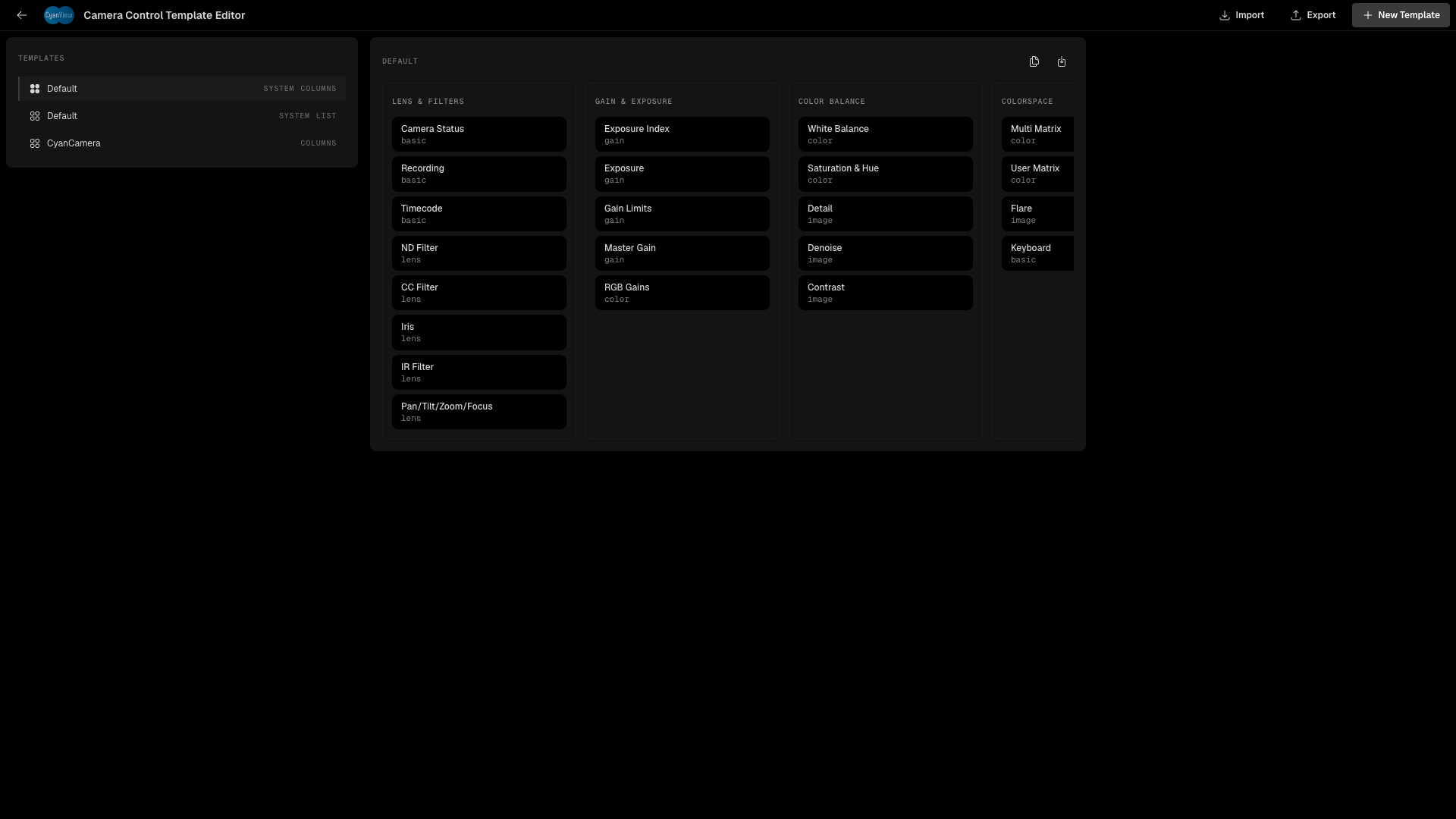
Control templates choose the control cards of the quick control panel and of the full control page. Open Menu > Control templates to open the Camera Control Template Editor. The cards are grouped, for example Lens & Filters, Gain & Exposure and Color Balance. A control template can be a column layout or a list layout, for the full page or the quick panel. Pick one with the template menu on the panel or on the page.
8. Camera groups
A group lets you control several cameras at once.
-
Turn on Edit. A checkbox appears on every tile.
-
Select the cameras. A bar appears at the bottom of the screen.
-
Type a group name. Use letters, digits and underscores only, for example
Studio_A. -
Click Create Group.
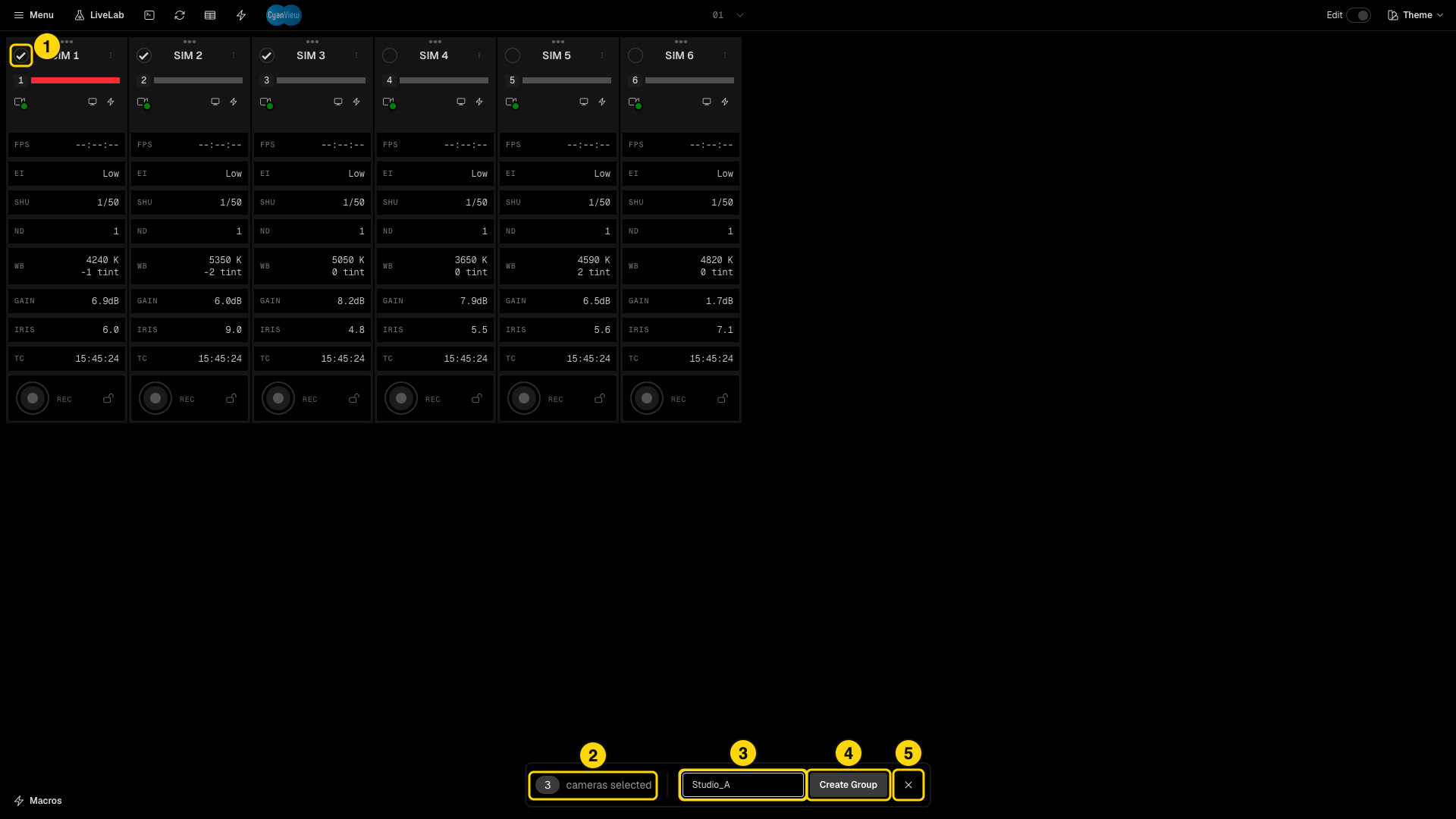
- The checkboxes on the selected tiles.
- The number of selected cameras.
- Group name field.
- Create Group.
- Clear - empties the selection.
The group chip now shows on each member tile.
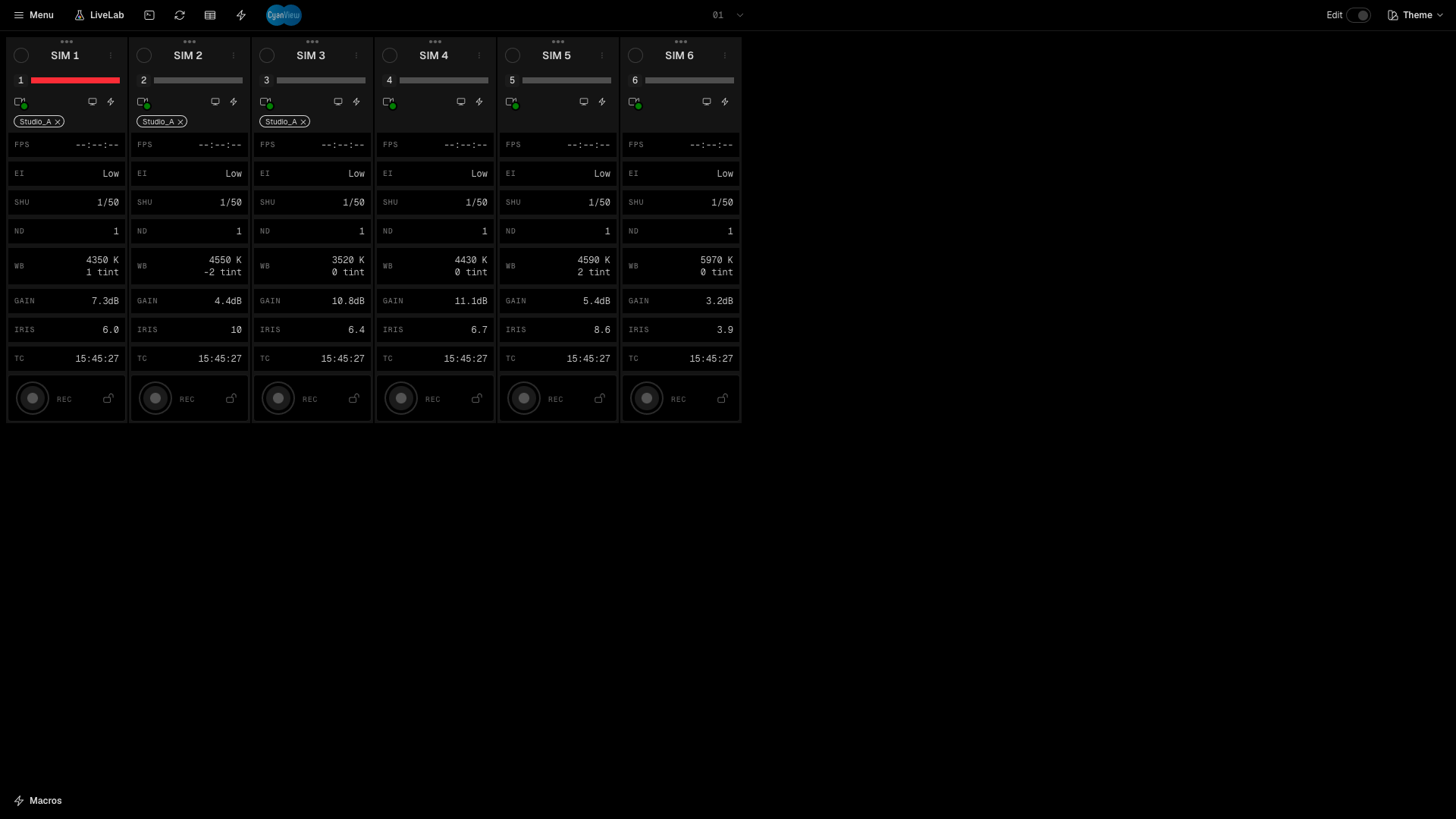
Click a group chip to open the group control page. It has the same controls as the full control page. Every change goes to all the cameras of the group.
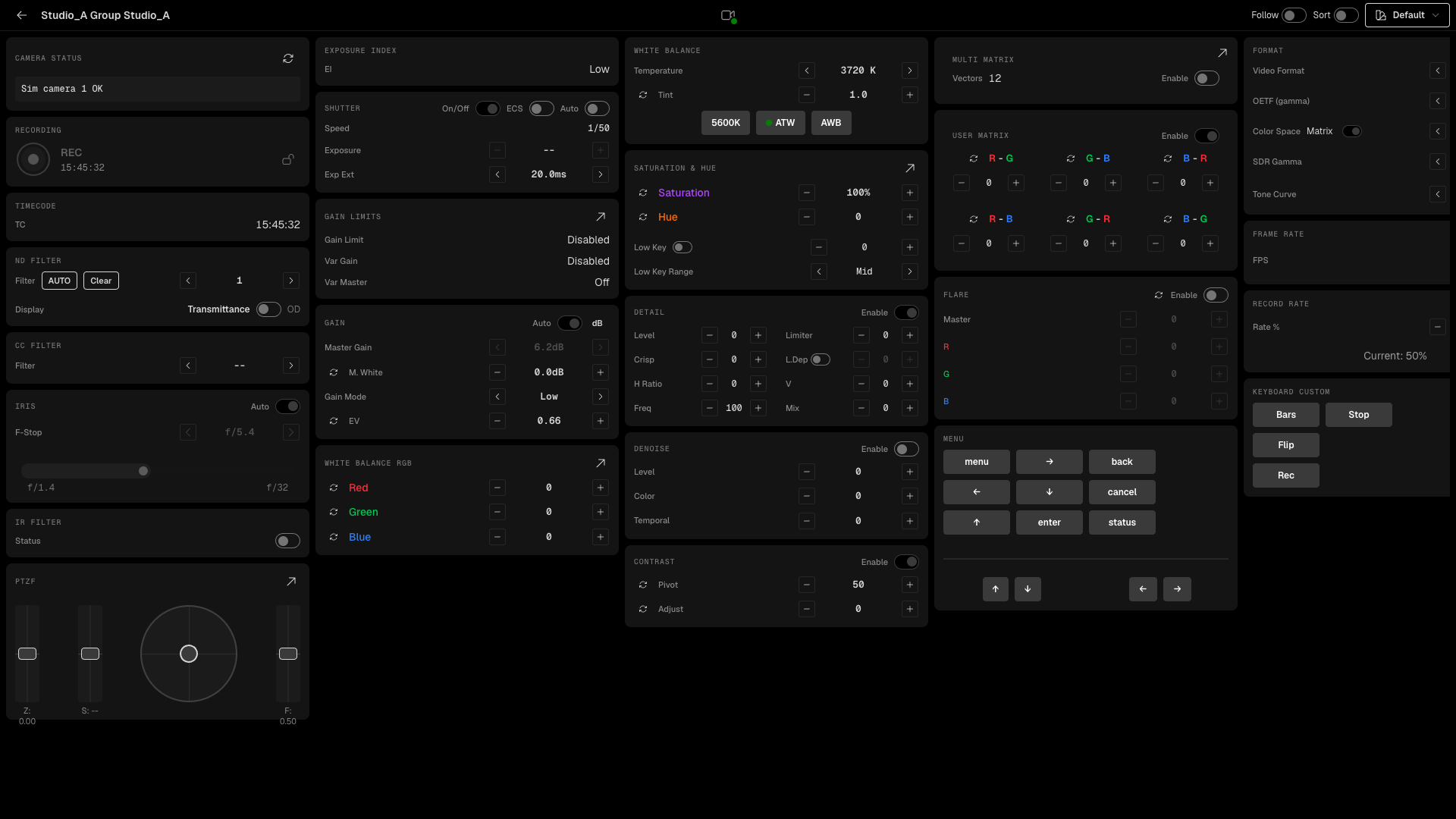
To delete a group, turn on Edit and click the x on the chip.
9. Tally lights
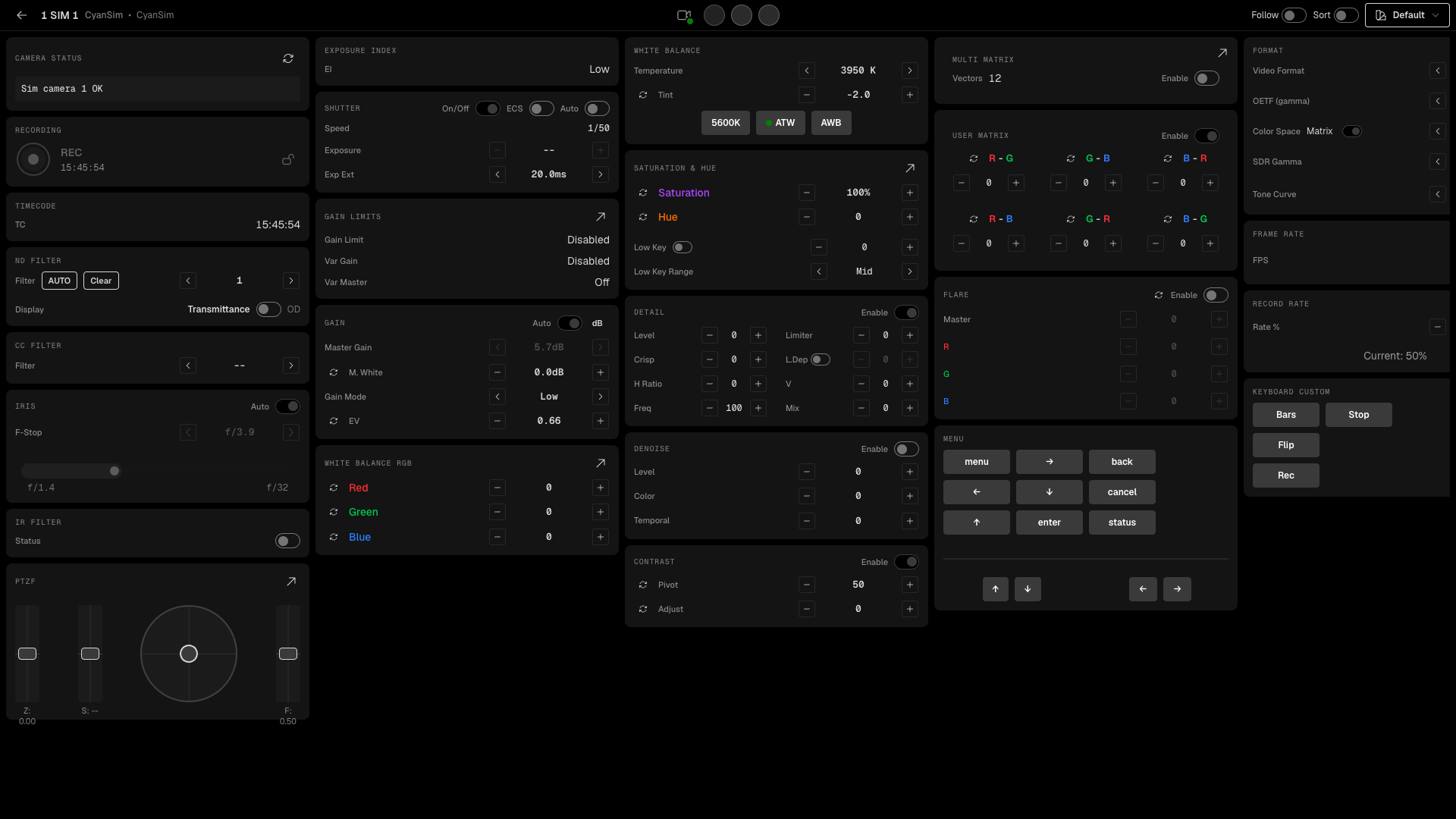
The tally comes from your video switcher through the RCP. See Tally for the RCP wiring and the Tally Light manual for the camera lights. The tally line on each tile changes colour:
- Red - the camera is on program.
- Green - the camera is on preview.
- Amber - the camera is on program and preview.
- Yellow - call.
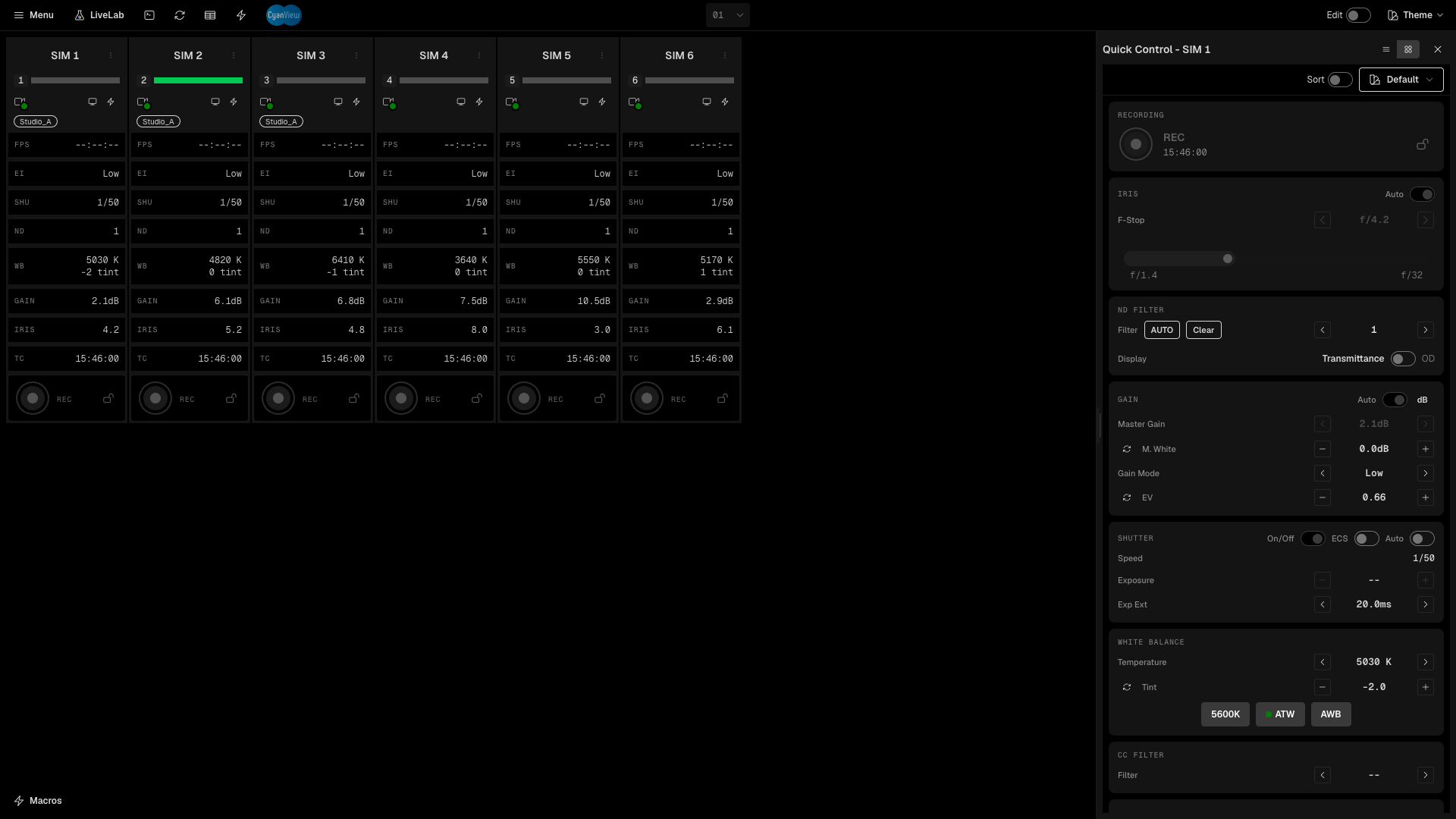
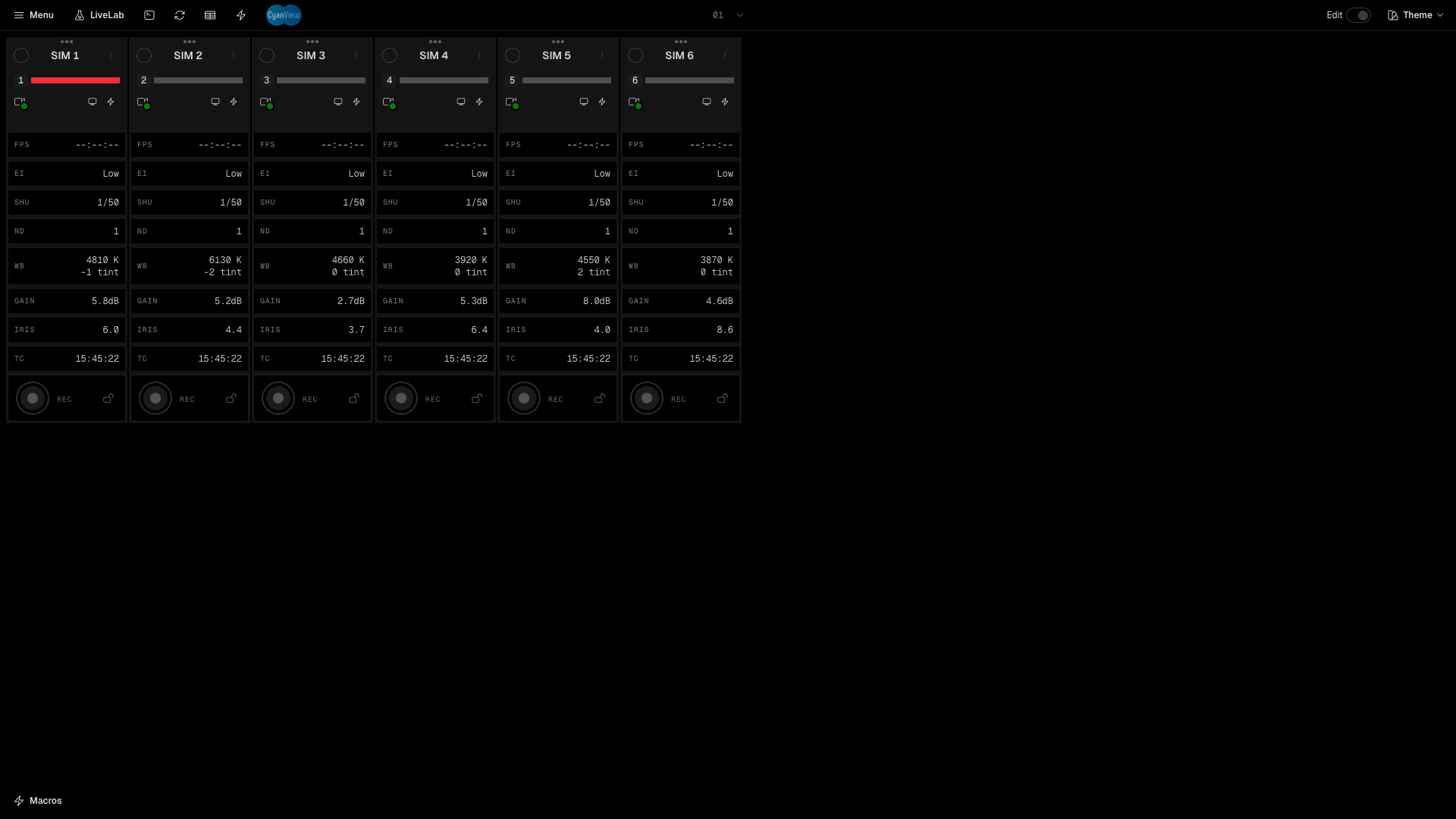
On the full control page, the three round buttons in the header force red, green or call. Use them to test the tally lights. The first button turns red in the picture below.
10. Macros
A macro runs one or more actions on cameras with a single click.
- Open Menu > Macro editor.
- Enter a Name. Optionally enter a Button Label and pick a Color.
- Under ACTIONS, choose the cameras: All cameras or one or more single cameras. You can also type group ids.
- Choose an Action and enter a Value. For example, Set Gain (ISO) with the value 1600.
- Click Add Action to add more actions to the same macro.
- Click Create Macro.
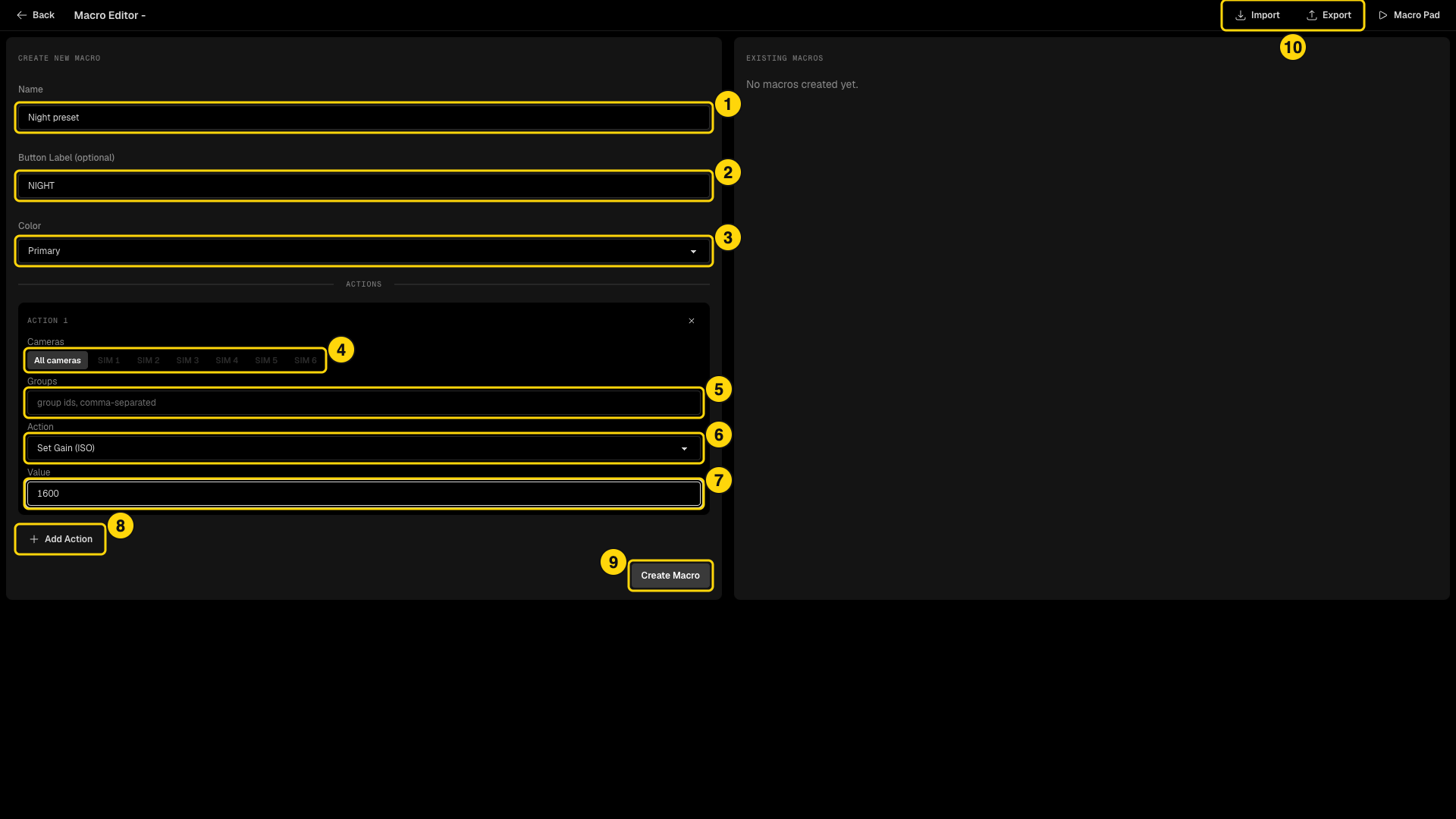
- Name of the macro.
- Button Label - the text on the button.
- Color of the button.
- Cameras - which cameras the action targets.
- Groups - group ids, separated by commas.
- Action - for example Set Iris, Set Gain (dB), Set Color Temperature (K), Set ND Filter, Recording or Set 3D LUT.
- Value - the value to send.
- Add Action - adds another action.
- Create Macro - saves the macro.
- Import and Export - move macros as a JSON file.
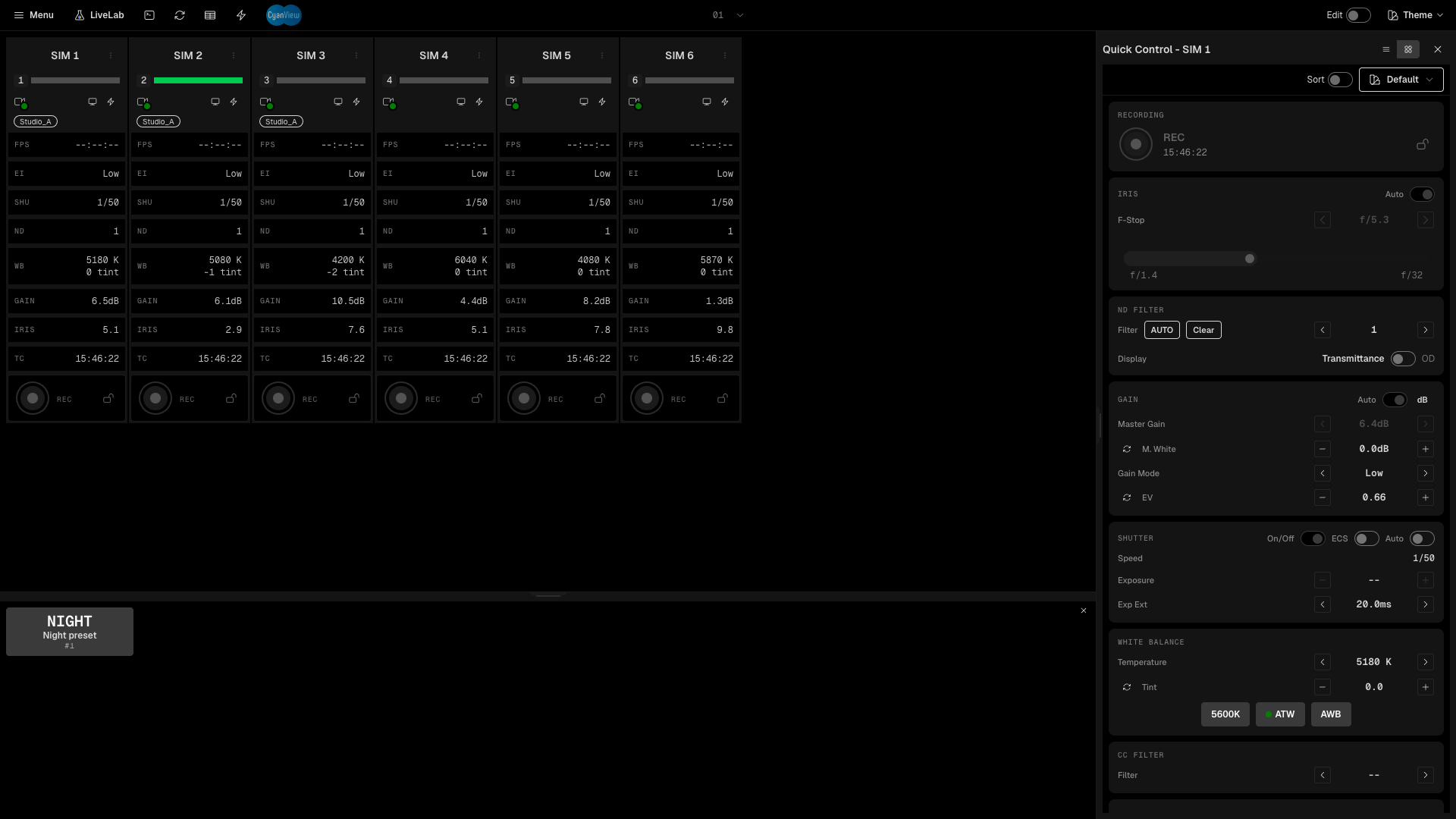
To run a macro, click Macros at the bottom left of the Dashboard to open the drawer, then click the button.
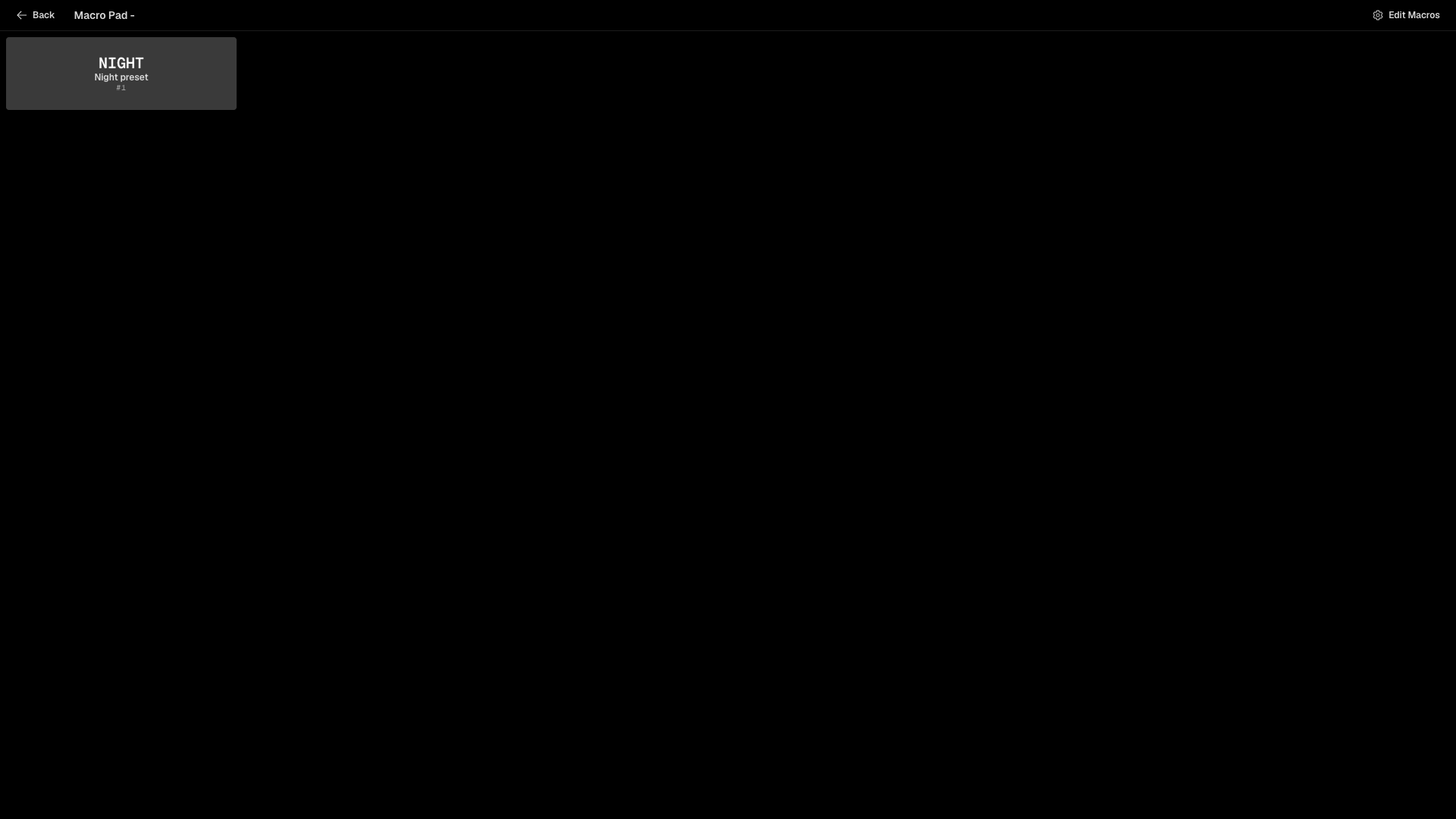
The bolt icon in the header opens the Macro Pad. It shows the macros as large buttons. Click Edit Macros to go back to the editor.
11. Table view and theme
Click the Table view icon in the header to show one row per camera instead of tiles. Click it again to go back.
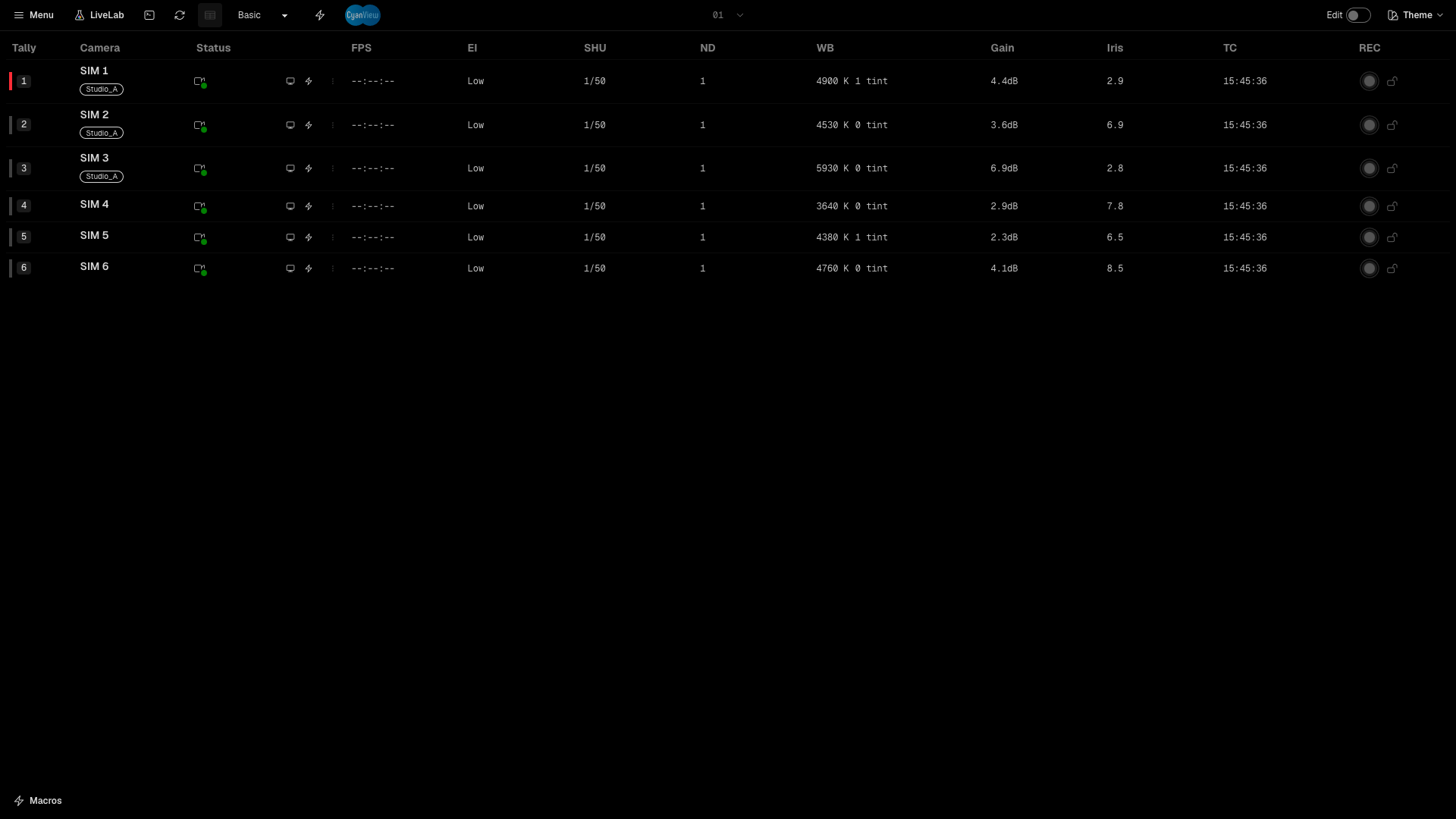
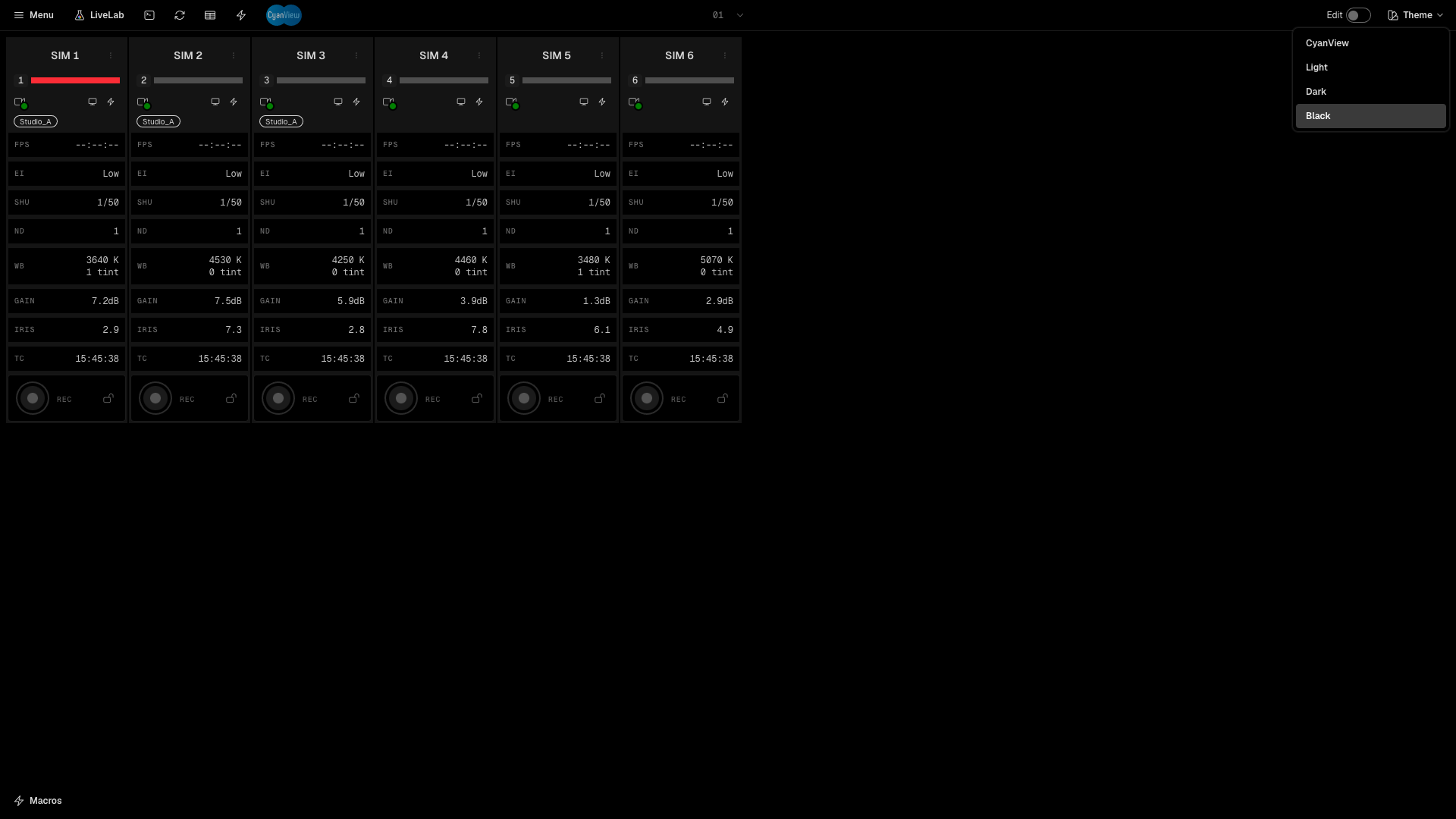
Use Theme at the top right to change the look. The choices are CyanView, Light, Dark and Black.
12. Dashboard settings and command palette
Open Menu > Dashboard settings. The settings apply to every scene and camera control page.
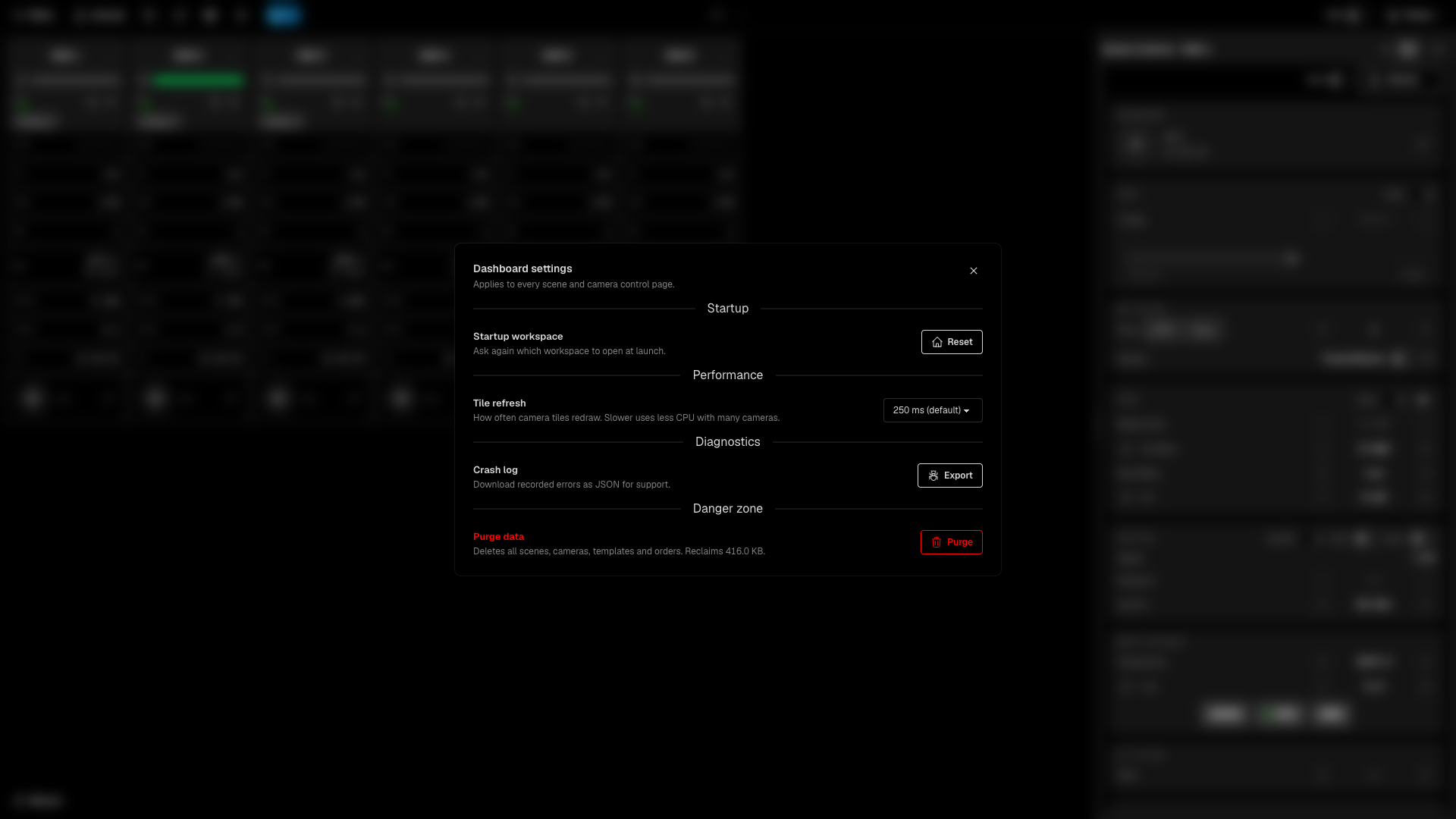
- Startup workspace - Reset makes the app ask again which workspace to open at launch.
- Tile refresh - how often the tiles redraw: 100 ms, 250 ms (default), 500 ms or 1 s. A slower rate uses less CPU with many cameras.
- Crash log - Export saves the recorded errors as a JSON file for support.
- Purge data - deletes all scenes, cameras, templates and orders. Use it with care.
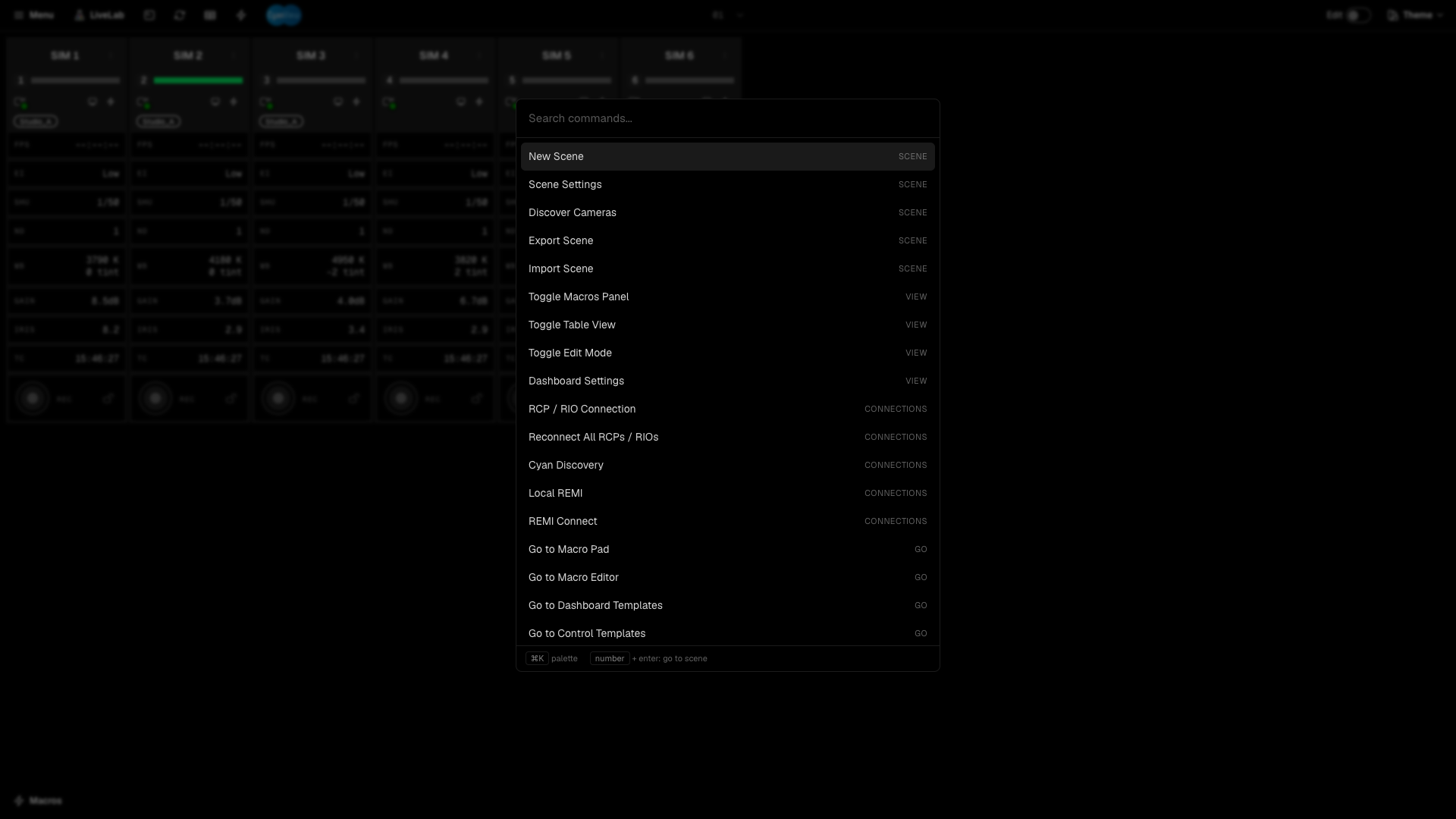
Press Cmd+K (Ctrl+K on Windows) or click the command palette icon to search every command. You can create a scene, open the scene settings, switch views, open the connections and go to the macro and template pages without the menu.