Studio LiveLab
Overview
LiveLab is the color grading workspace of CyanView Studio. You build a look as a flow of nodes. You check it on a reference still or on live video. LiveLab bakes the look into a 3D LUT and sends it to a LUT box. Each change goes out as you make it.
LiveLab needs a license. The Domain pill in the header shows the license state. The Dashboard works without a license.
On first launch, Studio asks you to choose a workspace. Pick LiveLab. You can switch at any time with the Dashboard link in the LiveLab header.
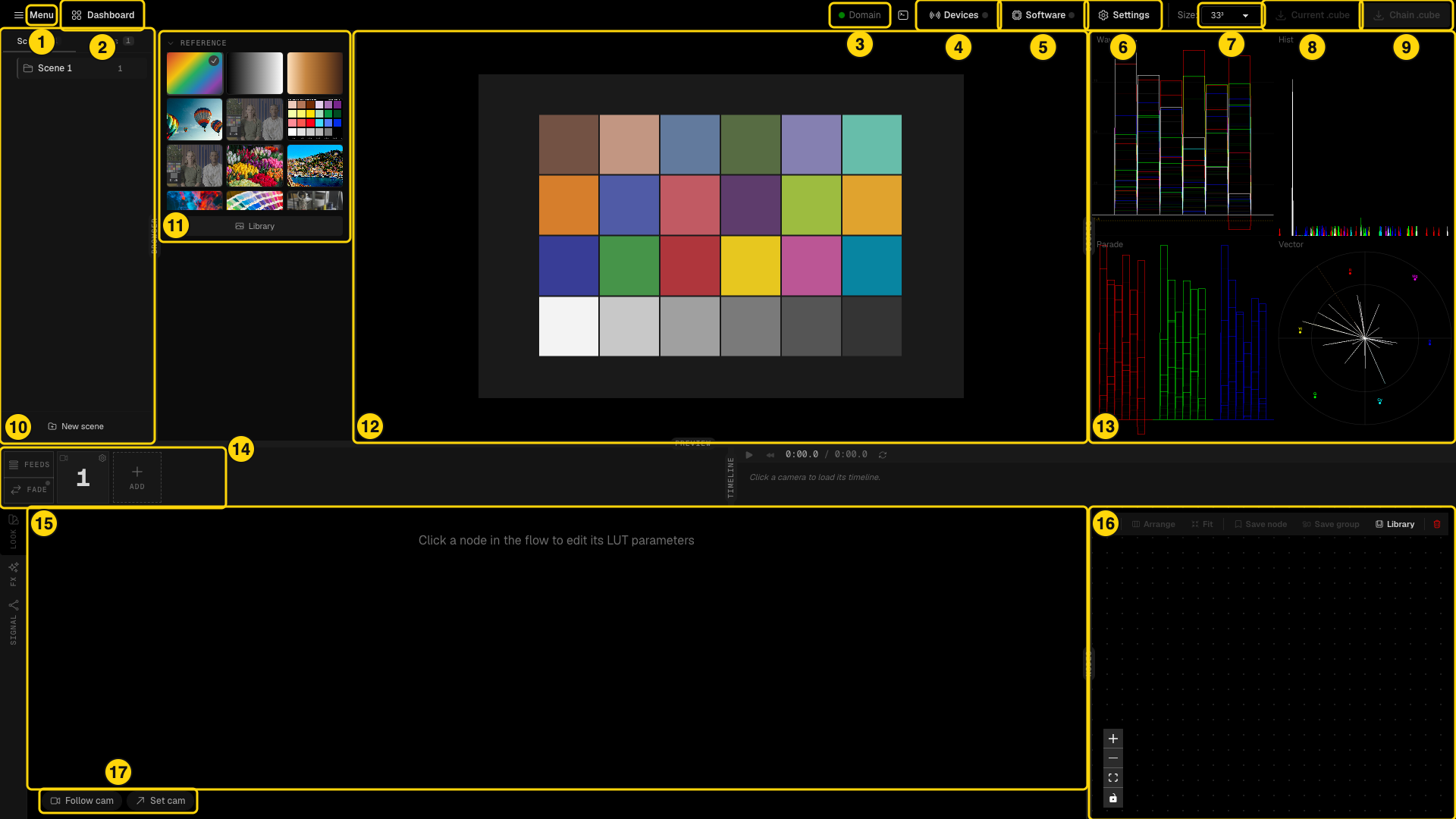
- Menu - Projects, Rename project and Dashboard.
- Dashboard - switches to the Dashboard workspace.
- Domain - license state.
- Devices - the LUT boxes and the feed assignments.
- Software - NDI output, DaVinci Resolve and LUT Receiver.
- Settings - general, export and storage settings.
- Size - LUT size (17, 33 or 65 points).
- Current .cube - downloads the LUT of the selected node.
- Chain .cube - downloads the LUT of the full chain.
- BROWSER - the Scenes and Grades tabs.
- REFERENCE - still images used when no live video is attached. Library holds your own images.
- PREVIEW - the graded reference or live feed.
- SCOPES - waveform, histogram, parade and vectorscope of the graded preview.
- FEEDS strip - one tile per feed, the FADE button and ADD.
- LOOK, FX and SIGNAL - the bottom panel. Switch with the vertical tabs on the left (Alt+L, Alt+F, Alt+M).
- NODES - the node graph of the selected grade.
- Follow cam and Set cam - link LiveLab to the active camera of the RCP (see step 7).
Key concepts
- Project - the top level. It holds your scenes, grades and feeds.
- Scene - a set of looks for one situation, for example day and night. Switching scene re-applies the grade of every feed and pushes it to the devices.
- Grade - a look, stored as a node flow. Each feed has its own grade in each scene.
- Feed - one video signal, normally one camera. A feed links a Dashboard camera (for metadata) and a LUT device (which receives the LUT).
- Device - a LUT box: VP4, AJA ColorBox, AJA FS-HDR, BoxIO, the CyanCamera phone app or an FXVP server.
- Node - one step of a grade: IDT, Primaries, Grading, DCTL, 3D LUT, LUT Gallery, Receiver or ODT.
- Reference - a still image used to preview the grade when no live video is attached.
1. Add a LUT device
- Click Devices in the header.
- In the empty row at the top of the DEVICES tab, fill in the fields.
- Click Add.
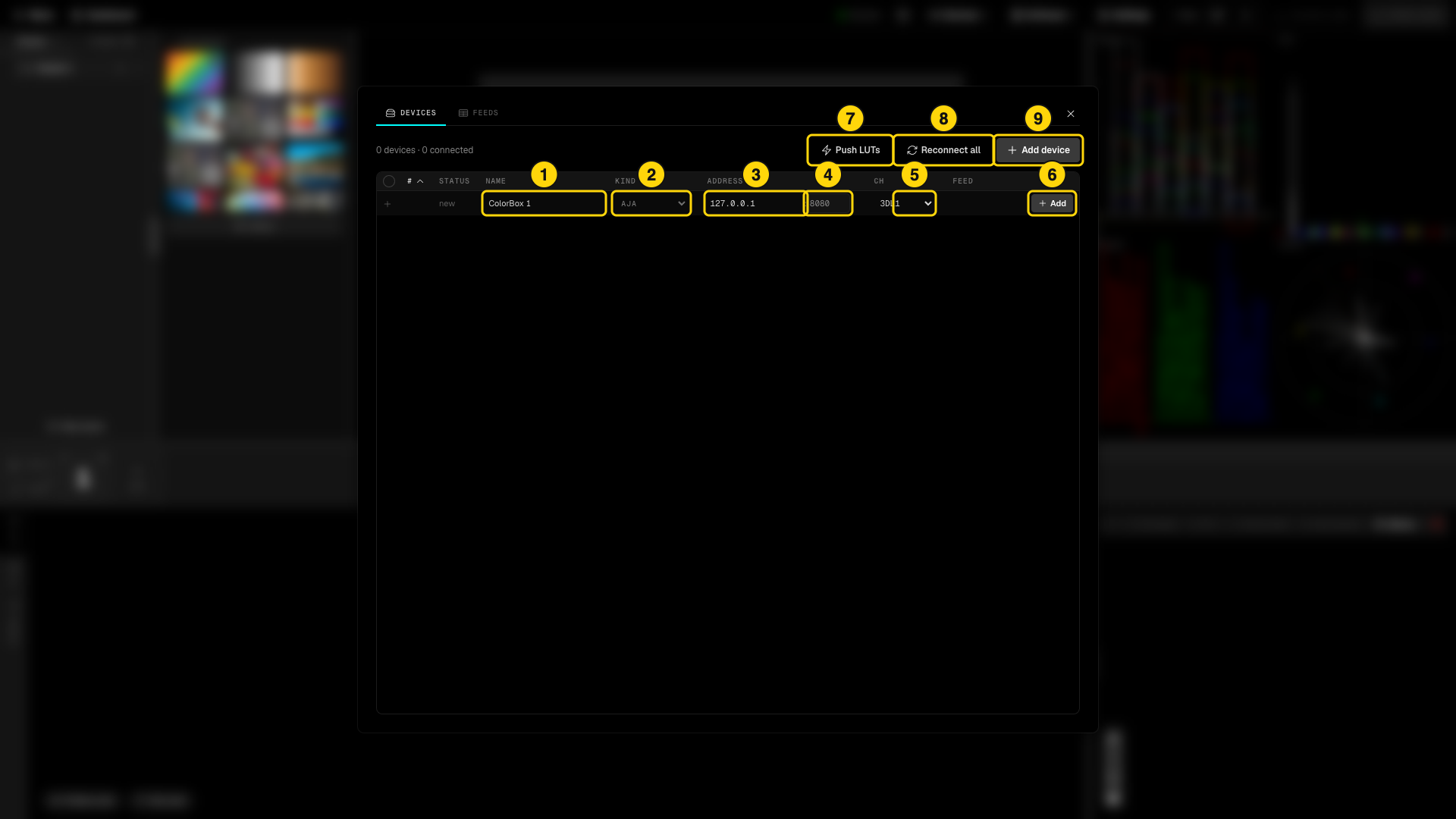
- Name of the device.
- Kind: VP4, AJA ColorBox, AJA FS-HDR, BoxIO, CyanCamera or FXVP server.
- IP address of the device.
- Port. The default depends on the kind, for example 4567 for a VP4 and 8080 for an AJA ColorBox.
- Channel or target. A VP4 has channels 1 to 4. An AJA ColorBox has targets such as 1DL1, 1DL2 or 3DL1.
- Add - creates the device.
- Push LUTs - sends the LUT of every feed again.
- Reconnect all - reconnects every device.
- Add device - opens a new empty row.
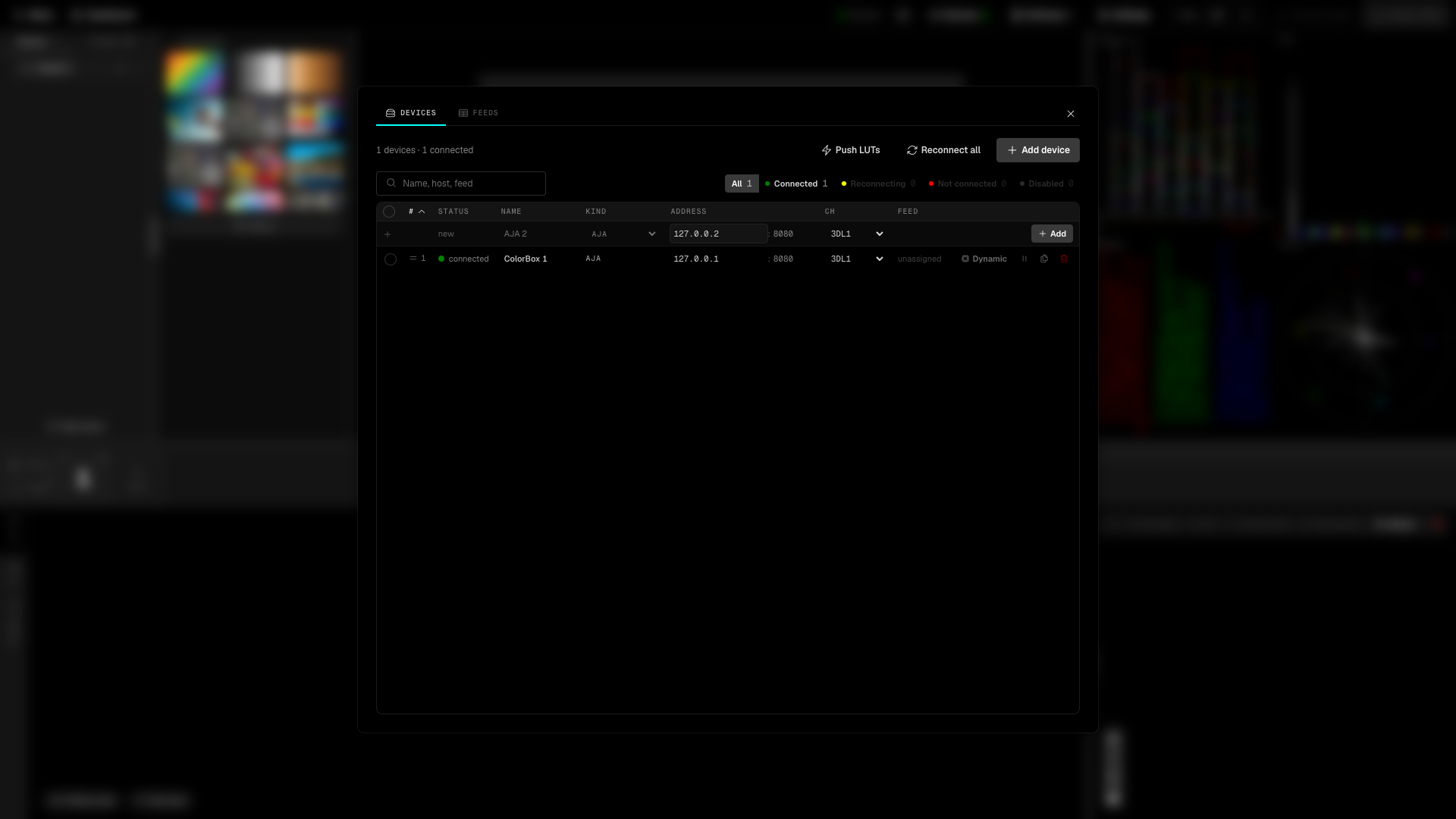
The new device appears as a row with a status dot. A green dot and the word connected mean that LiveLab reaches the box. The header shows "N devices · M connected". Use the filters All, Connected, Reconnecting, Not connected and Disabled, or the search box, to find a device.
For the VP4 itself, see the VP4 manual.
2. Add a feed and link it
-
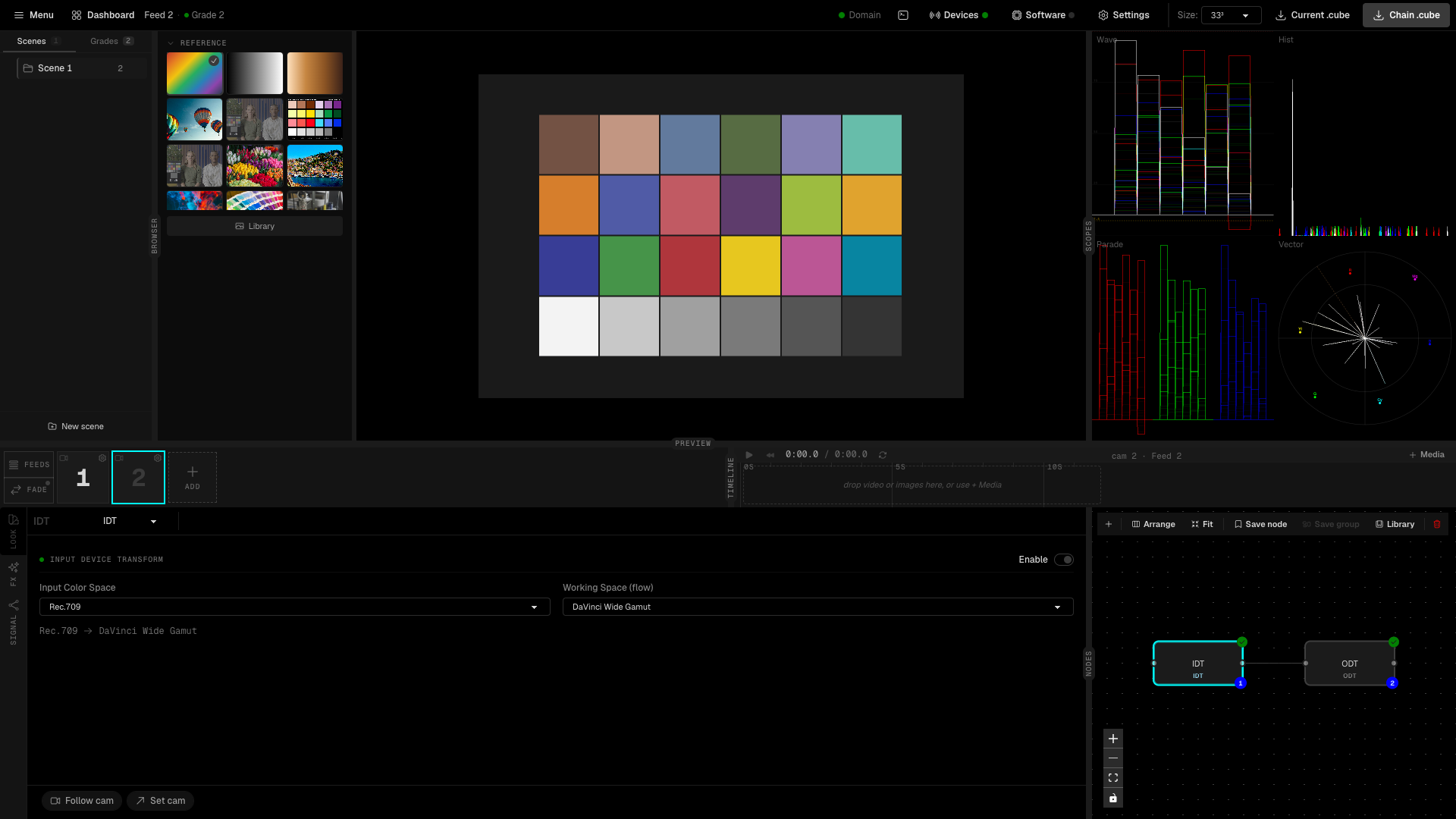
Click ADD in the FEEDS strip. A numbered tile appears, and LiveLab creates a grade for it.
-
Click the gear on the tile. The Feed 1 - Settings window opens.
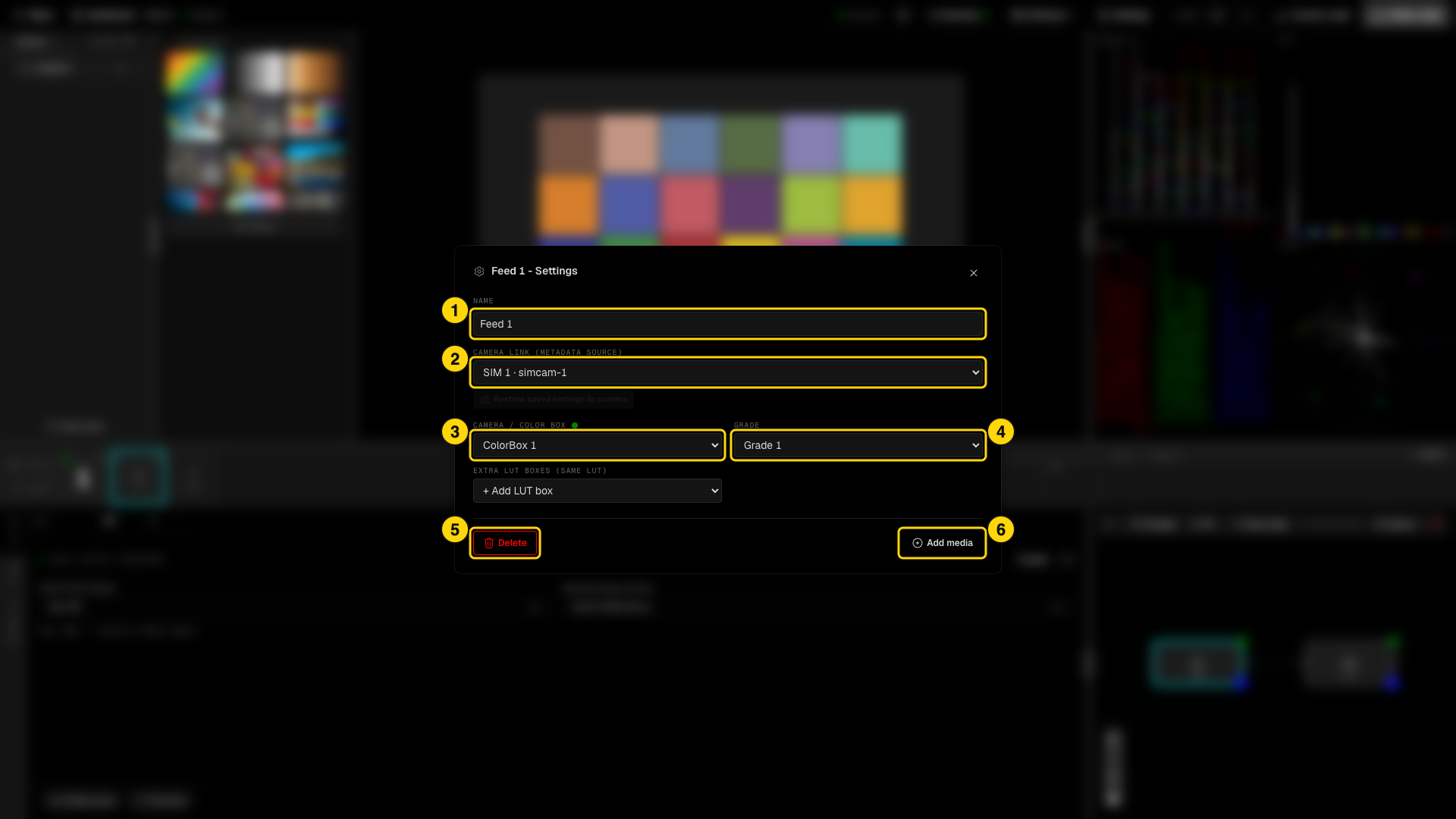
- NAME - the name of the feed.
- CAMERA LINK (METADATA SOURCE) - the Dashboard camera of this feed. The link gives the primaries node its RCP control (see step 3).
- CAMERA / COLOR BOX - the LUT device that receives the LUT.
- GRADE - the grade this feed uses.
- Delete - removes the feed.
- Add media - adds a video or image clip to the feed.
EXTRA LUT BOXES (SAME LUT) sends the same LUT to more boxes. The FEEDS tab of the Devices modal shows the same assignments as a table. The FEEDS button opens a list where you can add, select and delete feeds.
Click a tile to select the feed. Its grade loads in the LOOK panel and in the preview.
3. Build a look
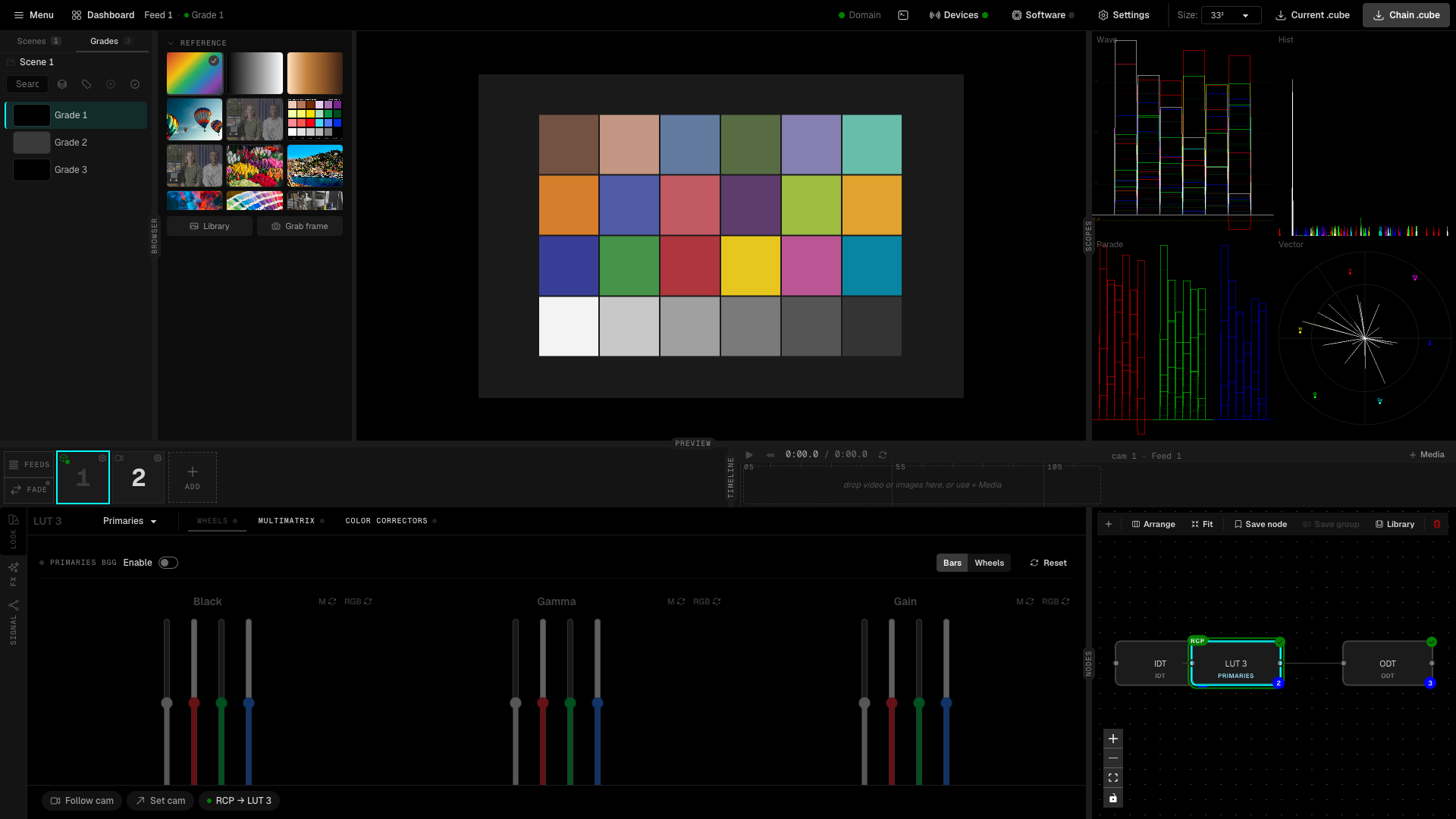
A grade is a chain of nodes. The signal enters through the IDT, passes through the nodes you add, and leaves through the ODT. Each node has one job, and the LOOK panel shows the controls of the selected node.
-
Open the Grades tab in the BROWSER and select a grade.
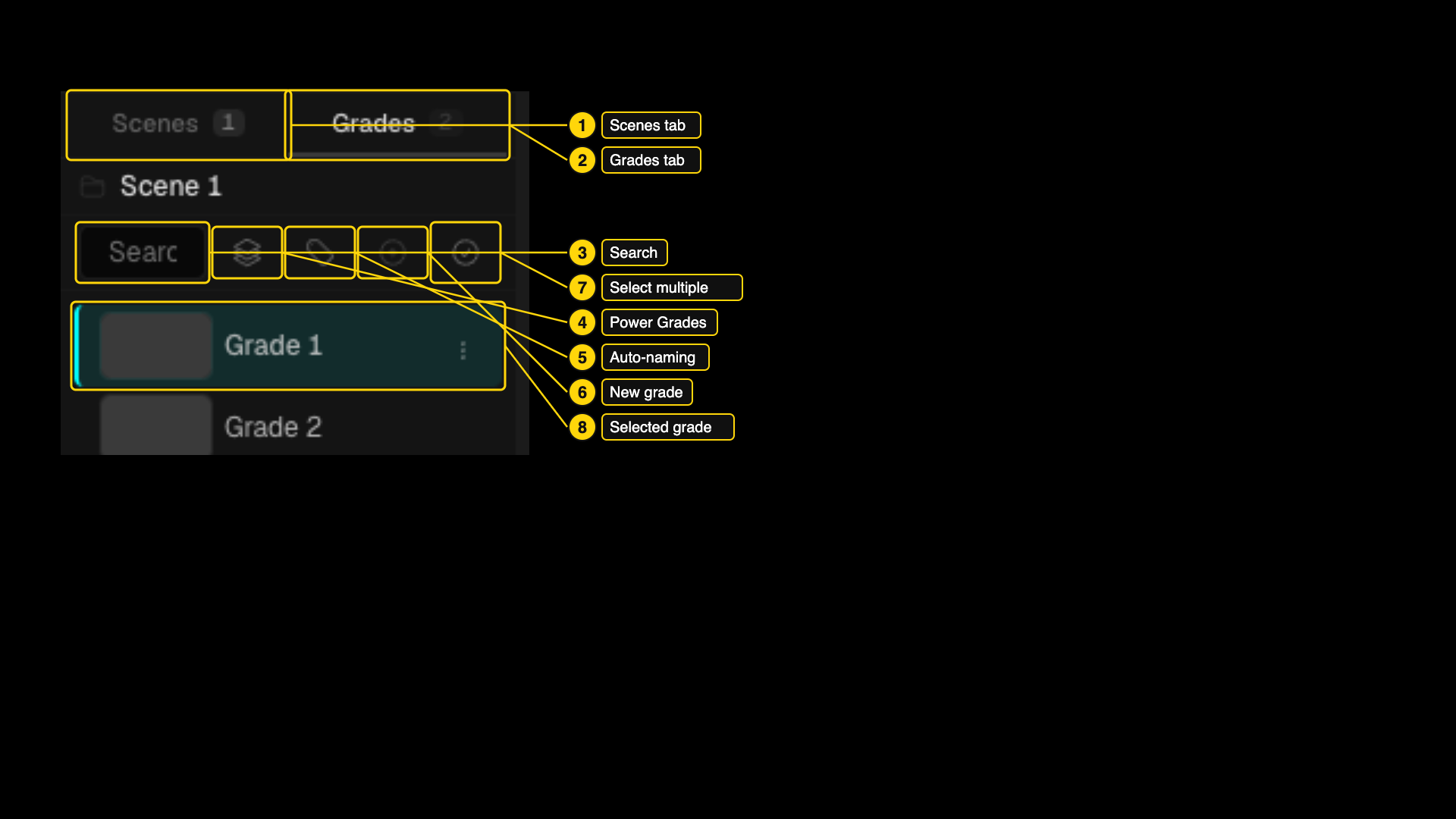
- Scenes tab.
- Grades tab - lists the grades of the current scene.
- Search box.
- Power Grades (see step 6).
- Auto-naming (see step 6).
- New grade.
- Select multiple.
- The selected grade.
-
In the NODES graph, click the IDT node. Its controls open in the LOOK panel. A new grade is an IDT followed by an ODT.
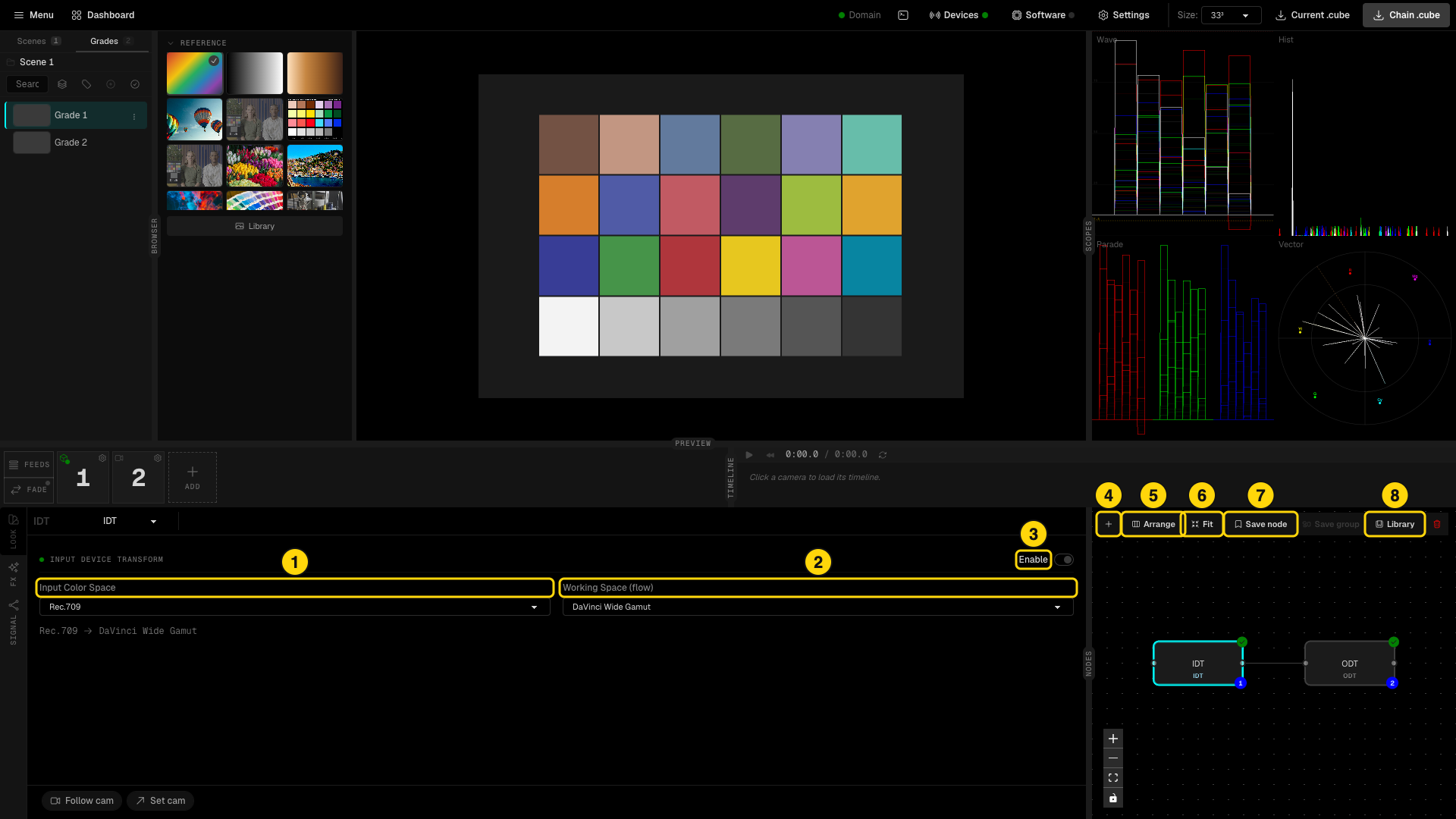
- Input Color Space - the color space of your camera, for example a camera log curve, Rec.709 or HLG.
- Working Space (flow) - the space in which the flow runs, for example DaVinci Wide Gamut or ACEScct.
- Enable - turns the node on or off.
- + - adds a node after the selected one (Alt+S). The default type is Primaries.
- Arrange - tidies the graph.
- Fit - fits the graph in view.
- Save node - stores the selected node in the Library.
- Library - opens the saved nodes. Save group stores several nodes.
Add nodes and set their type
- Select the node after which the new node must go.
- Click + (Alt+S). The new node appears in the graph and is selected.
- Open the node type list at the top left of the LOOK panel and pick a type: IDT, Primaries, Grading, DCTL, 3D LUT, LUT Gallery, Receiver or ODT.
- Repeat for every node you need. Click Arrange and Fit to tidy the graph.
The chain below is a typical live setup: camera log in, RCP paint controls, a creative grade, a DCTL, a LUT received from DaVinci Resolve, and the display transform out.
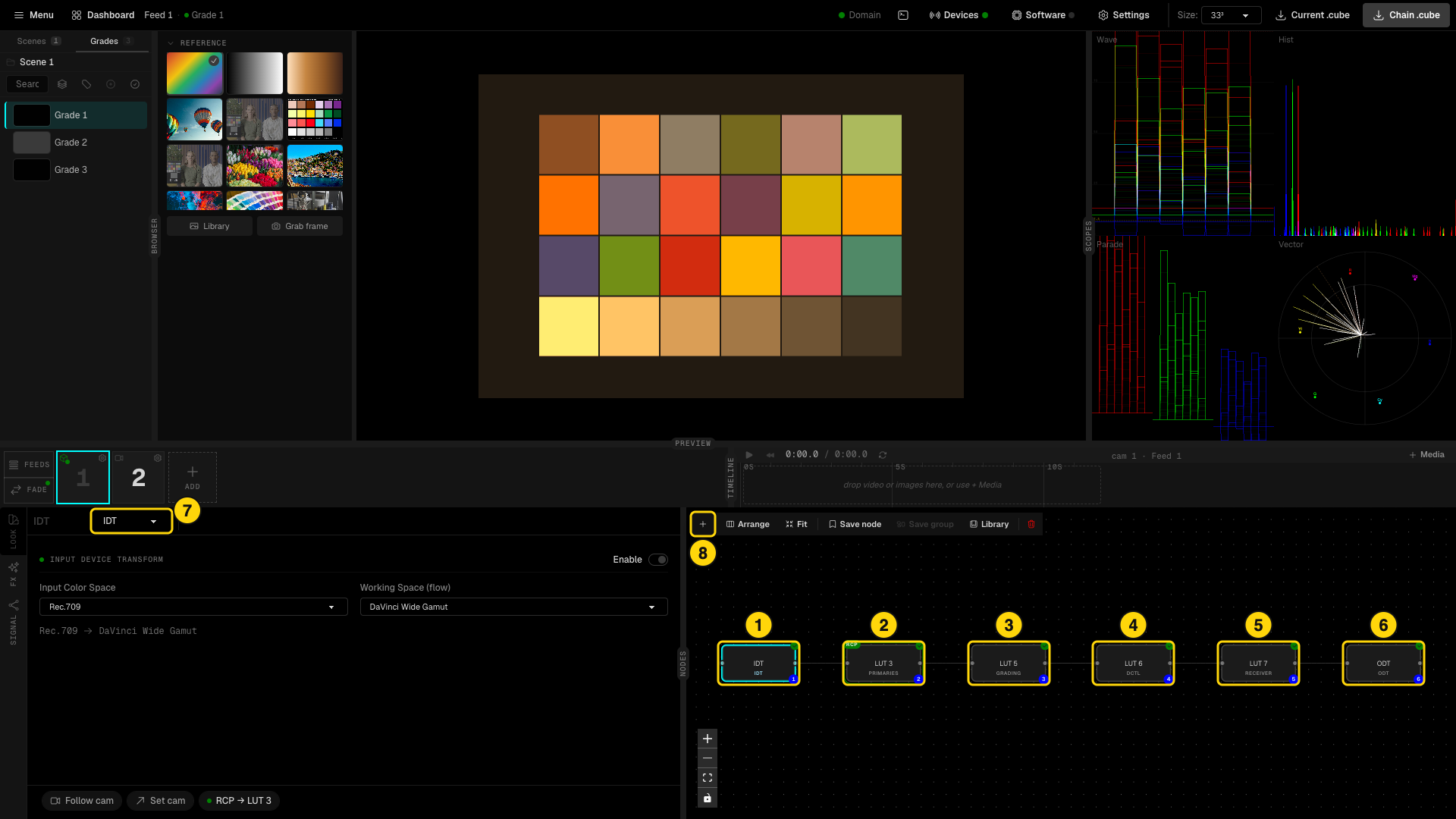
- IDT - input transform.
- Primaries - black, gamma and gain. The RCP badge shows that the linked camera's RCP paint controls drive this node live.
- Grading - creative grade with wheels, matrix, correctors and curves.
- DCTL - a DCTL file from your own tools.
- Receiver - a LUT received live from external software, for example DaVinci Resolve.
- ODT - output transform.
- Node type list of the selected node.
- + - adds a node after the selected one.
Drag the divider between the LOOK panel and the graph to give the graph more room. Click a node in the graph to edit it. Select a node and press Backspace to delete it; Cmd+Z brings it back.
Primaries
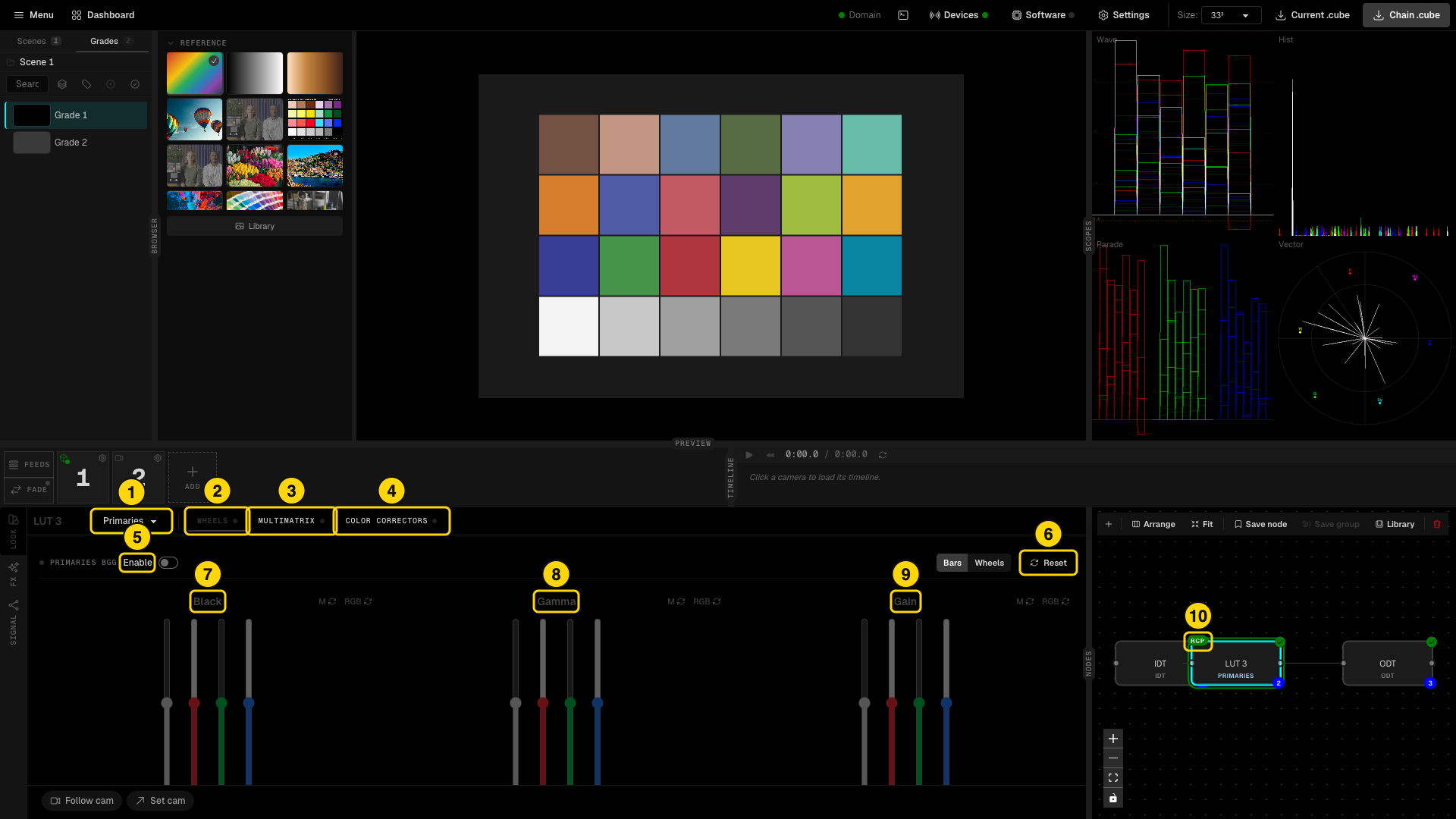
- Node type list.
- WHEELS tab.
- MULTIMATRIX tab.
- COLOR CORRECTORS tab.
- Enable toggle.
- Reset.
- Black - master and RGB.
- Gamma - master and RGB.
- Gain - master and RGB.
- RCP badge - shows when the feed has a linked camera. The black, gamma and gain paint controls of the RCP then drive this node live.
Below the three groups you find Saturation, Hue, Contrast and Pivot, Shadows and Highlights tools, and White Balance. Bars and Wheels switch the view of the controls.
Grading
The Grading node is the creative node. It has four tabs.
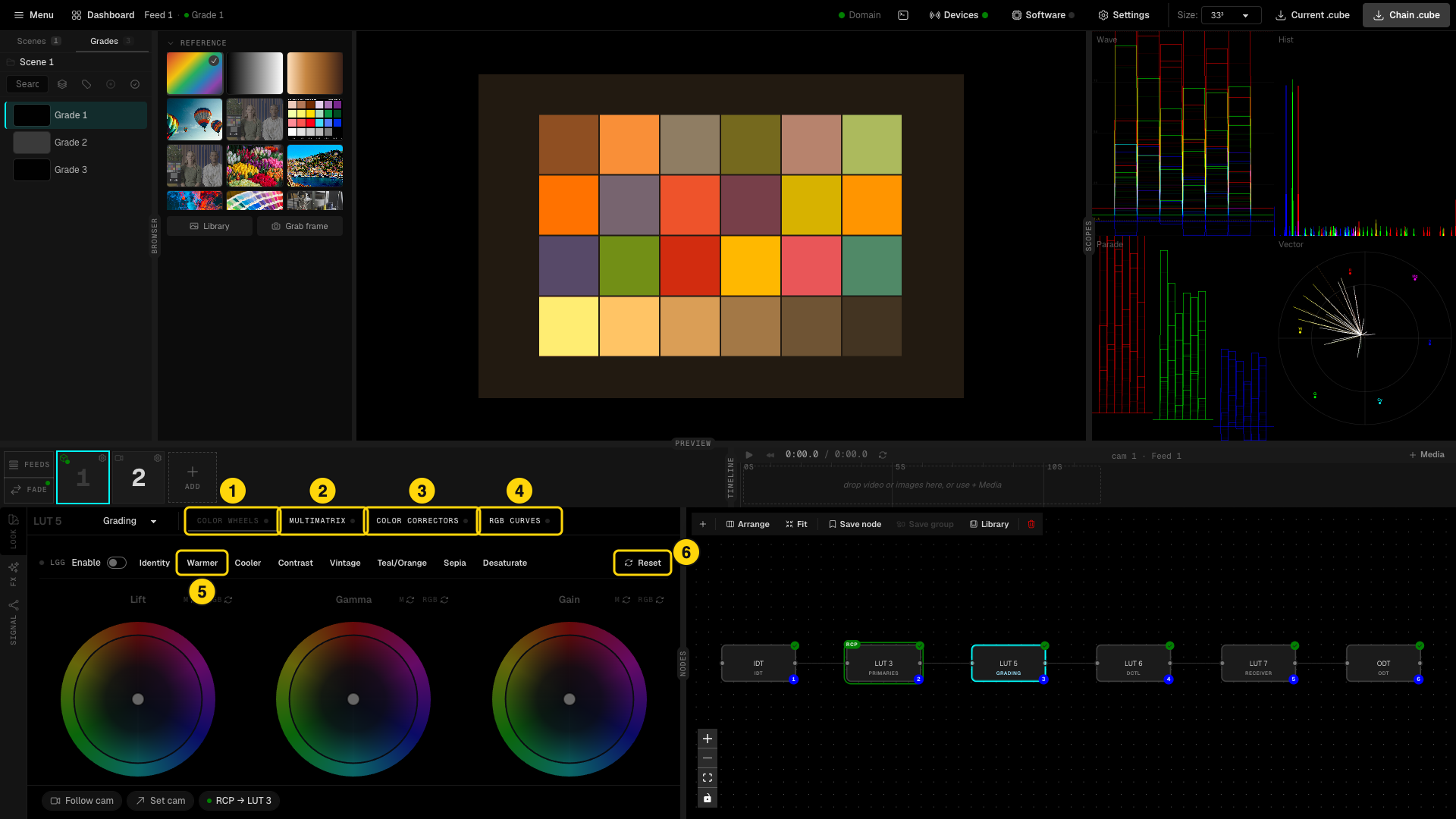
- COLOR WHEELS - Lift, Gamma and Gain wheels with master and RGB reset, plus Saturation, Contrast and Pivot and a White Balance block.
- MULTIMATRIX - hue by hue adjustments.
- COLOR CORRECTORS - secondary corrections.
- RGB CURVES - curves per channel.
- Presets - Identity, Warmer, Cooler, Contrast, Vintage, Teal/Orange, Sepia and Desaturate give you a starting point.
- Reset - returns the node to identity.
DCTL
The DCTL node runs a DaVinci Color Transform Language file inside the chain, so a transform you already use in Resolve can live in the LUT box.
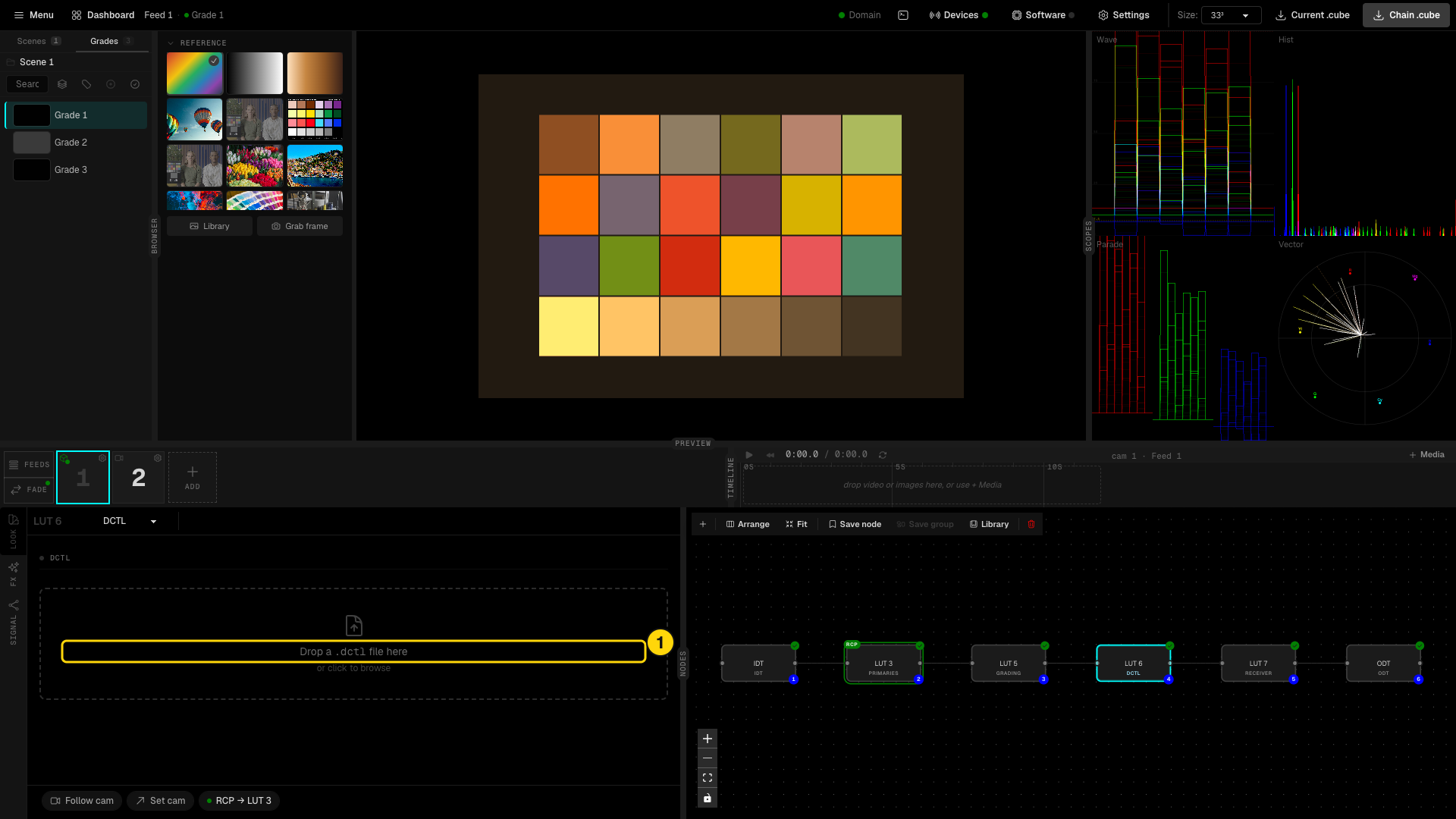
- Drop a
.dctlfile here, or click to browse. The node compiles it and shows its parameters.
3D LUT and LUT Gallery
A 3D LUT node loads one .cube file into the chain. A LUT Gallery node holds a list of LUTs (received or imported) and lets you switch between them, also from OSC. Both are one click away in the node type list.
Receiver: a LUT from DaVinci Resolve
The Receiver node takes a LUT that another program sends to Studio over WebSocket and puts it into the chain. This is how a colorist in DaVinci Resolve can drive a live LUT box: Resolve sends its grade as a LUT, the Receiver node picks it up, and Studio pushes the chain to the box.
First start the server in Studio:
- Click Software in the header and open the LUT Receiver tab.
- Keep the port (4568) or set your own, then click Start. The status turns to Listening.
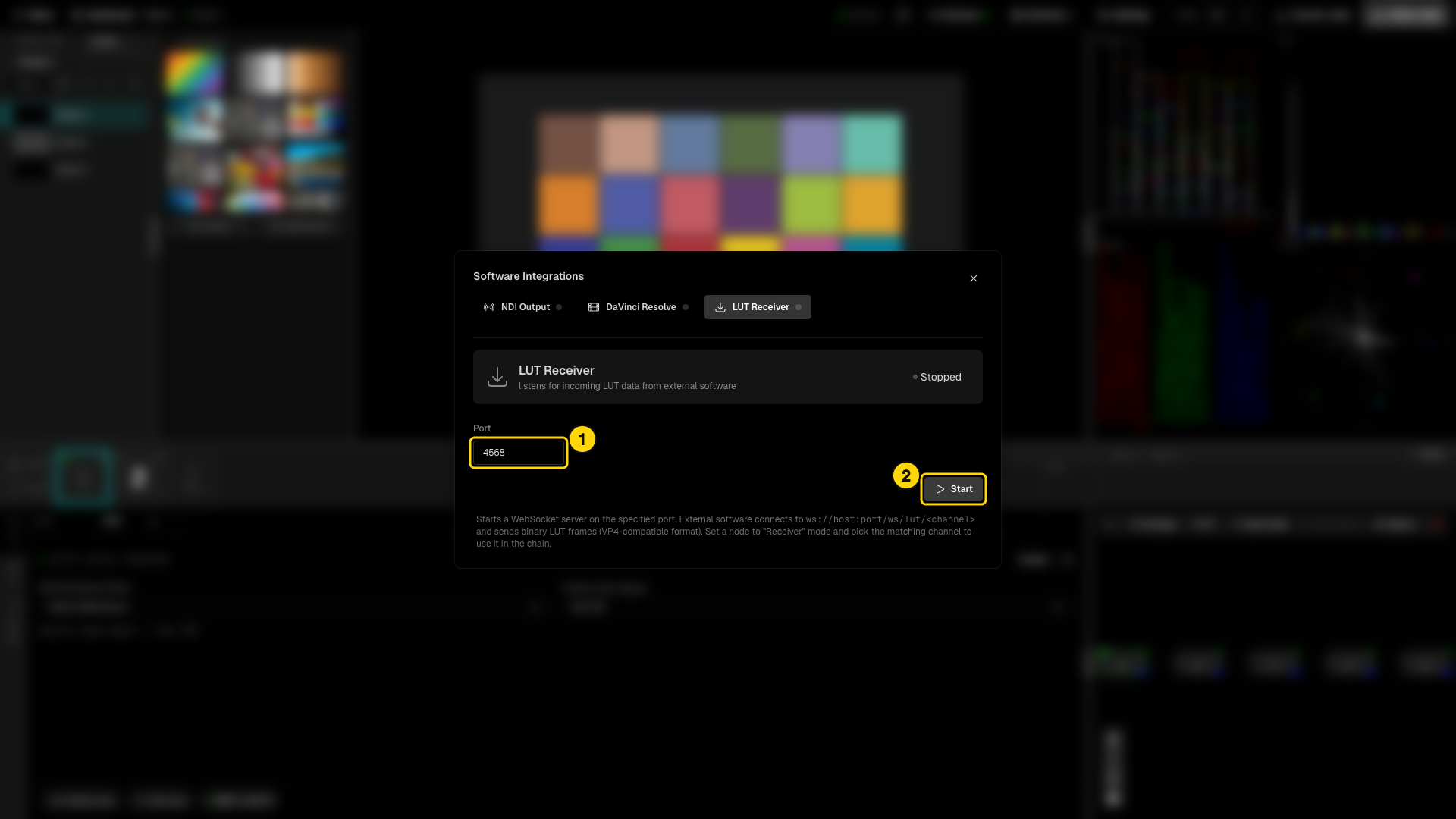
- Port of the WebSocket server.
- Start - starts the server. The button becomes Stop while it runs.
Then add the node:
- Add a node and set its type to Receiver.
- Pick a Channel (1 to 8). The panel shows the address the sender must use:
ws://<studio ip>:4568/ws/lut/<channel>. - Point the sender at that address. The sender connects and pushes a binary LUT frame in the VP4 format each time the grade changes. For DaVinci Resolve this is the CyanView WsLut plugin on the node you want to export; use the same channel on both sides.
- The panel shows Receiving LUT data on channel N and the preview, the scopes and the LUT box follow the incoming LUT.
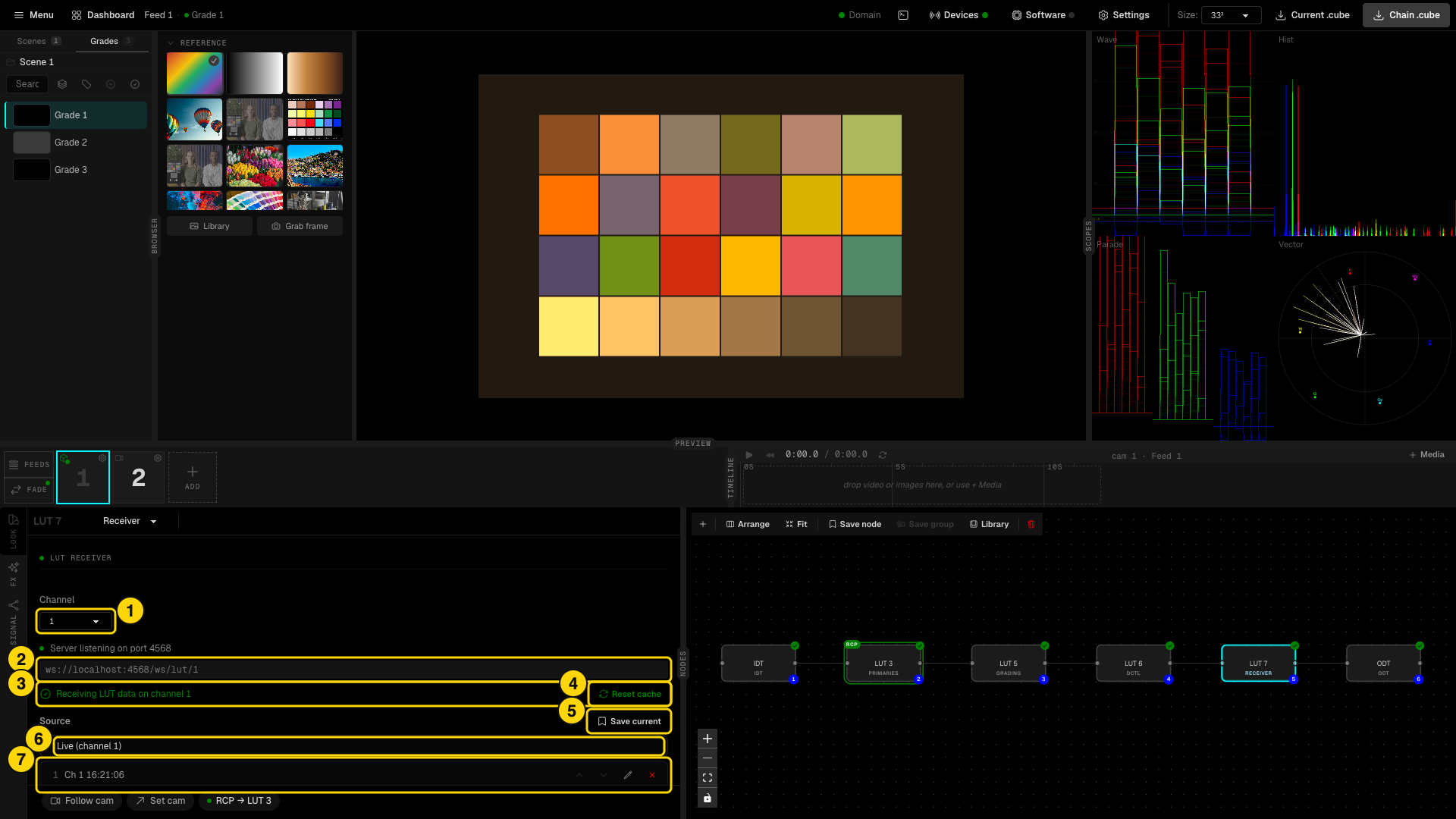
- Channel - one Receiver node per channel, so several senders can feed different feeds.
- The WebSocket address for the sender.
- Status - Receiving LUT data on channel N, or Waiting for data until the first frame arrives.
- Reset cache - forgets the cached LUT for this channel.
- Save current - keeps a copy of the last LUT received as a snapshot.
- Live (channel N) - the node follows the incoming LUT.
- Saved snapshots - click one to use it instead of the live LUT. Each row has move up, move down, rename and delete.
When the server is off or the sender disconnects, the node keeps the last LUT it received, so the look on air does not change. Snapshots let you lock a delivered look and keep it after the colorist leaves.
The other direction also exists: the DaVinci Resolve tab of Software pushes the Studio chain LUT into Resolve.
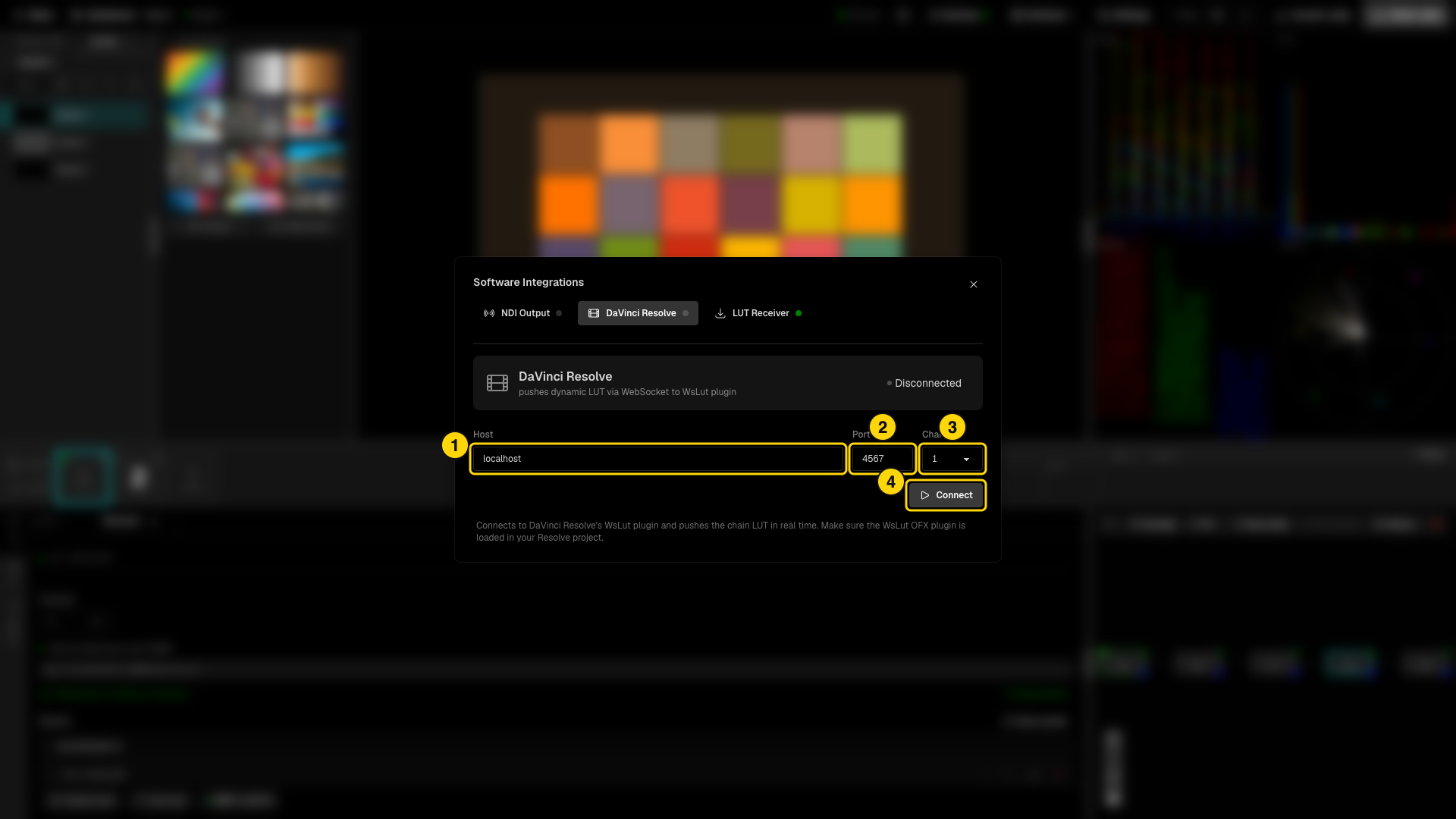
- Host - the computer running Resolve.
- Port of the WsLut plugin (4567).
- Channel.
- Connect - Studio connects to the WsLut OFX plugin in Resolve and pushes the chain LUT in real time.
ODT
The ODT closes the chain. It converts the working space back to the output space of the LUT box, normally Rec.709.
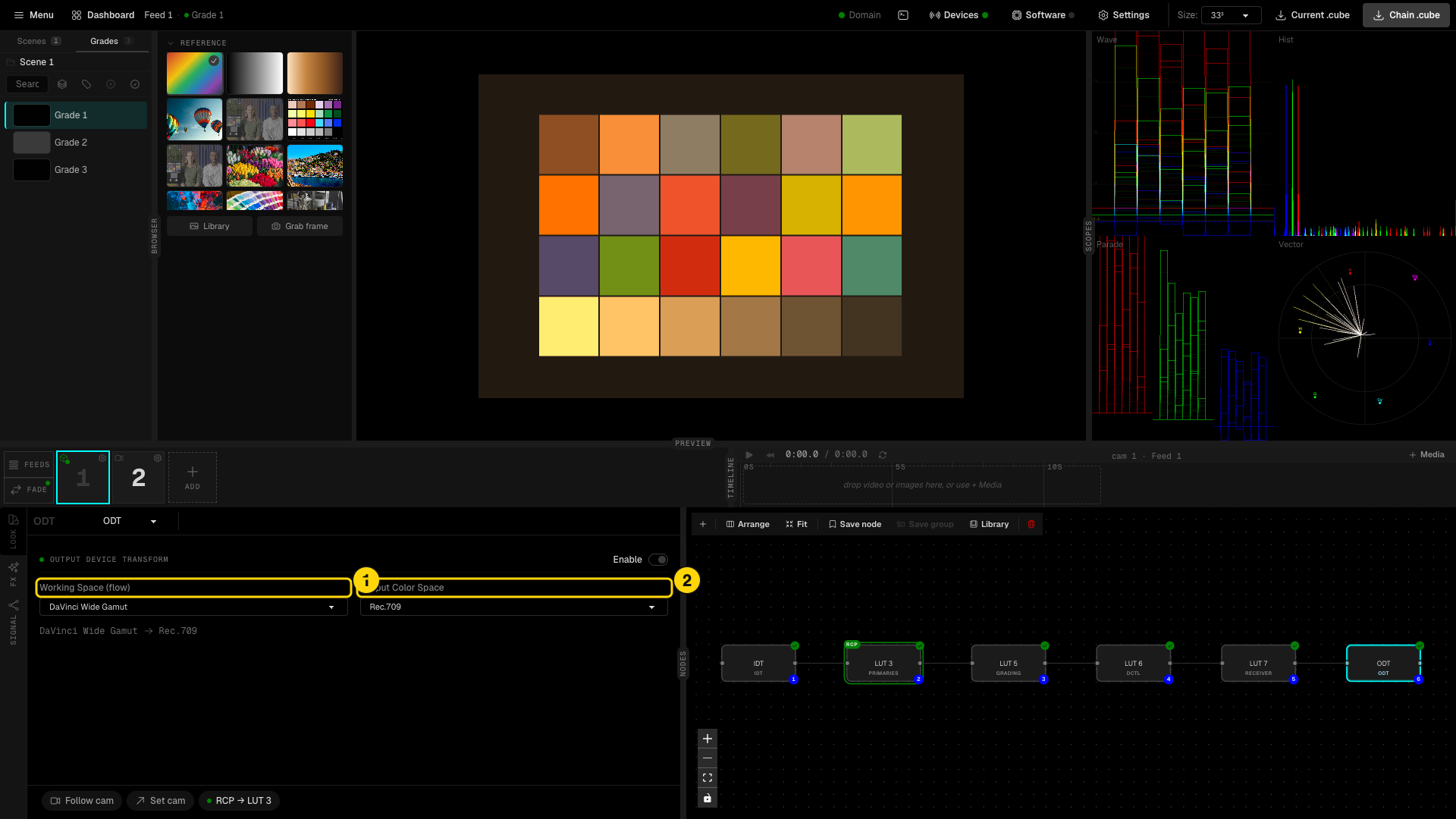
- Working Space (flow) - the same working space as the IDT.
- Output Color Space - what the LUT box must deliver, for example Rec.709, HLG or PQ.
A node saved to the Library can be used in other grades. A global node stays in sync in all grades that use it.
4. Preview and scopes
The preview shows your grade on a reference still. Click a thumbnail in REFERENCE to choose it: Color Checker, Grayscale, Skin Tone or an image from the Library.
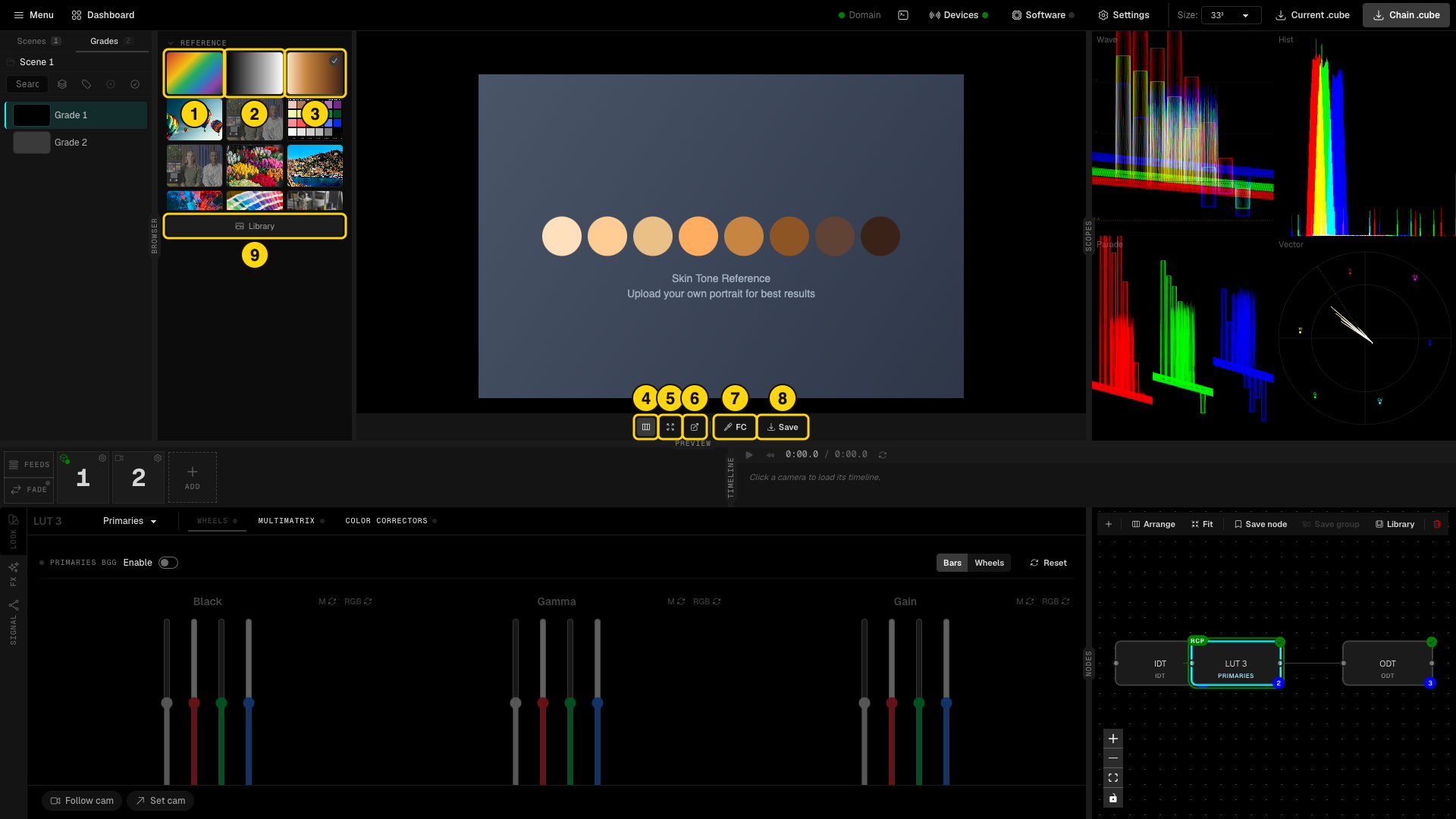
- Color Checker.
- Grayscale.
- Skin Tone.
- Inspector - shows or hides the inspector.
- Fill - fills the preview area.
- Pop-out - opens the preview in a new window.
- FC - turns the false color exposure check on or off.
- Save - saves the current preview as an image.
- Library - opens your image library.
In the Library you drop images or browse for them. LiveLab accepts JPG, PNG, WebP and TIFF files up to 100 MB.
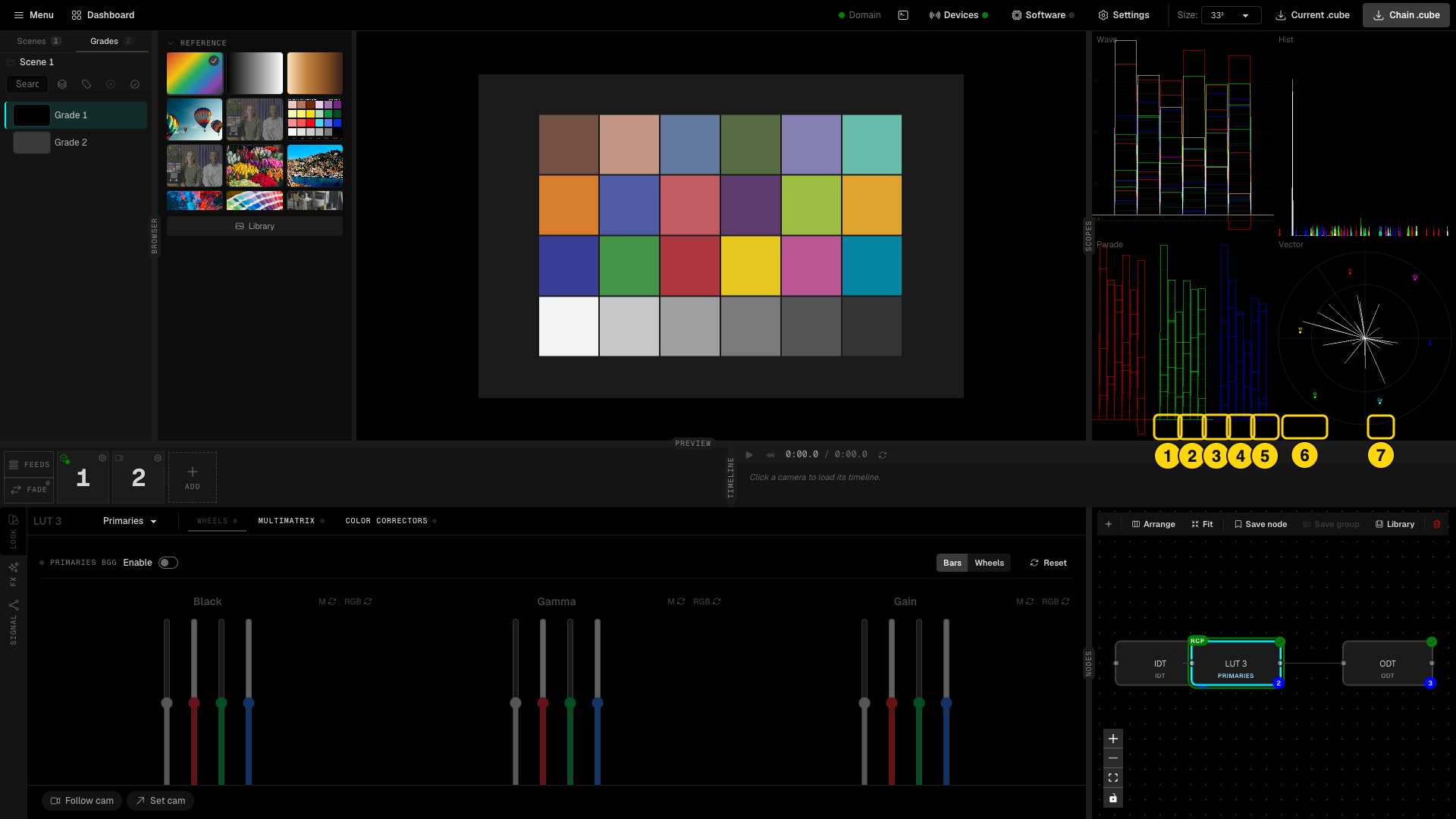
- All four scopes together.
- Wave - waveform.
- Hist - histogram.
- Parade.
- Vector - vectorscope.
- Intensity of the traces.
- Pop-out - opens the scopes in a new window.
The scopes read the graded preview.
5. Output
LiveLab bakes the grade of the selected feed into a 3D LUT. It pushes the LUT to the device of that feed on every change. You do not need a save or send button.
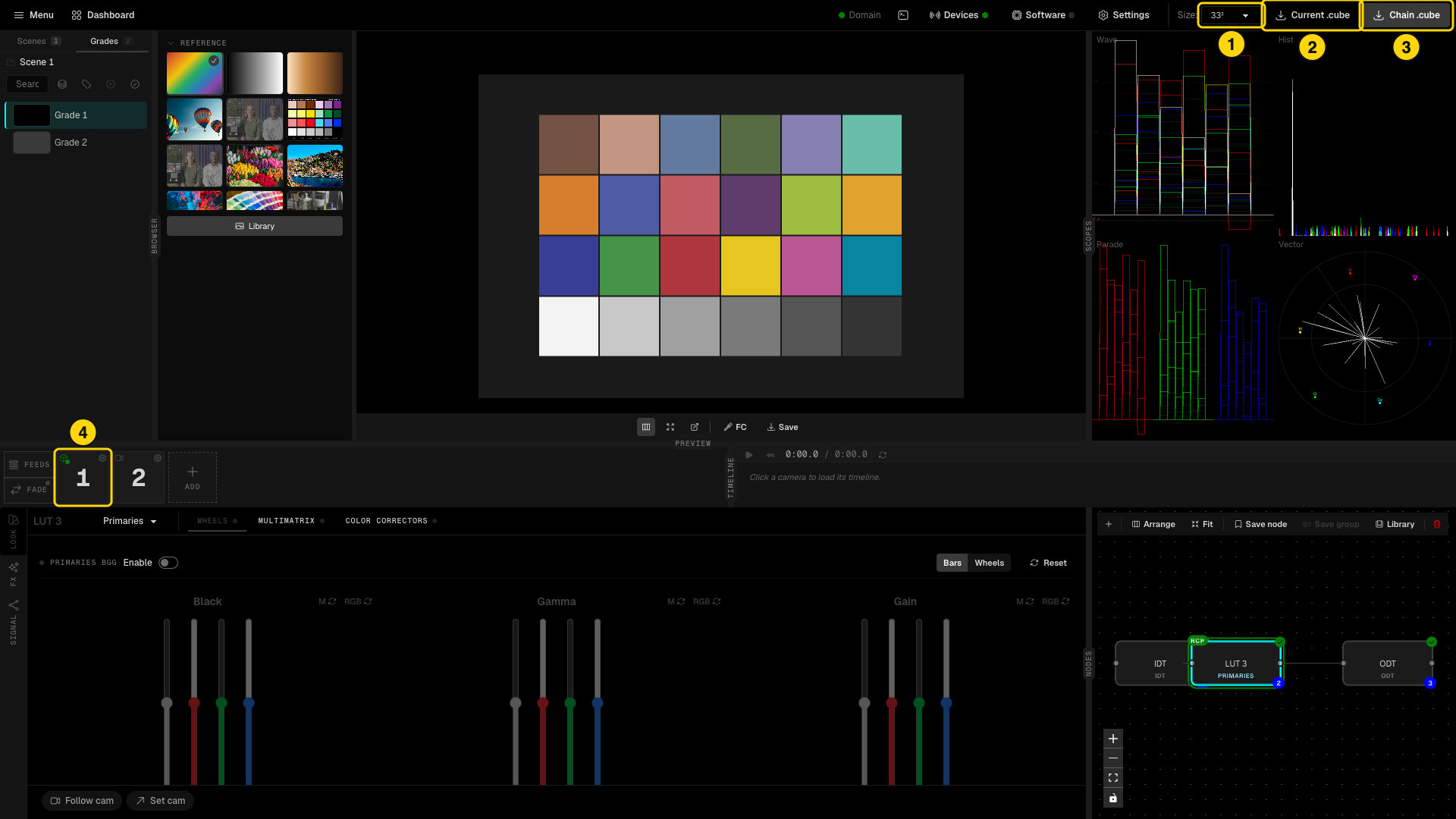
- Size - the LUT size: 17, 33 or 65.
- Current .cube - exports the LUT of the selected node.
- Chain .cube - exports the LUT of the full chain.
- The feed tile whose grade is exported.
To set where exports go, open Settings and the EXPORT tab. Click Set destination to pick the folder, or switch on Ask destination each time. The File name pattern accepts {grade}, {node}, {feed}, {size}, {date} and {time}.
Fade
Every change you make goes to the LUT box at once. On air, a big change in one step is visible as a jump. The FADE button opens the LUT fade window, where you make the box crossfade from the old LUT to the new one instead. A dot on the FADE button shows that fade is on.
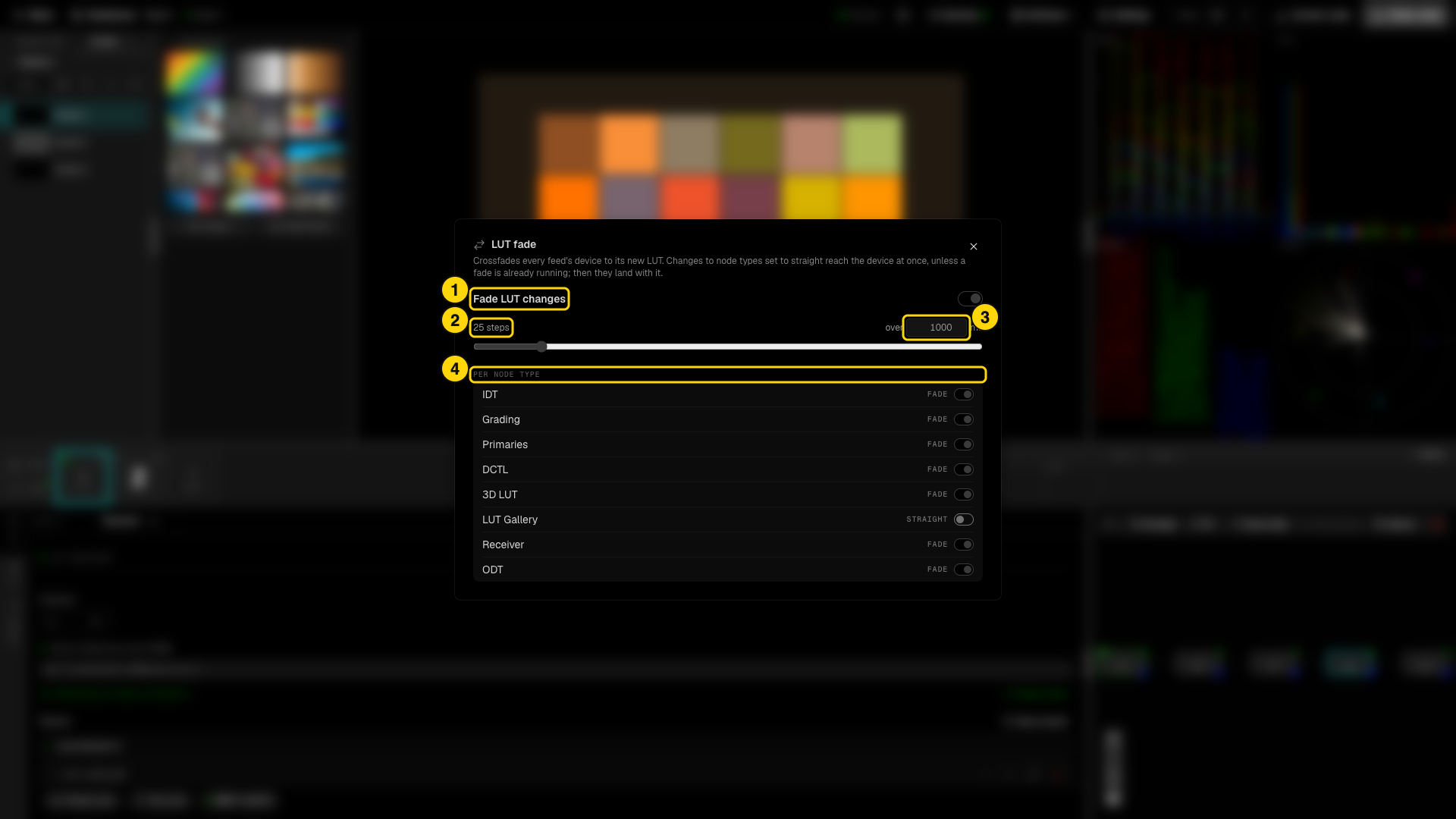
- Fade LUT changes - turns the crossfade on or off for every feed and every device.
- Steps - how many intermediate LUTs the box receives. Drag the slider.
- Duration in milliseconds - the time the crossfade takes. 25 steps over 1000 ms is a good start.
- PER NODE TYPE - each node type is set to FADE or STRAIGHT. A straight node type reaches the device at once, for example a LUT Gallery switch that must be instant. If a fade is already running, straight changes land together with it.
Fade works on every device kind. A slow box takes longer to apply each step, so use fewer steps with slow hardware. Push LUTs in the Devices modal re-sends the final LUT without a fade.
To check the whole path of a feed, open the SIGNAL panel. It draws the signal path and shows which stages are live, idle or outside the app.
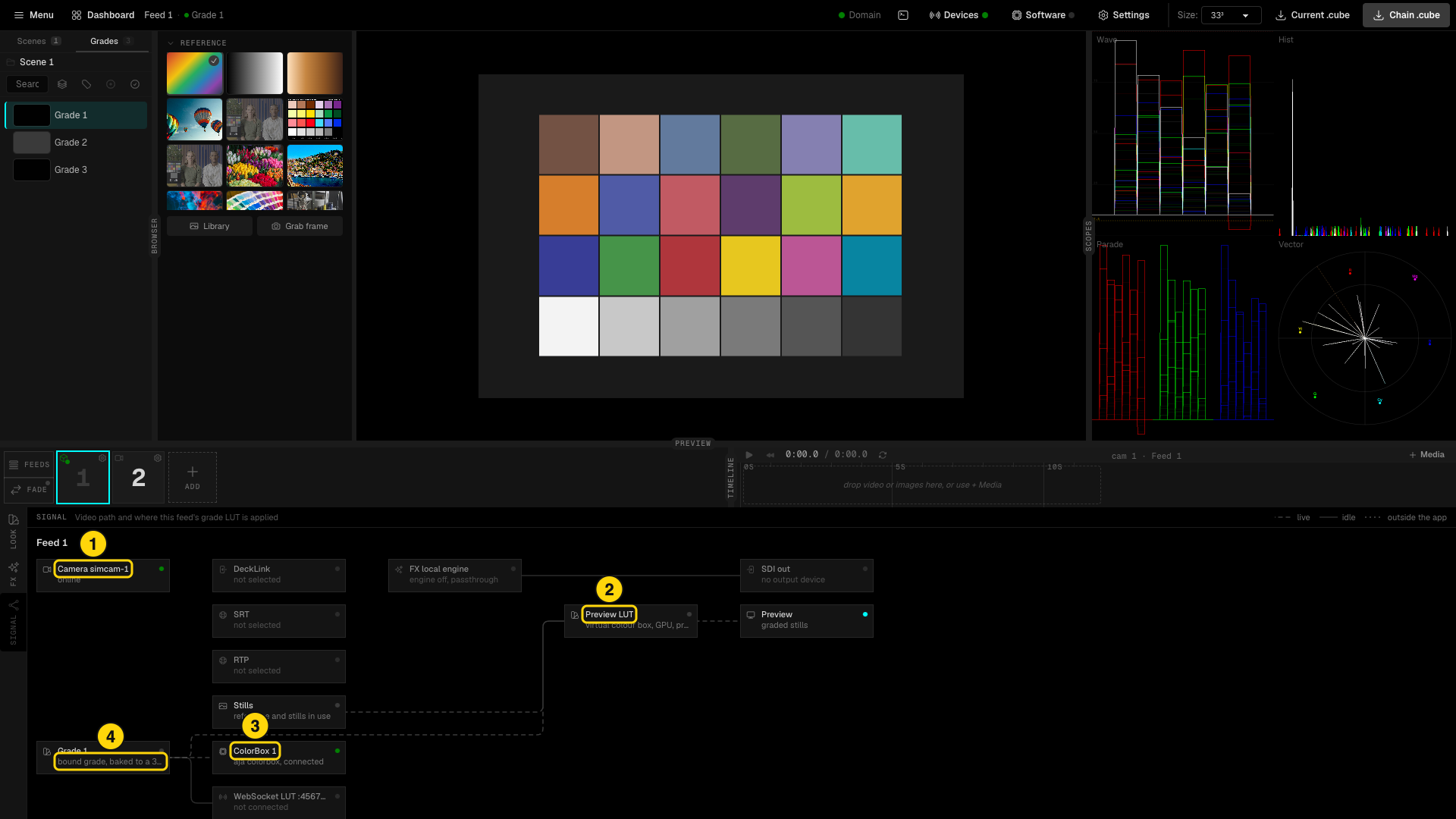
- The camera of the feed and its state.
- Preview LUT - the LUT used for the preview.
- The LUT device and its state.
- The bound grade, baked to a LUT.
The FX panel holds an OpenFX effects chain. It needs a processing engine, and it is available in the desktop build. Live inputs (DeckLink, SRT and RTP) are also available in the desktop build only.
6. Scenes and grades
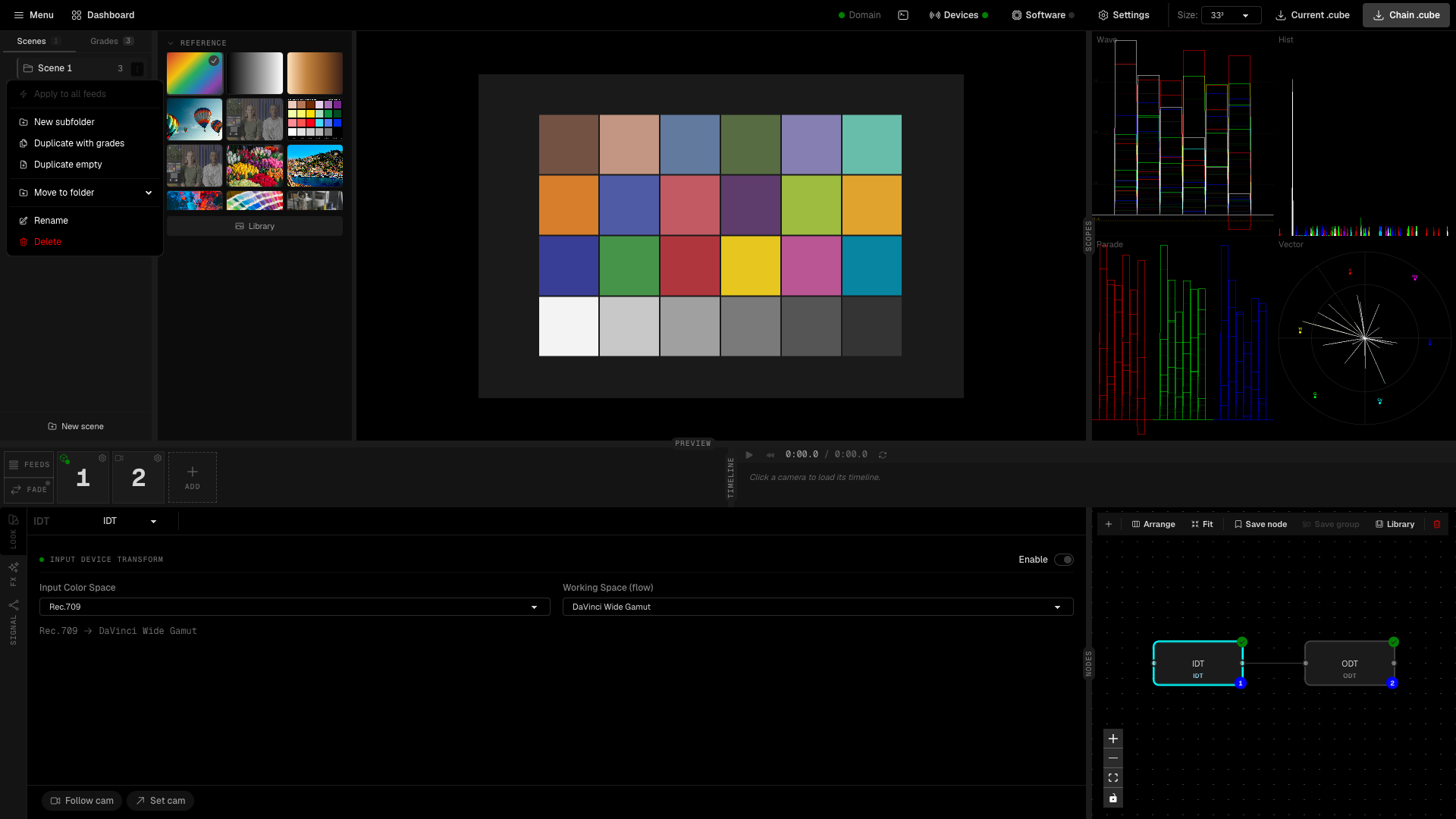
The Scenes tab lists your scenes. Click New scene to add one. The kebab menu of a scene gives Apply to all feeds, New subfolder, Duplicate with grades, Duplicate empty, Move to folder, Rename and Delete.
The Grades tab shows the grades of the current scene with thumbnails. The + button adds a new grade. The kebab menu of a grade gives Compare, Duplicate, Save as Power Grade, Save as Node Template, Camera settings, Rename, Move to scene and Delete.
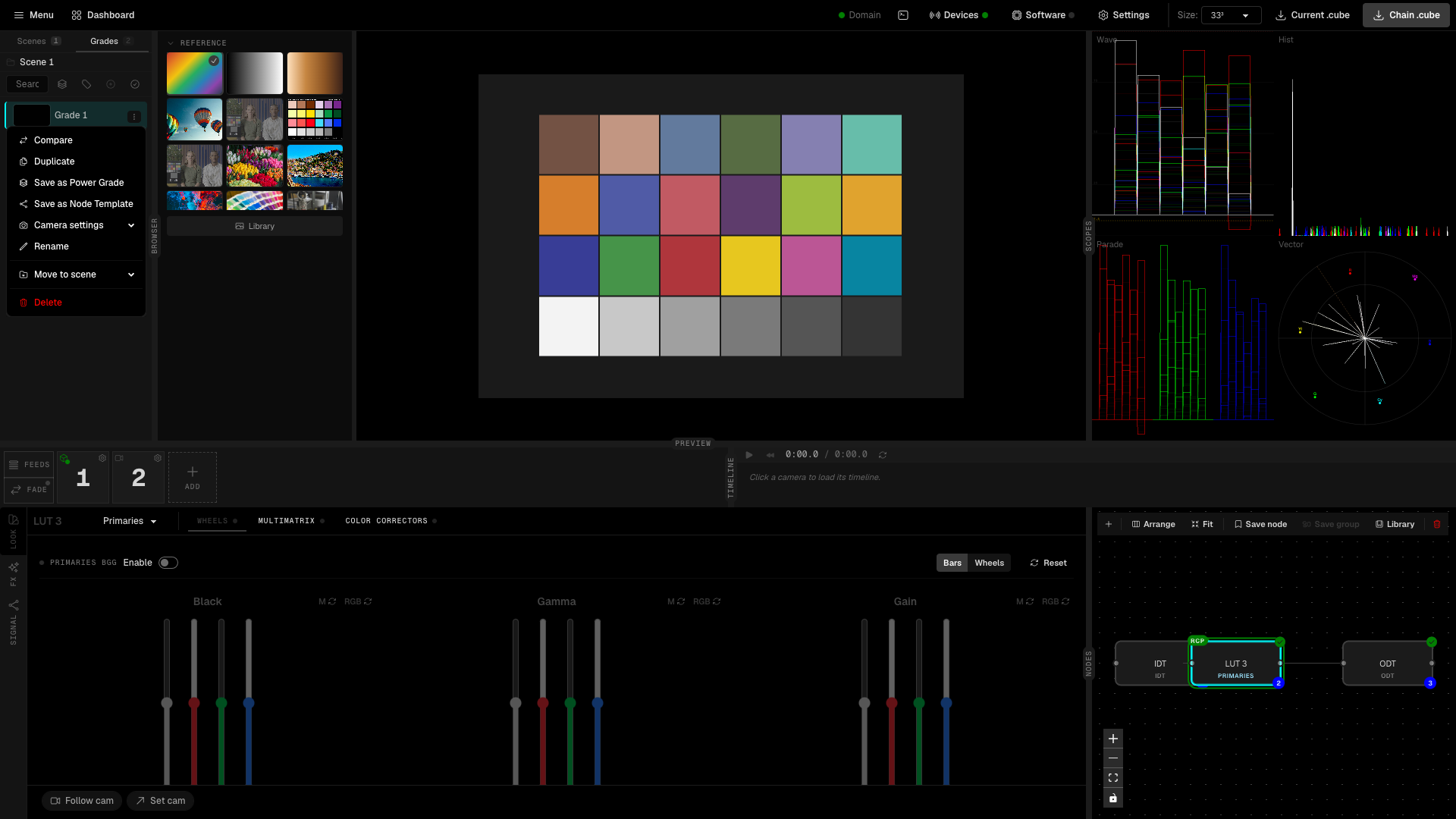
Power Grades are reusable presets. A Power Grade keeps every value. A Node Template keeps only the node chain. You can apply one to the open grade, or set one as the default for new grades. Auto-naming sets the naming scheme of new grades.
7. Follow cam and Set cam
Two buttons sit at the bottom left of the LOOK panel.
- Follow cam - LiveLab follows the active camera of the RCP between feeds.
- Set cam - when you open a feed, its camera becomes the active camera of the RCP.
Use the Dashboard link in the header to go back to camera control.
8. Settings and software
Settings has three tabs: GENERAL (preview and scopes resolution, slider sensitivity, behavior on feed switch, incoming throttle, Startup workspace reset), EXPORT and STORAGE (where project files live, applied at next launch).
Software has three integrations:
- NDI Output - sends the preview after the LUT as an NDI source. It needs the NDI runtime.
- DaVinci Resolve - sends the chain LUT over WebSocket to the WsLut OpenFX plugin. Enter Host, Port and Channel, then click Connect.
- LUT Receiver - a WebSocket server. External software sends LUT frames to
ws://host:port/ws/lut/<channel>. Use a Receiver node with the same channel to bring them into a grade.
9. Command palette
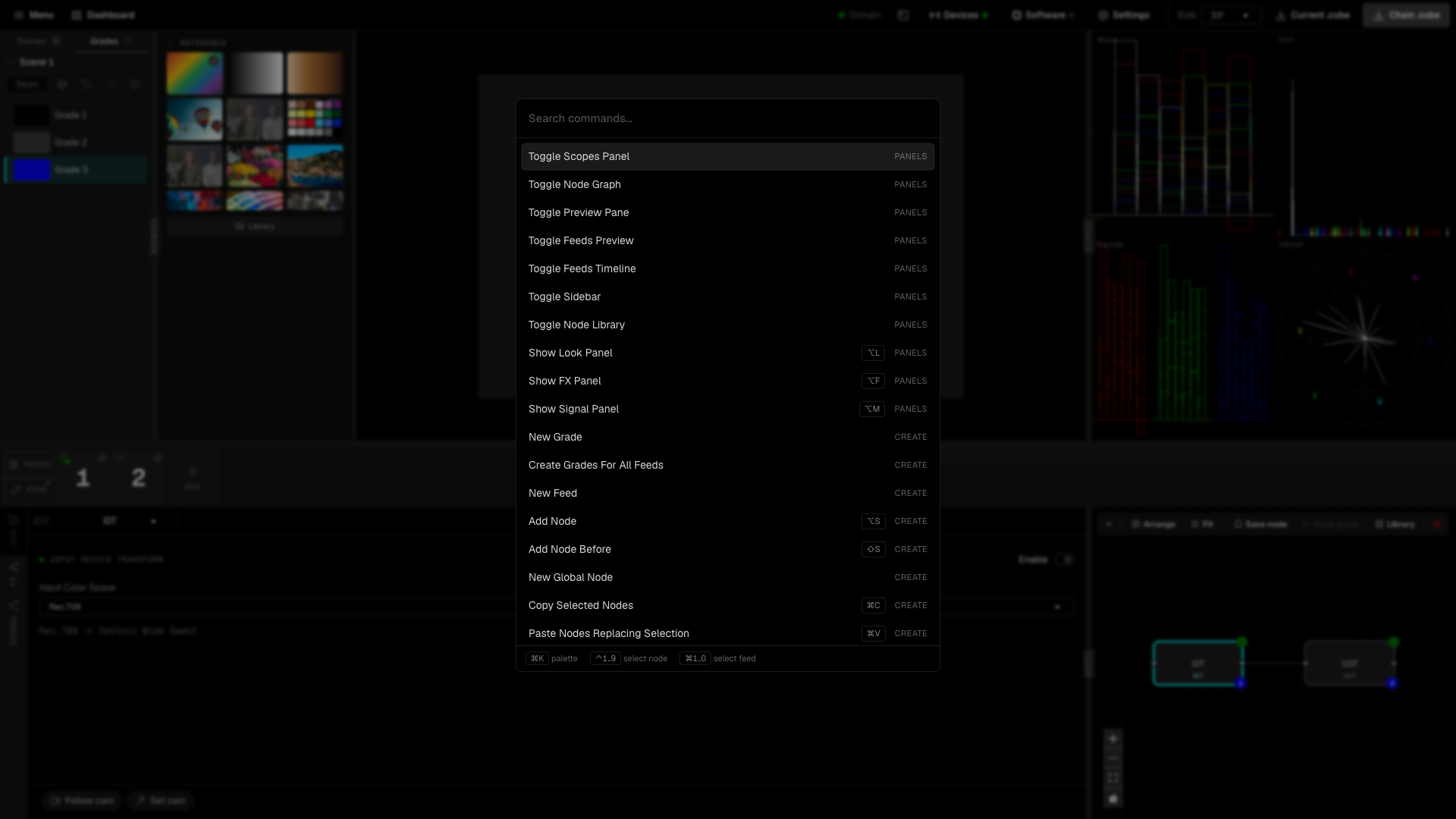
Press Cmd+K (Ctrl+K on Windows) to open the command palette. It searches all commands, so you can jump to a page or action without the mouse.